Session Timeout and Signing Out
eConnect signs you out on its own if you stop using it, so an unattended workstation does not leave your account open on the floor. This page covers the warning you get before that happens, how to stay signed in, and how leaving is recorded.
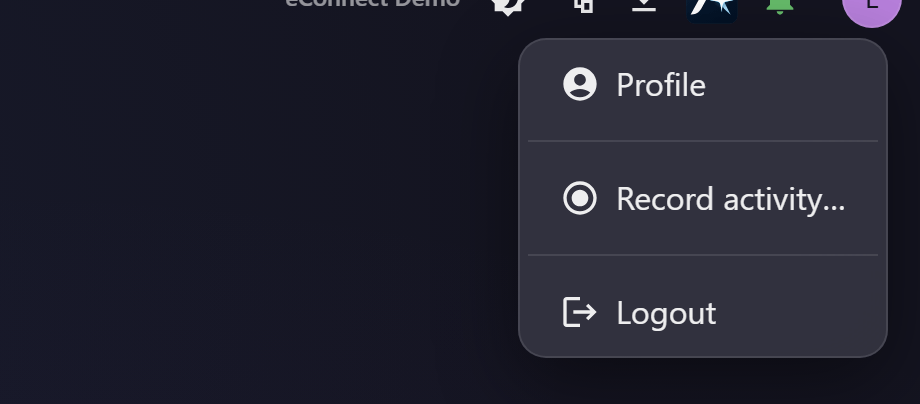
Signing out deliberately
Open the user menu from the top-right of the title bar and choose Sign Out. Your session ends immediately, every pop-out window you had open closes with it, and any unsaved work in a form is discarded rather than held. If you only want to step away briefly, locking your workstation is usually the better move — it leaves your queries, dashboards and open investigation exactly as you left them.
The idle warning
When your session has been idle for as long as your administrator allows, a Session Timeout Warning appears and counts down for thirty seconds:
You will be signed out in 30 seconds due to inactivity.
The dialog offers Stay Signed In and Sign Out Now. It cannot be dismissed with the Escape key or by clicking behind it, and this is deliberate — a warning you can wave away without reading is no warning at all. It must be answered one way or the other.
Once the countdown has started, only Stay Signed In extends your session. Moving the mouse or typing in the window behind the dialog will not stop it, so do not assume you are safe because you are still working. If the countdown reaches zero you are signed out and will need to sign in again.
When the server ends the session
Idle timeout is not the only way a session ends. An administrator can sign you out, the server can be restarted, or your account can be disabled — and in each case the session is gone whether or not you were busy.
When that happens you are returned to the sign-in screen straight away, rather than left looking at a window whose data has quietly stopped being yours to see. That applies to the desktop client, the browser and the installed web app alike.
Signing in again picks up where you left off, since your favorites and shared work are stored against your account rather than the session.
A reload when the network is down
Reloading while the server cannot be reached does not sign you out. The client keeps the session it had and retries, so a dropped connection, a brief server restart or a flaky link costs you a moment rather than your place.
You are returned to the sign-in screen when the session is genuinely gone — not merely when it could not be checked.
What counts as activity
Before the warning appears, eConnect watches for genuine interaction: mouse and pen presses, key presses, scroll-wheel movement and touch. Watching a long video or reading a dashboard without touching anything does not count as activity, which is worth knowing if you supervise a wall display — a screen left showing live cameras will still time out unless its timeout is set to zero.
Your activity clock is shared across every eConnect tab and pop-out on that computer. Working in one window keeps them all signed in, so you will not be timed out of a dashboard simply because your attention was on an investigation in another window.
How long you get
The timeout is set per user group, not per person, so everyone in the same group shares the
same idle limit. It is expressed in whole minutes, with a minimum of one, and zero means no
timeout at all. A fractional value is rounded down, so a group configured with 10.7 minutes is
signed out after ten.
Administrators set this on the Security page — see Security Policy, which also covers password complexity, lockout and expiry. The value the page displays is the value that is enforced; the two are read through the same rule and cannot disagree.
How leaving is recorded
Both ways of ending a session are audited, and they are recorded as different actions — which is what lets an administrator tell "went home" apart from "walked away" when reviewing history.
This action is recorded in the audit trail.
Sign-ins are recorded too, so a person's full attendance pattern can be reconstructed from their history. See Session History to review this for one user, or Reading the Audit Trail to search across everyone.
Audit record
What eConnect writes to the audit trail for the actions on this page.
USER ELECTED LOGOFF
USER LOGGED OFF DUE TO TIMEOUT