Passkeys
Passkeys are available from eConnect 11.0.10, as part of multi-factor sign-in.
A passkey lets you finish signing in to eConnect in a browser with your fingerprint, your face, a PIN or a security key, instead of typing a six-digit code. It is kept for you by your browser, your computer, a password manager, your phone or a security key, and you unlock it the way that device asks. It proves who you are without ever sending a secret: eConnect keeps only the passkey's public half.
In eConnect a passkey is always an addition to multi-factor sign-in, never a replacement:
- It comes after your password, in place of the code. It never replaces your password.
- You can add one only while the authenticator app or email codes are on, and you keep that method for as long as you have passkeys.
- It works only in the eConnect web application, in a browser, at your server's own address. The desktop client and the older Windows client cannot use a passkey: there you keep signing in with your code, exactly as before.
- It is never used to reset a forgotten password. The reset works exactly as it would without passkeys.
- It never counts as the method your organisation requires. If your user group requires multi-factor sign-in, it is your authenticator app or email codes that satisfy it.
What a passkey needs
A passkey works only where all of these are true. Most are set up by your administrator once, for everybody:
- You are in a browser, not the desktop client.
- Your browser can use passkeys.
- You opened eConnect at your server's own address — the
https://address your administrator gave you, with its name exactly as given. A passkey made there does not work at another name for the same server, at an IP address, or through the Service Bridge. - The connection is secure, over
https, with a certificate your browser trusts. - Your organisation allows passkeys — this matters only if your user group requires multi-factor sign-in.
Passkeys were tested by hand in Microsoft Edge with a simulated authenticator, against a test server
on the same computer; a server at an https address with a host name was checked by automated tests
only. Real devices — Windows Hello, a phone, a USB security key — and other browsers such as Safari and
Firefox follow the same standard but have not been tested with eConnect. If a passkey does not work
for you, your code always does.
Adding a passkey
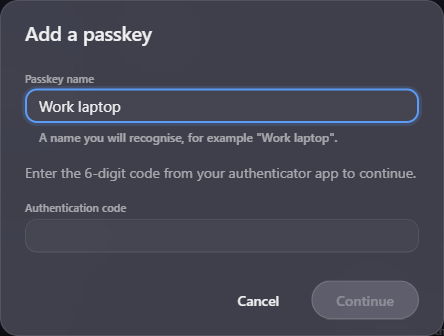
- Open your Profile. In the Security section, under Multi-factor sign-in, find Passkeys. Before you have any it says Sign in faster in your browser with your fingerprint, face, PIN or a security key. Choose Add a passkey.
- In Passkey name, give it a name you will recognise — A name you will recognise, for example "Work laptop". — of up to 50 characters.
- Prove it is you. With the authenticator app, the dialog says Enter the 6-digit code from your authenticator app to continue.: type the code in Authentication code. If email codes are your only method, choose Email me a code and type the code from the email instead. A recovery code is not accepted here.
- Choose Continue. The dialog says Follow your browser's steps to create the passkey. Do what your browser asks — touch the fingerprint reader, look at the camera, enter your PIN, or insert and touch your security key.
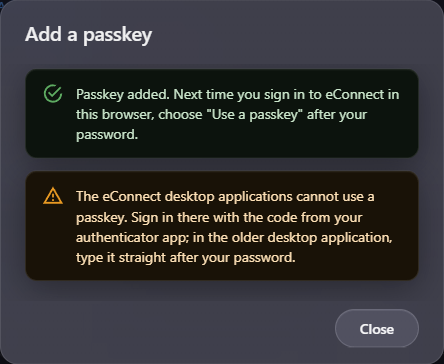
- When it is done: Passkey added. Next time you sign in to eConnect in this browser, choose "Use a passkey" after your password. Choose Close.
The finished dialog also reminds you that The eConnect desktop applications cannot use a passkey. and how you sign in there instead — with your authenticator app's code (typed straight after your password, in the older Windows client), or with a code sent by email.
The browser gives you about a minute to answer its prompt, and you have five minutes from entering your code to finish. Names need not be unique, and a passkey cannot be renamed: to change a name, remove the passkey and add it again.
If it is not added
| What you see | What to do |
|---|---|
| The passkey was not created. | The browser's prompt was cancelled, took too long, or was refused — the browser does not say which. Choose Try again to open it again, or Cancel |
| This device already has a passkey for your account. | There is already one here; nothing more to do. Choose Close |
| Your browser could not create a passkey here. | Use another browser, or keep signing in with your code |
| Give the passkey a name of 1 to 50 characters, without hidden or control characters. | Shown under the name. Change the name and choose Continue; you do not need a new code |
| This passkey could not be added. Start again. | Enter a new code and choose Continue again; your name is kept |
| Your sign-in methods changed while this set-up was open. Start again to continue. | Another method was turned on while this was open. Choose Start again |
Your passkeys in your profile
Each passkey is listed by name, with when it was added and last used — for example Added Nov 15, 2026 - never used — and has Remove. Add a passkey follows the list.
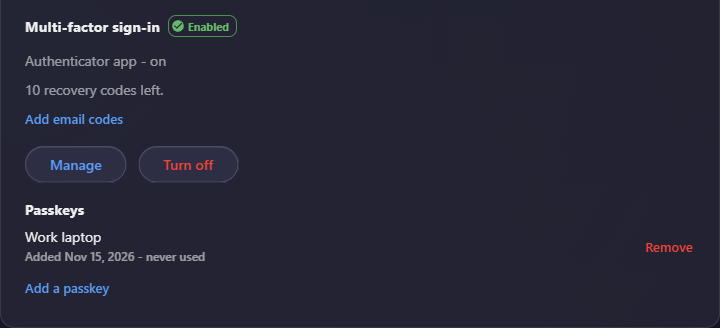
A passkey can read instead:
- No longer works: the server's address changed. Remove it, then add it again. — it was made for the name your server had before. Your code still works; remove the passkey and add a new one at the new address.
- Cannot be used on this server. — your server's address is not one passkeys can be used at. Ask your administrator; meanwhile sign in with your code. You can still remove it.
When a passkey cannot be added from where you are, one line takes the place of Add a passkey and says why:
| Line | Why |
|---|---|
| Passkeys are added and used in the eConnect web application, in a browser. | You are in the desktop client. Open eConnect in a browser to add one |
| Passkeys need a secure (https) connection. | The page was not opened over https |
| This browser cannot use passkeys. | Use a browser that can |
| Passkeys work only at your server's address | You opened eConnect at another address. Open the address shown |
| Passkeys cannot be used on this server. | The server's address does not allow passkeys. Ask your administrator |
| You have 10 passkeys, the most an account can have. | Remove one before adding another |
| Your organisation does not allow passkeys. | Your user group does not allow them. Your passkeys stay listed, and can be removed |
If the list cannot be read, Could not load your passkeys. appears with Retry.
The desktop client lists your passkeys with Remove, but adds none.
Signing in with a passkey
- Sign in with your user name and password as usual, in the browser where you added the passkey.
- The Enter your code prompt shows Use a passkey at the top, then or, then the code entry. Choose Use a passkey.
- The button reads Waiting for your passkey... while your browser asks you to unlock it. Do so.
You are signed in with no code typed. Remember this device applies to a passkey just as to a code — see Remembered devices. The prompt is shown in Signing In.
The browser's own prompt opens only when you choose Use a passkey, and a code always works instead. If email codes are your only method and you can use a passkey here, eConnect does not email you a code until you choose Email me a code.
If it does not work, the prompt says why, directly under or:
| Message | What it means |
|---|---|
| The passkey was not used. Try again, or enter a code. | The browser's prompt was cancelled, took too long, or was refused. Try again, or type a code |
| That passkey could not be verified. Try again, or use another method. | eConnect did not accept the passkey's answer |
| Your browser could not use a passkey here. Enter a code instead. | This browser cannot do it. The button goes for this sign-in |
| Passkeys cannot be used for this sign-in. Use another method. | eConnect will not take a passkey this time — for example, your organisation no longer allows them. The button goes for this sign-in |
Where you have a passkey but this page cannot use it, there is no button, and one line under the code field says why: This browser cannot use passkeys. Enter a code instead., Passkeys need a secure (https) connection. Enter a code instead., or Your passkey works only at followed by your server's address and Enter a code instead.
A refused passkey counts like a wrong code: ten refusals and wrong codes in a row pause code entry on your account for fifteen minutes. Use a passkey can be chosen up to ten times in one sign-in; the eleventh ends it with This sign-in request has expired. Sign in again.
Removing a passkey
Choose Remove beside it. Remove this passkey? says that it will no longer sign you in. Your other sign-in methods stay as they are. Confirm with a current code from your authenticator app, a code sent by email if email codes are your only method, or a recovery code (Use a recovery code instead), and choose Remove.
You can remove a passkey from the desktop client as well as from a browser, and from anywhere — including a passkey that no longer works, and where passkeys are not allowed. Removing your last passkey leaves your code method exactly as it was. If it had already gone, That passkey is no longer on your account. closes the dialog and the list is read again.
What else removes passkeys
- Turning multi-factor sign-in off.
- An administrator resetting your multi-factor sign-in.
- Changing your email address, when email codes were your only method. That turns email codes off, and a passkey never stands alone. The email sent to your old address adds Passkeys were removed from the account.
Adding or removing a passkey forgets your remembered devices, and sends Your eConnect multi-factor sign-in was changed to your email address. That email does not name the passkey.
Limits
| Limit | Value |
|---|---|
| Passkeys per account | 10 |
| Passkey name | 1 to 50 characters |
| Finishing an add | Five minutes from entering your code |
| Use a passkey in one sign-in | 10 times |
If a passkey does not work
- Is there a Use a passkey button at all? It is not offered in the desktop client or the older Windows client, where your user group does not allow passkeys, or when you have no passkey for this server's address. It is also not offered when eConnect is shown inside another web site's page.
- Does a line under the code field name an address? Open eConnect at exactly that address, and sign in there.
- Does every attempt end with The passkey was not used? If you are completing your browser's prompt and it still fails, the site's certificate may not be one your browser trusts, which a browser treats as a reason to refuse passkeys. Tell your administrator; sign in with your code meanwhile.
- Does the passkey say No longer works? Your server's name changed. Remove it and add it again.
The desktop client's behaviour on this page — no Use a passkey, and removing but not adding — is what it is built to do and what its automated tests check; it has not yet been tried by hand.
Related
- Multi-Factor Sign-In — the authenticator app, email codes and recovery codes a passkey sits beside
- Signing In — the code prompt
- Multi-Factor Sign-In for Administrators — what a site needs for passkeys to work