Anatomy of the Window
eConnect puts navigation on the left, your work in the middle, and the things that interrupt you on the right. Learning that layout once makes the rest of the manual easier to follow.
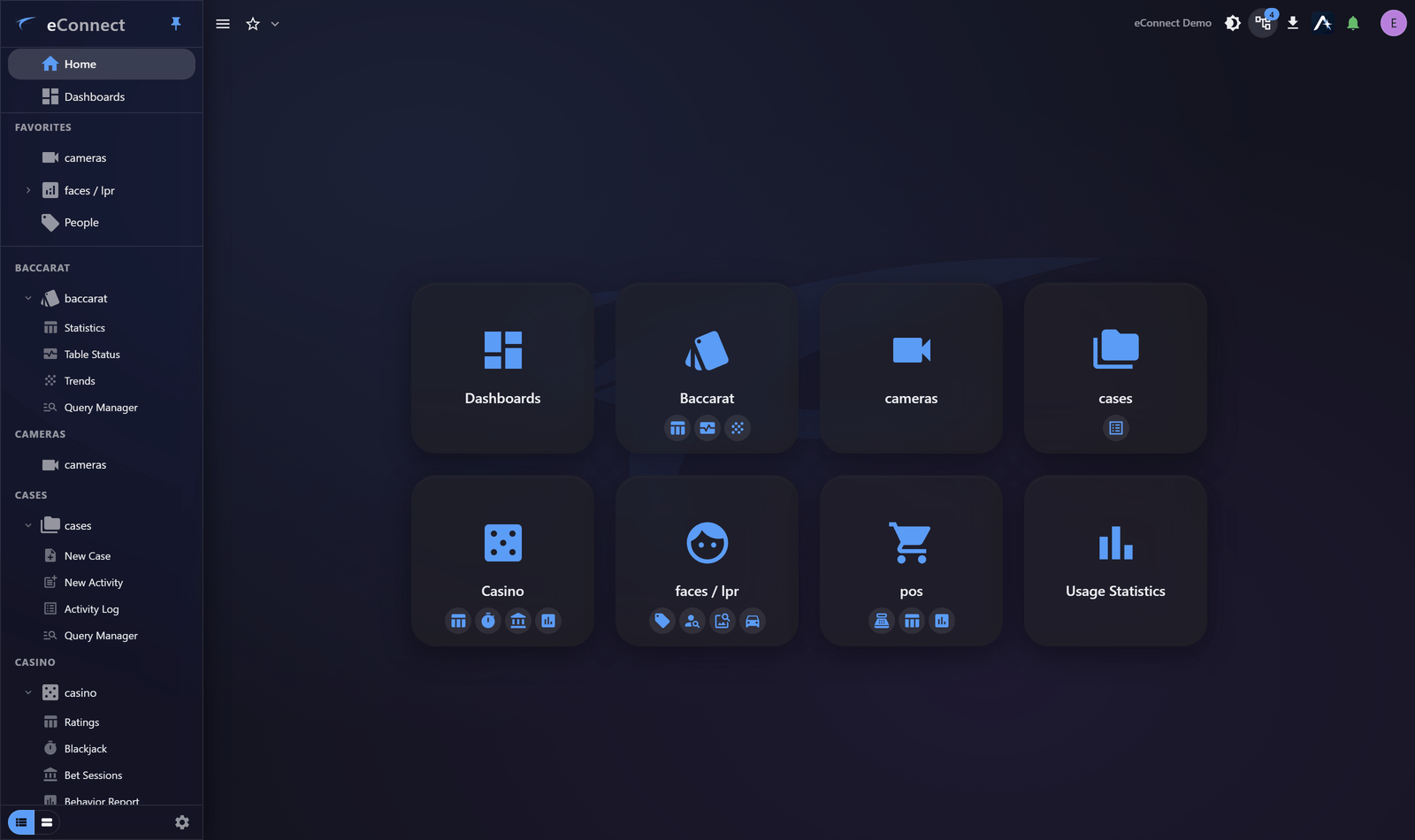
The title bar
Along the top: the eConnect mark on the left with a control to pin the navigation drawer open, and on the right the controls that follow you everywhere.
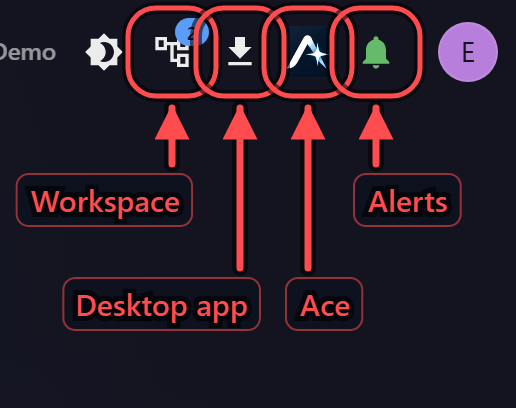
| Control | What it does |
|---|---|
| Settings | Opens Settings |
| Workspace | Opens the Investigation Workspace panel |
| Download desktop app | Downloads the Windows desktop client — see Installing the Desktop Client |
| Ace | Opens the assistant |
| Alerts | The alert bell, with a count of what is waiting — see Alerts |
| Your account | Profile, preferences and sign out |
In the browser you may also see Install app, which installs eConnect as an application window. See Using eConnect in a Browser.
The navigation drawer
Down the left: Home, Dashboards, and then your modules grouped by product area. Expand a module to reach the views inside it. Covered in The Navigation Drawer.
The drawer collapses to icons to give the content more room, and can be pinned open when you would rather always see the labels.
The content area
The middle of the window is whatever you are working on. Most module views share a common shape: a filter or query panel on the left, results in the middle, and detail either beside them or on the row you select.
Above the content, a breadcrumb shows where you are — faces / lpr › People — and is clickable, so
it doubles as the way back out.
The right-hand edge
Two panels share the right-hand edge, and only one is open at a time:
- The Workspace, which collects your investigation as you work
- The Ace chat, when attached rather than detached
Both push the content aside rather than covering it, so you can read a grid and the panel together. Detaching the assistant into its own window frees the edge for the Workspace — see Opening the Workspace Panel.
Alerts also arrive on this edge, in a tray that opens when something needs attention. See The Alert Tray and Bell.
Pop-out windows
Any view can be detached into its own window and moved to another monitor. Pop-outs behave like part of the application, share your session, and close when you sign out. See Pop-out Windows and Working Across Monitors.
Appearance
eConnect ships in a dark theme and includes a light one. See Themes and Appearance.
Which group you are signed in to
The window title reads eConnect - your group — the name of the user group you signed in to — and that name also appears in the shell header.
That matters if you hold accounts in more than one group, or if you run two sessions side by side: the taskbar entry, the Alt+Tab preview and the window itself all say which one you are looking at, so an action lands where you meant it to.
Making everything bigger
In the desktop client, Ctrl + and Ctrl − zoom the whole application and Ctrl 0 puts it back to 100%; Ctrl and the mouse wheel does the same. The level is shown in the title bar while it is not 100%, so there is always a way back, and it is remembered between sessions.
The browser's own zoom does the same job in the web client.
Typing
Anywhere you type — a case note, a comment, a question to Ace — a misspelled word is underlined, and right-clicking it offers corrections. It is the same behaviour as the rest of the desktop, and it matters most in the places whose text becomes a record somebody else reads.
Getting around quickly
- The breadcrumb is the fastest way back up a level.
- Settings has a search box — type what a setting does rather than hunting for it.
- Home's tiles carry shortcuts straight into a module's views.
- Star what you use daily — a module, a single view, a dashboard, a filtered grid — and it follows you to whichever machine you sign in on. See Favorites.