Pop-out Windows
Any view can be detached into its own window. That is what makes eConnect usable on more than one screen: keep cameras on one monitor, the grid you are working through on another, and the assistant somewhere out of the way.
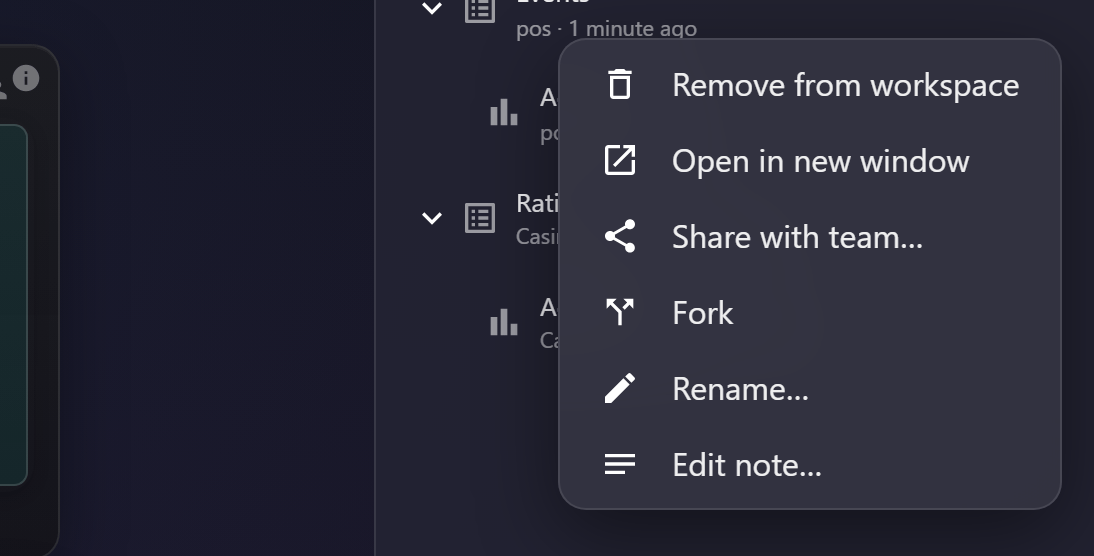
Detaching a view
Use the pop-out control on the view you want to detach. The view opens in its own window and leaves the main window free for something else.
A pop-out is part of eConnect, not a separate application. It shares your session, contributes to the same Workspace, receives the same alerts, and carries the same theme and title bar.
What travels with a pop-out
| Travels | Detail |
|---|---|
| Your session | No second sign-in |
| The view's state | Filters, sort and position come with it |
| Alerts | Arrive in pop-outs as well as the main window |
| Workspace | Drilling in a pop-out adds to the same tree |
Closing
Close a pop-out like any window. Signing out closes every pop-out, which is deliberate — leaving windows showing data behind after a sign-out would defeat the point of signing out. The same happens when your session times out; see Session Timeout and Signing Out.
Pop-outs in the browser
In a browser, a pop-out is a browser popup, and an ordinary tab always gives its popups a read-only address bar that no page can remove.
Installing eConnect as an app window removes it. Popups opened from an installed app window carry no address bar, which reclaims the space and makes a detached view look like part of the application. This is the main practical reason to install — see Using eConnect in a Browser.
Ignoring the prompt costs you nothing else: pop-outs work either way, and can still be dragged to any monitor.
The one thing to watch
A browser may block a popup it did not clearly associate with a click. If a pop-out does not appear, check for a blocked-popup notice in the address bar and allow popups for your eConnect server.
Arranging several
Once you have more than two or three, arrangement matters more than detaching. See Working Across Monitors.