The Navigation Drawer
The drawer down the left is how you reach everything. It lists Home, Dashboards, and then your modules grouped by product area.
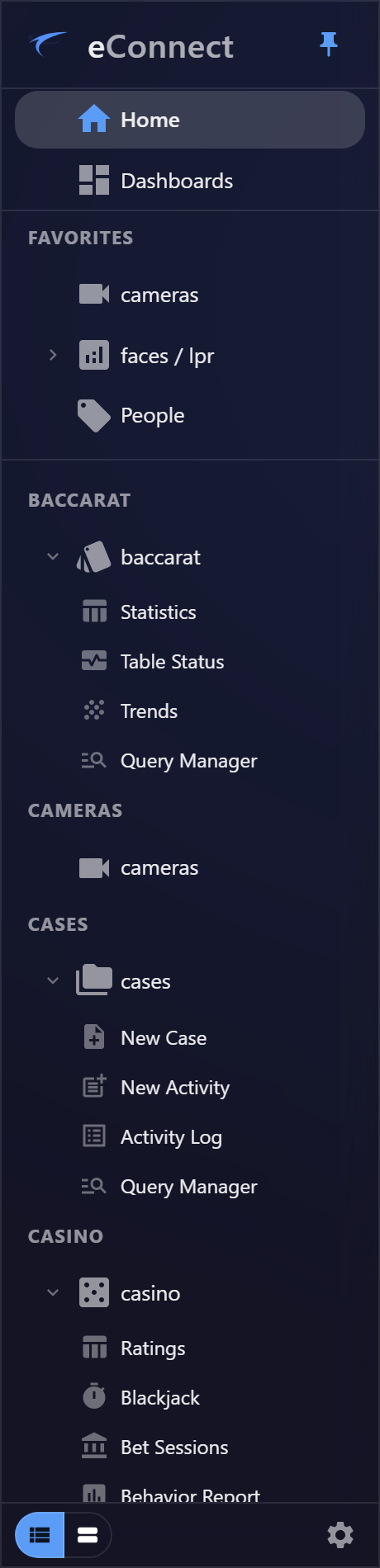
How it is organised
Each module sits under a heading naming its area — Face & LPR, Point of Sale, Cameras, Casino — with the module beneath it. Expand a module to see its views:
| Module | Typical views |
|---|---|
| Faces / LPR | People, Face Search, Semantic Search, License Plates, Query Manager |
| Point of Sale | Events, Statistics, Behavior Report, Query Manager |
| Casino | Ratings, Blackjack, Gaming Floor, Bet Sessions, Analytics, Live, Query Manager |
| Baccarat | Statistics, Table Status, Trends, Query Manager |
| Cases | New Case, New Activity, Activity Log |
Why your drawer may look different
You see a module only when your organisation is licensed for it and your permissions allow it, and the same is true of individual views — Semantic Search appears only where that capability is enabled, and License Plates only with plate recognition.
A colleague's drawer legitimately differing from yours is normal rather than a fault. If something you need is absent, it is a licensing or permissions question — see Assigning Groups to Users.
Pinning and collapsing
The drawer collapses to icons to give your work more room, and expands when you point at it. The pin control at the top keeps it open permanently, which is the better setting on a wide monitor where the space costs you nothing.
Your choice is remembered on that computer.
Favorites
At the top of the drawer sits one Favorites list. Hover a module or one of its views and a star appears; star it and it joins that list, alongside any view you have starred from a page header elsewhere in the application.
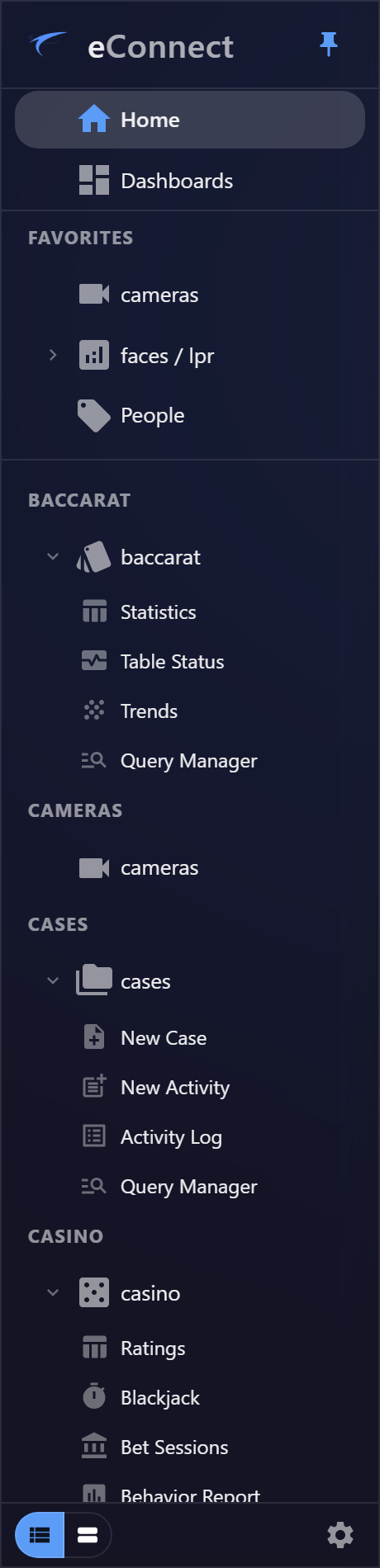
Starring the view rather than the module is the point. Somebody who lives in People all day reaches it in one click instead of expanding Face & LPR every session, and the drawer stays as short as the work actually requires.
Drag the rows by the grip at the left to put them in the order you work in. Favorites follow you between machines: sign in on another workstation, or in a browser, and the list is already there. A favorite for something you no longer have — a licence that lapsed, a permission that changed — is simply not shown; nothing breaks, and it reappears if access returns.
Dashboards and drilled results are starred from the page header rather than here, and grid filters are pinned separately. Favorites covers all of it in one place.
Getting somewhere faster
- Home tiles carry shortcuts straight into a module's views, so you can reach a view in one click instead of expanding the drawer first. See Home and Tiles.
- The breadcrumb above the content is clickable and is usually quicker than the drawer for going back up.
- Ace will answer many questions without navigating anywhere at all.
What opening a view records
Moving to a module view is recorded in the audit trail, using the same name the drawer shows.
This is what lets an administrator see which parts of eConnect are actually used — the same data the Usage Statistics module reports on.
Audit record
What eConnect writes to the audit trail for the actions on this page.
MODULE VIEW OPENED '{title}'