Home and Tiles
Home is where you land after signing in. It shows one tile per module you have access to, and each tile carries shortcuts into the views inside that module.
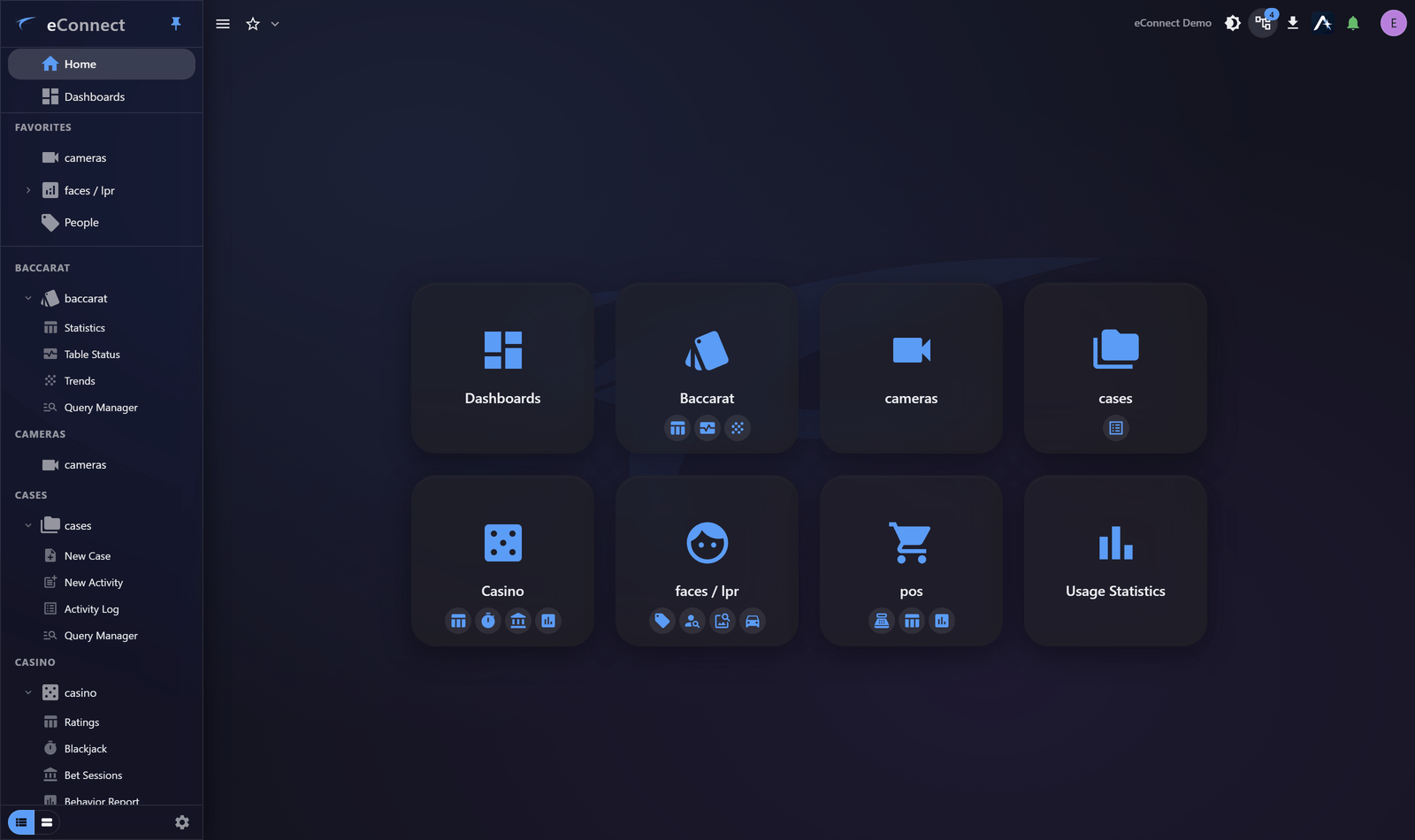
Reading a tile
A tile shows the module's icon and name, and beneath it a row of small icons — one per view. Those are shortcuts: choosing one takes you straight into that view rather than to the module's front page, so a destination two levels down is one click away.
The tile itself opens the module. Point at a shortcut icon to see which view it leads to.
Why Home is worth using
The drawer is better when you know exactly where you are going. Home is better at the start of a shift, when you are deciding what to do: it puts every module and its main views on one screen, so you can see the shape of what is available rather than expanding menus to find out.
It is also the fastest way to confirm what you have access to. If a module is not on Home, you do not have it — which is quicker to establish here than by hunting through the drawer.
When Home looks emptier than expected
Home shows only modules your organisation is licensed for and your permissions allow. A tile you expected being absent is a licensing or permissions matter rather than a fault. Your administrator can check this against Assigning Groups to Users.
If Home is entirely empty, your account has been created but not yet given access to anything — see Creating a User.
Getting back to Home
Home is the first entry in the navigation drawer, always available however deep you have gone.
Audit record
What eConnect writes to the audit trail for the actions on this page.
MODULE VIEW OPENED '{title}'