Favorites
Most people use a small part of eConnect most of the time — one module, two views, a dashboard and a handful of filters. Favorites is how you put those within one click of signing in, instead of navigating to them afresh every morning.
The control is a star. A hollow one means "not a favorite"; click it and it fills.
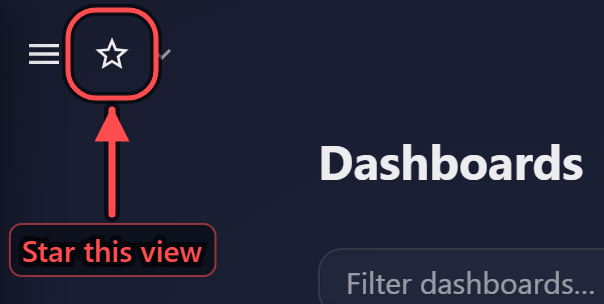
It appears in the same three places, always meaning the same thing:
| Where | Stars |
|---|---|
| The navigation drawer | A module, or a single view inside one |
| A page header | Whatever you are looking at, including its filters |
| A Workspace row | A step in an investigation you want to keep |
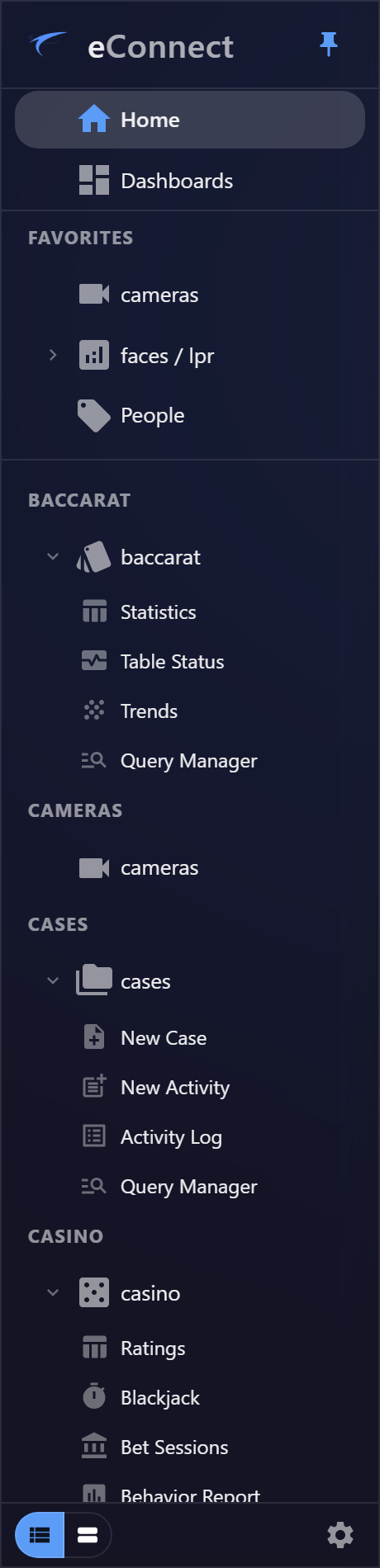
Everything starred lands in one Favorites list at the top of the drawer, and everything there follows you between machines. Sign in on another workstation, or in a browser on a machine that has never had eConnect installed, and it is already waiting.
Beside the header star sits a chevron. It opens the view's options menu — rename it, note why it matters, fork it, open it in a window of its own, or share it with the team — and it opens whether or not the view is a favorite, so none of those actions requires starring something first.
Starring a module or a view
The drawer lists your modules, and each expands to its views. Hover either and a star appears.
Star the view, not the module, when you know which one you live in. Somebody who works in People all day reaches it directly rather than expanding Face & LPR every session — and the drawer stays as short as the work actually requires.
A favorite for something you no longer have — a licence that lapsed, a permission that changed — is simply not shown, and comes back if access returns.
Starring what you are looking at
The star in the page header works on every page, including ones the Workspace has not captured: a dashboard, a grid you drilled three levels into, a subject, a plate, a settings page.
It saves the view and its filters, which is the part worth knowing. Starring a grid you have narrowed to one revenue centre and yesterday's date range gives you that grid back, not the unfiltered one.
This is the answer to "I want my dashboard waiting for me at every login, wherever I sit": open the dashboard, star it. It is then in the Favorites list, on every machine you sign in on.
A starred view is stored as your own Workspace item, so the header star is unavailable until the Workspace has connected. The star says so rather than failing quietly.
Moving dates, or the dates you starred
A view starred while a preset period was showing — Yesterday, Last 7 Days — reopens on that preset rather than on the dates it held when you starred it. Star a dashboard on Yesterday and it is always yesterday's figures, not the 24th of September forever.
That is usually what you want, so it is the default. Where it is not — a particular week you keep returning to during an investigation — Keep dates fixed on the view's options menu pins the window instead. The row then shows a pin rather than the moving-dates mark, and hovering either says which it is and what the other would do.
A view you starred on hand-picked dates has no preset to move to, so it simply keeps them and neither mark is shown.
Putting them in the order you want
Favorites are dragged into the order that suits you — by the grip at the left of each row — rather than the order you happened to star things in. Put the thing you open first at the top.
Removing one
Click the filled ★ anywhere it appears, or use Remove from Favorites on the row. There is no confirmation, because nothing is destroyed: a starred view that you un-star stays in your Workspace as an ordinary step, and a shared item you un-star stays with the team. Favorites, sharing and the Workspace are independent of each other.
Favorites and the Workspace
The Workspace records an investigation as you work; Favorites is the short list you return to. They overlap deliberately:
- A starred view is a Workspace item, which is why it survives and syncs.
- Clear in the Workspace drops the exploratory steps and leaves favorites and shared views alone.
- Show favorites only, in the Workspace tree's options menu, hides everything else while you work through what you kept.
- Un-starring never removes the step from the tree, and Remove from workspace never un-stars it.
Everything else about the tree — notes, forking, sharing, restoring — is in The Investigation Workspace.
Pinned filters are a different thing
"Pin" still appears in eConnect, and it does not mean favorite:
| Control | What it does |
|---|---|
| Pin a quick filter (any grid) | Promotes a column's filter to a labelled box on the toolbar |
| Pin above More (Face and Plate tag filters) | Lifts a field out of the overflow list so it is always visible |
| The drawer's own pin | Keeps the drawer expanded on this machine |
The first two follow you between machines as well; the drawer's expand state does not, because it is about the screen you are sitting at. Pinned filters are covered in Columns, Sorting and Filtering.
Where saved queries fit
Queries are not starred, because they do not need to be: a saved query is already a named thing you can run from the Query Manager, use in a dashboard widget, or ask Ace to run by name.
Where you want a particular result rather than the query — last night's voids, already run and already drilled — star the view. And a question worth asking repeatedly becomes a starter prompt rather than something you retype.
A sensible arrangement
For most people, ten minutes spent once is enough:
- Star the two or three views you actually use. Not the modules — the views.
- Open your morning dashboard and star it.
- Drag them into the order you work in.
- Pin the one or two filters you set constantly — the register, the location, the date field.
- Leave everything else to be found when you need it.
Star what you use daily and nothing else. A Favorites list with fifteen entries is another list to read, which is the problem it was meant to solve.
Related
- The Navigation Drawer — where the Favorites list lives
- The Investigation Workspace — the tree behind starred views
- Columns, Sorting and Filtering — pinned filters
- Home and Tiles — the other one-click route into a module's views