The Query Manager
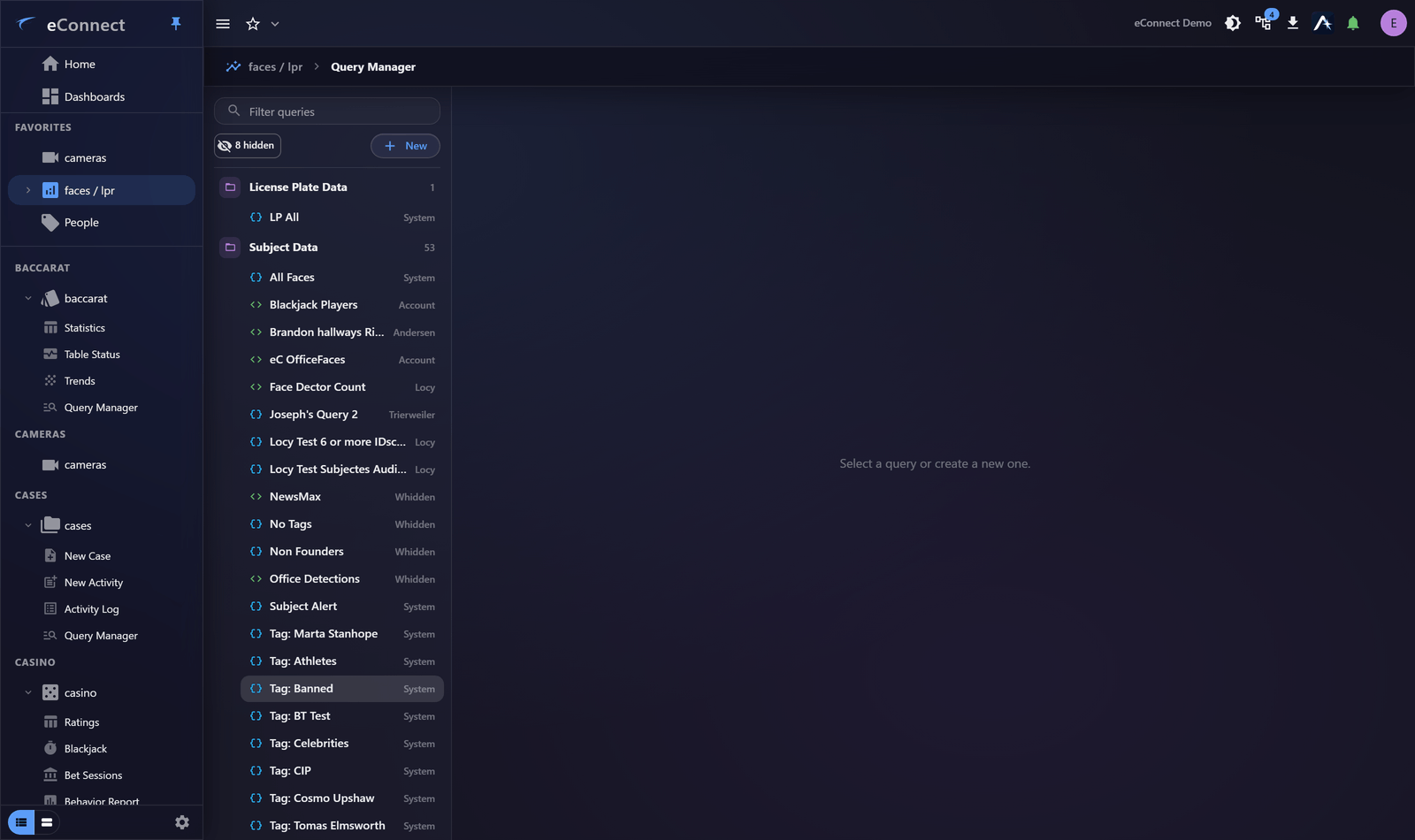
Every module has a Query Manager, listing the saved queries available in it. This is where queries are created, edited, organised and removed.
Why saving matters
An unsaved query lasts until you navigate away. A saved one:
- can be run again without rebuilding
- can be used by a dashboard widget — see Graph Widget
- can be read by Ace, so "run my nightly voids query" works
- can be shared with colleagues
- can be copied to another module — see Copying a Query
If you build the same thing twice, save it the second time.
Creating
| Option | Starts |
|---|---|
| New Simple Query | The simple builder |
| New Advanced Query | The advanced builder |
Each entry shows its name, who created it, and whether it has been Edited since. The list has a filter box — worth using once a site has accumulated a few dozen queries.
Ace prompts live here too
The same manager holds the starter prompts Ace offers for this module. A prompt is a question in plain language rather than a query definition, so it has a name, a description and the question itself — but it is kept, shared, cloned and deleted exactly as a saved query is, by the same people, under the same rights.
Keeping them together is deliberate: both are "a question this organisation has decided is worth asking", and a site that has worked out its useful queries has usually worked out its useful prompts at the same time.
Naming
The name is the whole interface for everyone who did not build it. Voids over £50, register 3 or 7, excluding manager is findable and self-explanatory; Query 4 is neither.
Two habits that pay off:
- Lead with what it returns, not the module — you are already in the module
- Include the distinguishing detail, since near-duplicates are what make a list unusable
Private or shared
Every saved query and every prompt is either Private to you or shared with everyone who can reach the module. The pill on the item says which, and its padlock shows the state at a glance — closed for private, open for shared.
Where you are not permitted to publish for others, items you create stay private and the control says so rather than letting you save something the server would override.
Other people's private queries
A superuser account can see everybody's private queries, which in a busy site buries your own list under other people's working notes. They are therefore hidden by default.
When something is hidden, a lock toggle appears with a count — 3 hidden — and showing them is one click. The choice is remembered per module, so a module where you genuinely need the full picture stays that way while the rest stay tidy. Rows you have starred, charted or currently have open are never hidden, whoever owns them.
With them shown, each carries a small padlock so other people's private work is obvious at a glance.
Finding the right one
Hover a query for a moment and a card tells you what it is: its full name, who created it — or System — whether it is private, its type, and the description whoever saved it wrote.
That is the fastest way through a list of forty similarly named queries, and the reason it is worth writing a description when you save one.
Previewing
Run a query from the manager and read the result before relying on it. A preview showing zero rows or a hundred thousand tells you something is wrong with the definition, and it is much cheaper to learn that here than from a dashboard that has been quietly wrong for a week.
The same manager everywhere
Query Manager looks and behaves the same in every module that offers it — point of sale, casino, baccarat, faces and plates, cases and usage statistics. What differs is the data underneath and the fields you can build on; the list, the editor, the sharing controls and the keyboard behaviour do not.
That is worth knowing before you learn it twice: time spent understanding it in one module is spent for all of them.
Views
A query runs against a view — one shape of the module's data. Where a module offers several, the view is part of the query's definition, so the same filters against a different view legitimately return different things.
Editing and disabling
Editing a saved query changes it for everyone who uses it, including dashboards. Before changing a query that others rely on, consider cloning it instead.
A query can also be disabled — kept but not run. That is the tidy way to retire something temporarily wrong without deleting work colleagues may depend on.
Deleting
Right-click a row in the list for Delete — quicker than opening the query to remove it, and the way to tidy a list of forty experiments down to the five that earned their place.
Delete Query removes it. Check first whether a dashboard widget depends on it; a deleted query leaves the widget with nothing to draw.
What is recorded
Saving a query (Query - Save, type 103) and removing one (Query - Remove, type 104) are both audited, alongside running one. These rows are written server-side, so the exact wording is not listed here — see the Audit Catalog for every audited action and the text recorded for it.
Running a query is recorded by the client, with the query name, period and view.
Audit record
What eConnect writes to the audit trail for the actions on this page.
QUERY 'POS Events' FROM {start date} TO {end date}; VIEW: 'Events' PAGE {page};