Reading the Results Grid
The grid is where a query's results land. It works the same way in every module, so the habits you build in one carry everywhere.
What the grid tells you before you read a row
Two things are worth checking first:
- The row count. Zero means over-filtered. An enormous number means under-filtered. Something you could scan means you are in useful territory.
- The period. Confirm the date range is what you meant — a surprising result is more often a wrong range than a wrong filter.
Paging
Large results are paged rather than loaded whole, so a grid opens at usable speed regardless of how much matched. Move through pages at the foot of the grid; some views load continuously as you scroll instead.
Very large result sets can skip counting the total, which makes them noticeably faster to open. When that happens you get results without a precise total — a deliberate trade, and the right one when you are looking for records rather than counting them.
If you are scrolling to find something, the query is doing too little. Add a filter, or aggregate and drill into the group you want. Reading a grid page by page is the slowest route to almost every answer.
Following a row
Rows are usually a starting point. Selecting one opens the record behind it — the subject, the plate, the check, the rating — and many grids carry links directly to related records, so you can move from a transaction to the employee to the video without going back to the navigation.
This is drilling, and it is what builds your Workspace tree as you go.
Selecting
Where a view supports it, rows can be selected for an action applied to several at once — tagging, exporting, adding to a case. Available actions depend on the module and your permissions.
Shaping the grid
Columns can be reordered, resized, hidden and sorted, and many grids filter per column. Covered in Columns, Sorting and Filtering.
From rows to an answer
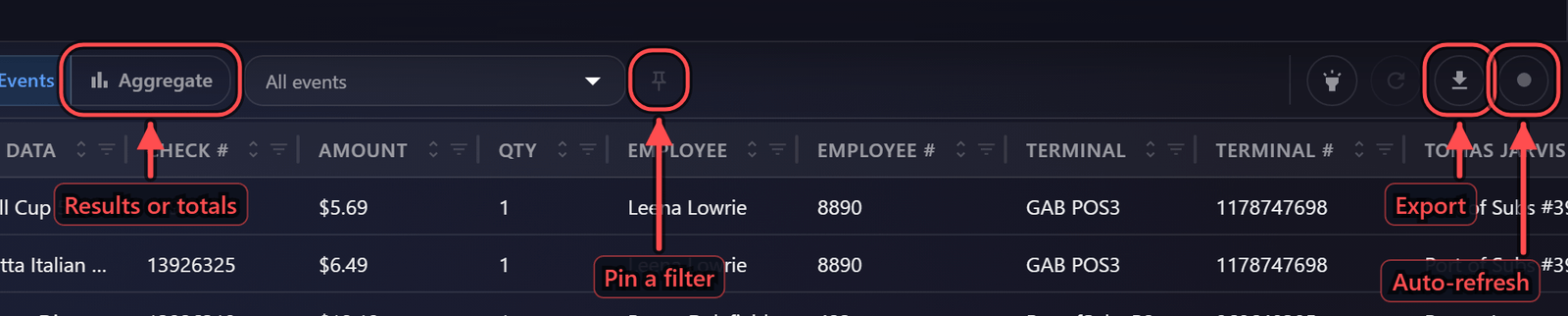
A grid answers "which records"; it does not answer "how many" or "which is worst". For that, open the aggregation panel — group by a field, pick a measure, and read the totals instead.
The two work together: aggregate to find where the answer is, then drill back into the rows to see it.
Copying a value
Right-click a cell for Copy, or select a row and press Ctrl+C to copy the whole row. What you get is what the grid shows — a status reads as its word, a formatted figure keeps its formatting — rather than the raw stored value.
Use it for the quick things a full export is too heavy for: a receipt number into a case note, a plate into an email, a row into a spreadsheet you are already building. Anything more than a handful of rows belongs in an export.
Right-clicking an image in a grid offers the picture's own menu instead — save, copy, or ask Ace about it.
Taking it away
See Exporting Data for CSV export and what it includes.
Audit record
What eConnect writes to the audit trail for the actions on this page.
QUERY 'POS Events' FROM {start date} TO {end date}; VIEW: 'Events' PAGE {page};