Multi-Factor Sign-In for Administrators
Multi-factor sign-in is available from eConnect 11.0.10.
Multi-factor sign-in asks for a second step after the password — a six-digit code from an authenticator app, or one sent by email — so a stolen or guessed password no longer opens an account on its own. In a browser, people can also finish that step with a passkey. This page covers what that means for the people who run a site: requiring it, what you can see and reset, what the server needs, and what to do when somebody is locked out.
How a person sets it up is in Multi-Factor Sign-In and Passkeys; what signing in looks like afterwards is in Signing In.
What is on, and who decides
Multi-factor sign-in is off for everyone until they turn it on, or until their user group requires it. An account that has not turned it on, in a user group that does not require it, signs in exactly as before — in every client, and for every integration.
| Out of the box | Who turns it on | |
|---|---|---|
| Multi-factor sign-in for one account | Off | The person, from their own profile |
| Requiring it for a user group | Off | An administrator holding User Multi Factor Manage, on the Security page |
| Email codes | Available once eConnect can send email | Each person, from their own profile |
| Passkeys | Available where the server's address allows them | Each person who has the authenticator app or email codes — see what your site needs |
| Password reset by email | Off | An administrator who may save system settings — see Security Policy |
| Notice emails | On wherever an email server is set up | Nobody; there is no switch |
If you want it used without requiring it, ask for it. Start with the accounts that would do the most damage in the wrong hands — administrators, super users, anyone who can see the whole estate — and send people the Multi-Factor Sign-In page, which walks them through it.
The permission: User Multi Factor Manage
Requiring multi-factor sign-in for a user group, and resetting a user's, both need the permission User Multi Factor Manage. The permissions to create or update user-group settings, and to update users, no longer allow either.
- The built-in Admin permission group receives it automatically when the server starts.
- Custom permission groups do not. Their members cannot change the requirement or reset a user until you add User Multi Factor Manage to their group under Settings ▸ Administration ▸ Permissions. Only somebody who holds a permission can add it to a group, so this needs a super user or a member of the built-in Admin group.
- Upgrade every server that shares a database at the same time. A server still on an older version removes the permission when it starts, and with it every custom group's grant.
Somebody who holds User Multi Factor Manage and can also set other users' passwords can take over any account they may manage that is not a super user's: reset its multi-factor sign-in, then set its password. Both steps are recorded in the audit trail, but recorded is not prevented.
Requiring it for a user group
Settings ▸ System Administration ▸ Security has a Multi-factor sign-in section, under Session, which applies to the user group you are signed in to — Applies to this user group only. To set another group's, switch to that group first. It is shown only to holders of User Multi Factor Manage, and is saved with the rest of the page by Save Settings.
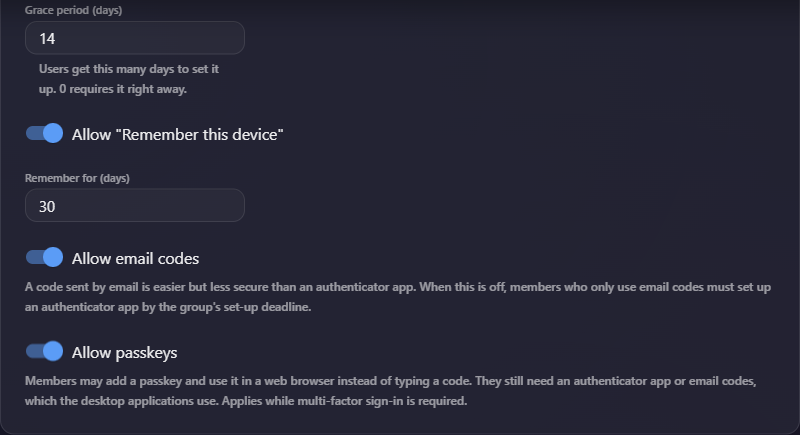
| Setting | Default | Range | What it does |
|---|---|---|---|
| Require multi-factor sign-in | Off | The group's members must set it up | |
| Grace period (days) | 14 | 0 to 90 | How long members have to set it up. 0 requires it at once |
| Allow "Remember this device" | On | Members may skip the code on a device they chose to remember | |
| Remember for (days) | 30 | 1 to 90 | How long a remembered device skips the code |
| Allow email codes | On | Members may use email codes | |
| Allow passkeys | On | Members may add and use passkeys |
While the requirement is saved on, the section shows Required since and the date it was turned on. Allow passkeys has a warning under it when your server's address cannot have passkeys — see Passkeys: what your site needs.
Save Settings asks first when a save would turn the requirement on, or shorten the grace period of a group that already requires it, and says what will happen to members who have not set it up — for example Members who have not set it up get 14 days, then must set it up to sign in. Choose Require it (or Save) to go ahead, or Cancel, which saves nothing and keeps your edits.
The requirement covers the group's own members, super users included. Service accounts are not affected.
The grace period and the deadline
Each member's deadline is the grace period counted from Required since — or from when their account was created, if that is later. Changing the grace period moves every member's deadline at once. Because the days count from Required since and not from the save, shortening the grace period of a requirement that started a while ago can put members past their deadline immediately; the confirmation says so.
During the grace period, members who have not set it up sign in as before, and are reminded after each sign-in, with a countdown, to set it up. Their profile shows the same countdown. In the older Windows client, their password alone still works.
When the deadline passes, members who still have no method are signed out — each server checks every five minutes, so within about five minutes — wherever they are signed in. At their next sign-in eConnect takes them straight through the setup before signing them in. In the older Windows client they are refused with Set up multi-factor sign-in in the eConnect web application before signing in here., so somebody who uses only that client has to sign in once in a browser or the desktop client.
A remembered device never stands in for setting it up.
Which methods members may use
The authenticator app is always allowed. Allow email codes and Allow passkeys add the other two. They matter only while the group requires multi-factor sign-in: a group that does not require it lets its members use whatever they have set up. A group whose settings were never saved allows all three.
Turning Allow email codes off asks for no confirmation, so know what it does first:
- Members who have the authenticator app can no longer sign in with an emailed code, in any client.
- Members who use only email codes keep their deadline — the same one as everybody's. Inside it, they sign in with an emailed code and are reminded to add an authenticator app. Past it, a correct emailed code takes them straight into setting up the app. In a group that has required multi-factor sign-in for longer than its grace period, that is at once.
- Unlike members with nothing set up, they are not signed out at the deadline; they are held at their next sign-in. In the older Windows client they are refused with the message above.
- A device remembered after an emailed code stops skipping the code for members who have the app.
An emailed code is easier for people and weaker than an app: whoever can read the mailbox can read the code. Turn email codes off for groups whose accounts warrant the stronger method.
Turning Allow passkeys off means no passkey is offered or accepted at sign-in, and none can be added — members see Your organisation does not allow passkeys. Their existing passkeys stay listed and can be removed. A device remembered after a passkey stops skipping the code.
A passkey never satisfies the requirement, whatever the group allows. A member who has email codes and passkeys, in a group that requires multi-factor sign-in and does not allow email codes, must still add an authenticator app.
The profile offers email codes to members whatever their group allows. A member of a group that does not allow them can still turn them on during the grace period, and sign in with them until the deadline; then they are held for the authenticator app like anybody else.
Remember this device
With Allow "Remember this device" on, the code prompt offers Remember this device for 30 days — the number is Remember for (days). A remembered browser or desktop client then signs in with the password alone until the days are up; using it does not extend them.
- Turning it off forgets every remembered device of the group's members when you save.
- Shortening Remember for makes devices remembered earlier stop sooner.
- In a browser it needs
https. Through the Service Bridge, the box is offered but nothing is remembered. - The desktop client keeps it in Windows' secure storage; people who share one Windows sign-in share it.
- A password changed in your directory is not seen by eConnect, so it does not forget devices. Every password change made in eConnect does.
People see and forget their own remembered devices in their profile. Your reset forgets them too.
Switching into a group that requires it
Somebody who can switch between user groups can switch into one that requires multi-factor sign-in only if their current session signed in with a second step that group allows — a code, or a remembered device where that group allows remembering; an emailed code only where it allows email codes; a passkey only where it allows passkeys. Otherwise the switch is refused with This group requires multi-factor sign-in. Turn it on in your profile, then sign in again.
The grace period is for the group's own members: somebody switching in is refused at once. Super users are not exempt.
A user's status, and resetting it
Open the user under Settings ▸ Administration ▸ Users. The record has a Multi-factor sign-in section for holders of User Multi Factor Manage, for users in the user group you are signed in to (super users: any group). Opening the record also needs a permission that opens the Users page. Service accounts have no such section.
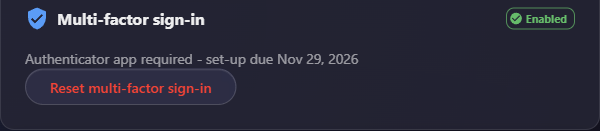
It shows:
- Enabled or Off.
- Required - set-up due and a date, for a member whose group requires it and who has not set it up — or Authenticator app required - set-up due and a date, for one whose only method the group does not allow.
- Passkeys, when the user has any: each by name, with when it was added and last used, and (no longer works) for one made for a previous server address. You cannot remove a single passkey; the reset removes them all.
Resetting a user's multi-factor sign-in
Reset multi-factor sign-in is offered while the user has it on, or still has passkeys. It asks Reset multi-factor sign-in for the user, and explains: This removes their authenticator app, email codes, passkeys, recovery codes and remembered devices, and signs them out. They set it up again at their next sign-in if their group requires it. Choose Reset; the record confirms Multi-factor sign-in was reset for the user.
The user is signed out everywhere, and emailed Your eConnect multi-factor sign-in was changed. They then sign in with their password: if their group requires multi-factor sign-in and their deadline has passed, they are taken through the setup at once; otherwise they can set it up again from their profile.
- You cannot reset your own — Use your own profile to change your multi-factor sign-in.
- Only a super user can reset a super user's — Only a super user can reset a super user's multi-factor sign-in.
- Every reset is recorded in the audit trail.
Anybody who may manage a user can see this section for them, so an administrator who holds the permission can see a super user's passkey names and dates, as the rest of that user's status.
When somebody loses their phone
In order:
- Recovery codes. With one, they can sort it out themselves — see If you lose your phone.
- Their other method. Somebody with email codes as well can sign in with an emailed code.
- Your reset. Remove everything, as above, and they set it up again.
Confirm it really is them before you reset. Removing the second step is exactly what somebody trying to take over the account would ask for, so treat the request as you would a password reset by phone.
If nobody who could reset the account can sign in — the only administrator has lost both phone and recovery codes, say — contact eConnect support.
Email codes and your site
Every email multi-factor sign-in sends — sign-in codes, confirmation codes, reset links and notices — goes through the server set up under Email. eConnect counts it as usable once it has a host and a port; whether mail actually arrives is not checked, so send a test.
- Email codes need no switch. Once eConnect can send email, anybody with an address in their details can turn them on. A requiring group can disallow them with Allow email codes.
- Notice emails start at upgrade, with no switch, wherever an email server is set up, to everybody with an address in their details. The list is in Emails eConnect sends you. At most three are sent for one account in ten minutes, and five in a day; further ones are dropped.
- The address in a user's details is not verified, and an administrator who may edit a user can change it — and so redirect where their codes and reset links go. That is why a change turns their email codes off and notifies the old address; an authenticator app protects the account even then.
- An account with email codes only is only as safe as its mailbox, which receives both the reset link and the sign-in code.
- For a directory account with email codes on, eConnect stops copying the email address from the directory at sign-in, so codes keep going to the address it already has. Changing the address in eConnect turns the email codes off.
- Email is sent in the background. A server restart at the wrong moment can lose one; the user asks again.
Limits on codes
| Limit | Value |
|---|---|
| A sign-in code | Six digits, ten minutes, works once; a new one replaces the one before |
| Sign-in codes per prompt | Three, at least sixty seconds apart |
| Sign-in codes to one address | One a minute, three in five minutes, five in fifteen minutes |
| Setup codes to an address not yet proved | One a minute, three an hour, five a day, for each account |
A code these limits stop is simply not sent; the screen looks the same. Accounts that share one email address share its limits.
Passkeys: what your site needs
Nothing switches passkeys on. Where your server's address allows them, anybody with an authenticator app or email codes can add them, subject to their group's Allow passkeys. What decides it comes from the browsers, not from eConnect, and cannot be worked around:
- The server's address, in the server's configuration, must be an
httpsaddress with a host name. Browsers refuse passkeys for an IP address and over plainhttp. A single-label intranet name counts as a host name. Otherwise passkeys are unavailable on the server, and the Allow passkeys setting warns Passkeys cannot be used on this server. Its address in the server's configuration must be an https address with a host name, not an IP address. - The certificate must be one browsers trust. This cannot be detected in advance: people are offered Use a passkey, the browser refuses, and they read The passkey was not used. Try again, or enter a code. When people report that passkeys never work, check the certificate first.
- People must open the web application at exactly that address — the same host name and port. At another name for the same server, an IP address, another port, or through the Service Bridge, no passkey is offered and people are told the address where it works. The desktop client never offers them.
- Several servers behind one address each need exactly that address — scheme, host name and port — in their own configuration.
Changing the address. Another port or scheme on the same host name keeps passkeys working. A new
host name stops every passkey made for the old one: nothing is deleted, people's profiles show
No longer works: the server's address changed. Remove it, then add it again., they sign in with
their code meanwhile, and the old passkeys work again if the old name comes back. Plan a host name
change, and tell people they will need to add their passkeys again. If the address becomes an IP
address, plain http or empty, passkeys stop working and are listed as Cannot be used on this
server.
Also worth knowing:
- No internet access is needed. Checking a passkey makes no outbound connection, and the server keeps no secret for it — only its public key.
- Any kind of passkey is accepted, software ones included. eConnect cannot require keys bound to a hardware device.
- Testing. Passkeys were tested by hand in one browser with a simulated authenticator; see What has been tested.
Wrong codes
Three limits stop codes being guessed:
| Limit | What happens |
|---|---|
| One code prompt | Five tries in ten minutes, then the person starts again from their password |
| One account | Ten wrong codes or refused passkeys in a row — at any prompt, in any client, or in the profile — pause code entry for fifteen minutes, with Too many failed sign-in attempts. Try again in N minutes. The user is emailed Sign-in codes paused on your eConnect account, once per pause |
| One sign-in, passkeys | Use a passkey up to ten times; the eleventh ends the sign-in |
The account pause is separate from the password lockout set under Security Policy, and there is nothing to clear: it ends on its own, and a correct code resets the count. In the older Windows client the pause shows as an ordinary failed sign-in, even with a correct code.
One more applies only to directory accounts in the older Windows client: thirty sign-ins with a code that is wrong or out of date, within fifteen minutes, hold that account's password-and-code sign-ins there for the rest of the fifteen minutes, again showing as an ordinary failed sign-in. The desktop client and the browser are not affected, so they are the way in while it lasts.
The server's clock
Codes are worked out from the current time, by the phone and by the server independently. The server accepts a code for thirty seconds either side of its own clock, so a server that is more than about a minute out refuses every authenticator code — for everybody, all at once. The grace-period deadlines and remembered devices are judged by the server's clock too.
Make sure the server takes its time from a reliable source. A closed site with no internet time needs a time source of its own. Servers that share a database should keep their clocks in step. When only one person's codes all fail, the cause is usually the time on their phone instead.
The older Windows client
The older Windows client has no code prompt and no setting for multi-factor sign-in, but it keeps working: people type their password followed immediately by their code, in the password box. A remembered password no longer signs in on its own there, and recovery codes, passkeys and remembered devices are not used. People whose only method is email codes sign in twice — first with the password alone, which emails them a code, then with the password followed by that code. The detail people need is in The older Windows client.
What that client shows on screen when the server asks for an emailed code, or refuses somebody whose grace period is over, has not been confirmed; the server's answers were checked.
A copy of the desktop client from before 11.0.10 behaves the same way when connected to an 11.0.10 server. The reverse is harmless: a newer client connected to an older server simply shows nothing about multi-factor sign-in, passkeys or password reset.
Upgrading and rolling back
Upgrading to 11.0.10 adds what multi-factor sign-in needs to the database automatically, the first time the server starts. Nothing has to be run by hand, and existing data is not changed.
An older server still runs against the upgraded database, but it stops asking for the second step, stops applying group requirements and their deadlines, and ignores remembered devices — without any warning. It also knows nothing of email codes, password reset by email, the notice emails or passkeys, and it removes the User Multi Factor Manage permission from custom permission groups.
How it is protected
| The authenticator setup | Encrypted with your deployment's own encryption key |
| Recovery codes, emailed codes, remembered devices, reset links | Stored only in a one-way form; they cannot be read back, only checked |
| Passkeys | Only the public key is stored; nothing secret |
| Codes | Each is accepted once, so a code that has been used cannot be played back |
| What people type | Passwords and codes are never written to a log |
The first row has one consequence worth knowing. If the deployment's encryption key is ever changed — see What version 11 hardened — existing authenticator setups can no longer be read, and codes from them are refused. Recovery codes are unaffected: people sign in with one, turn multi-factor sign-in off with another, and set it up again.
What is recorded
A session is created only once the second step has been accepted, so a completed sign-in appears in session history exactly as it always has, and one abandoned at the code prompt leaves no session behind. Session history does not show which second step a sign-in used.
These are written to the audit trail:
| Action | Recorded as |
|---|---|
| A group's multi-factor sign-in settings changed | USER GROUP '{name}' MULTI-FACTOR SIGN-IN POLICY CHANGED: ..., listing what changed |
| An administrator reset | USER '{name}' MULTI-FACTOR SIGN-IN RESET ({n} SESSION(S) ENDED) |
| A device remembered | USER '{name}' REMEMBERED A DEVICE FOR {n} DAYS ({label}), where the label is the browser and system |
| Email codes turned on or off, or the authenticator app removed | USER '{name}' TURNED ON EMAIL CODES, ... TURNED OFF EMAIL CODES, ... REMOVED THE AUTHENTICATOR APP |
| A passkey added or removed | USER '{name}' ADDED A PASSKEY ({passkey name}), ... REMOVED A PASSKEY ({passkey name}) |
| A password reset by email | See Passwords and Resets |
Setting up the authenticator app, turning multi-factor sign-in off and generating new recovery codes are not written to the audit trail. Where the user has an email address, they are emailed about each instead.
Related
- Multi-Factor Sign-In — setting it up, for the person doing it
- Passkeys — adding and using passkeys
- Passwords and Resets — resets, password reset by email, and the password lockout
- Security Policy — where the requirement and password reset by email are set