The Video Grid
The video grid shows several cameras at once. It is what you use to watch an area rather than a point.
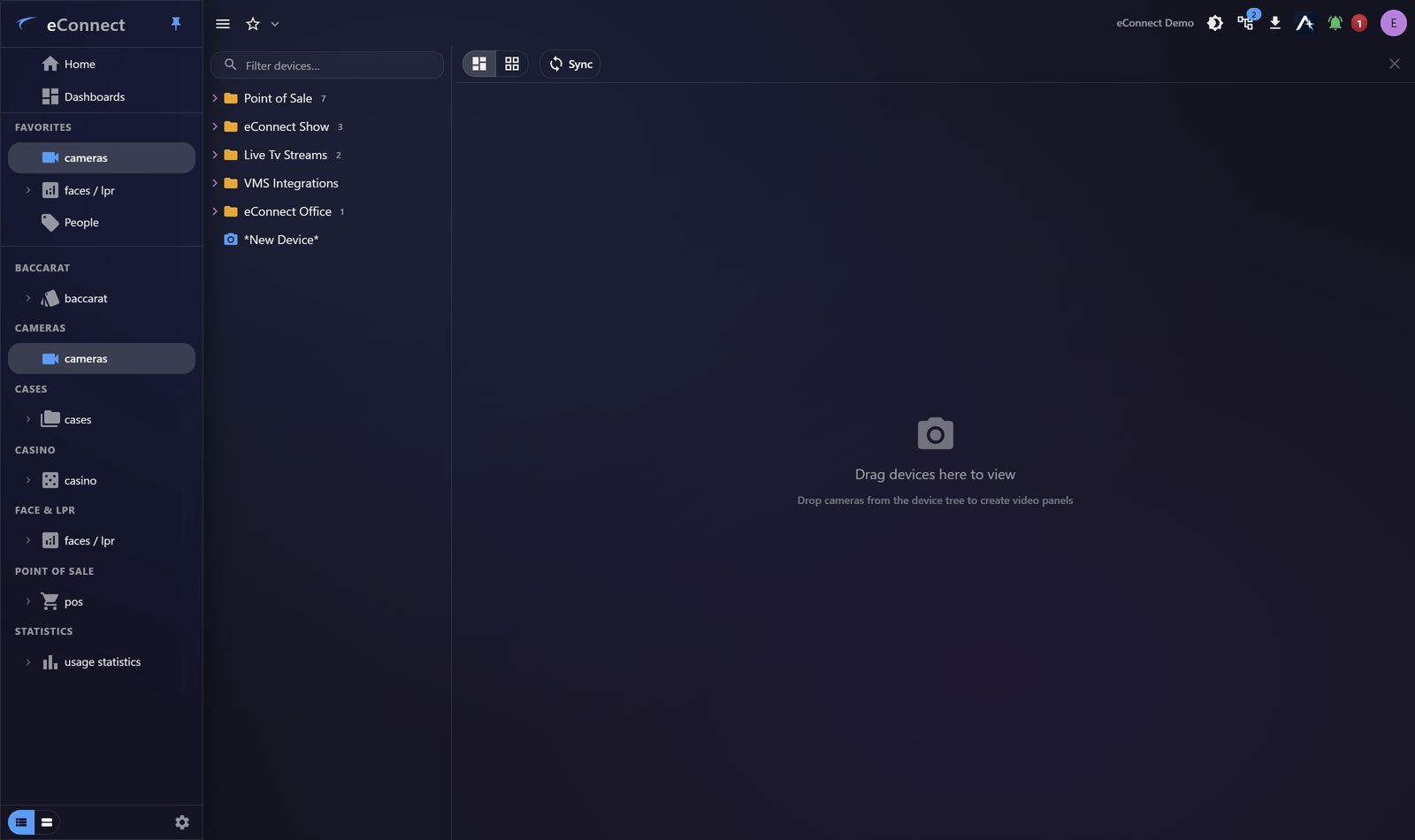
Building a grid
Drag cameras in from the device tree, or add them from the grid's own controls. Two layout modes are offered:
| Layout | Behaviour |
|---|---|
| Fixed layout | Cameras occupy a set arrangement of equal tiles |
| Free-form grid | Tiles are positioned and sized individually |
Fixed is right for monitoring, where consistency helps and an operator learns where each camera lives. Free-form is right for an investigation, where one camera matters more than the others and deserves the space.
Keeping players in sync
Keep players in sync ties the cameras to a single timeline, so moving one moves them all.
This is the setting that makes multi-camera review work. Following somebody through a property means seeing the same moment from several angles, and unsynchronised players make that almost impossible to judge.
Turn it off when you want to compare different times — the same doorway at 09:00 and at 17:00, for instance.
Tiles persist
Cameras you have open stay open when you navigate away and come back, rather than reloading from scratch. A grid assembled for an investigation survives a detour into the data and back.
Popping out
Pop out this view detaches the grid into its own window for a second monitor. See Working Across Monitors.
A pop-out shares your session and closes when you sign out.
How many cameras
Each tile is a live stream, so there is a practical ceiling before the machine or network becomes the limit. If a grid is stuttering, reduce the number of tiles before adjusting anything else.
For a permanent display, a dashboard with two or three large camera widgets is often better than a dense grid nobody can read from across the room.
Audit record
What eConnect writes to the audit trail for the actions on this page.
CAMERA '{camera name}' LIVECAMERA '{camera name}' PLAYBACK @ '{local start time}'