Cameras
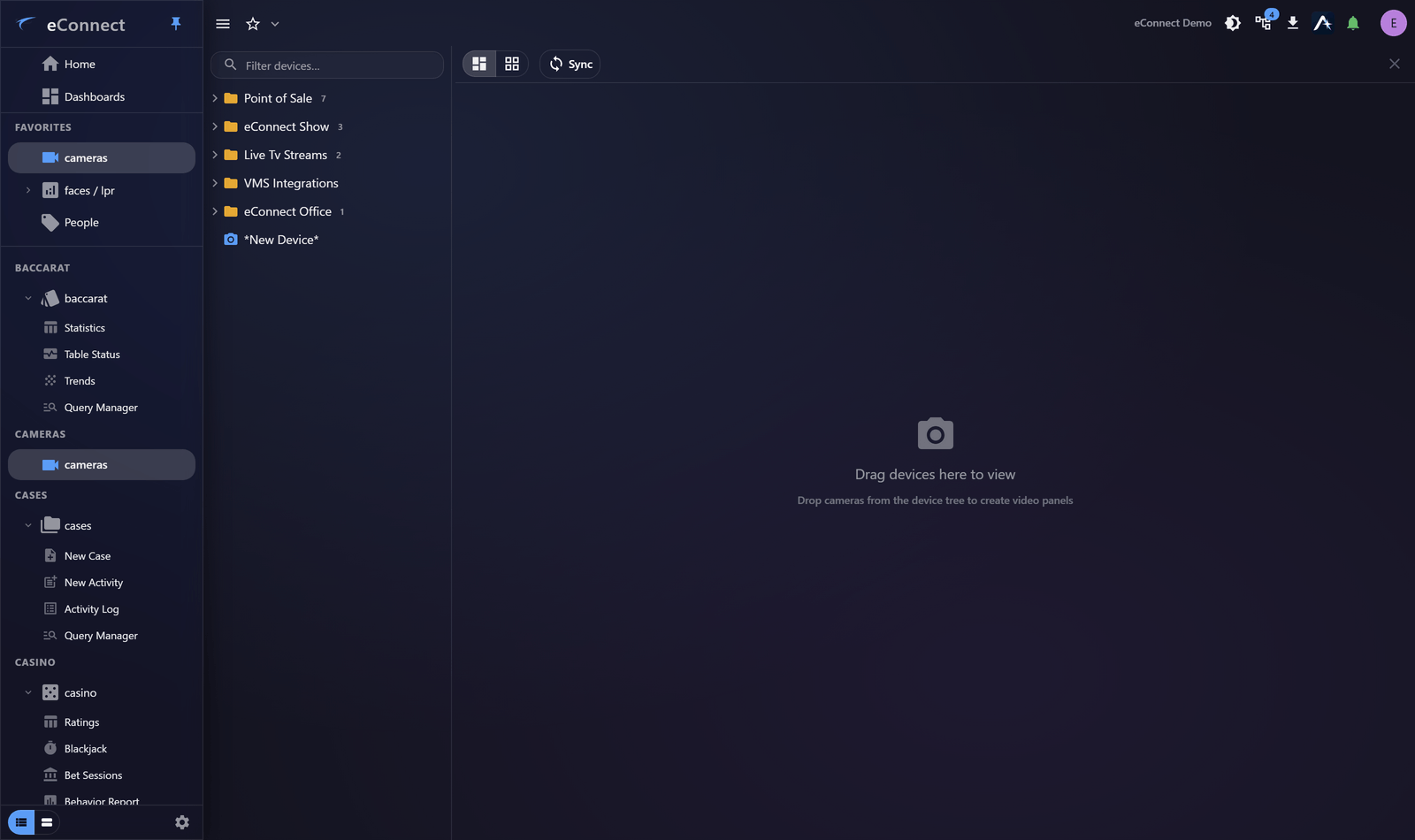
The cameras module connects eConnect to your video recorders, so footage sits alongside the data that points at it. It is where you watch live, review recordings and export evidence.
What it does
| Device Tree | Find a camera among many |
| Live Video | Watch what is happening now |
| The Video Grid | Several cameras at once |
| Playback | Move through recorded video |
| Exporting Video | Produce a clip |
| Export Status and Downloads | Track and collect exports |
| Video Rendering Settings | How video is drawn on screen |
Video needs the desktop client
Live and recorded playback require the Windows desktop client. In a browser, cameras appear as automatically refreshing still images — useful for keeping an eye on a location, not for reviewing footage.
The refresh rate self-tunes to what each camera can sustain: about one image a second for a responsive camera, up to ten seconds for a slow one. See Using eConnect in a Browser.
You rarely start here
Most video review does not begin with a camera. It begins with something that happened — a detection, a transaction, an alert — and reaches video through an association.
That is the module working properly. Following a transaction to its footage is faster and more reliable than knowing which camera to open and when to look, which is why associations are worth keeping accurate.
Permissions
Which cameras you see depends on your permissions and any logical group narrowing your view. A colleague seeing cameras you cannot is normal in a multi-site organisation.
Exporting video has its own permission keys, separate from viewing — see Exporting Video.
Audit record
What eConnect writes to the audit trail for the actions on this page.
CAMERA '{camera name}' LIVECAMERA '{camera name}' PLAYBACK @ '{local start time}'
CAMERA '{camera name}' REVIEWED FOR {elapsed}