Video Rendering Settings
Settings ▸ My Preferences ▸ Video Rendering decides how video is drawn on screen. It is a per-machine setting for the desktop client, and it exists because different graphics setups need different approaches.
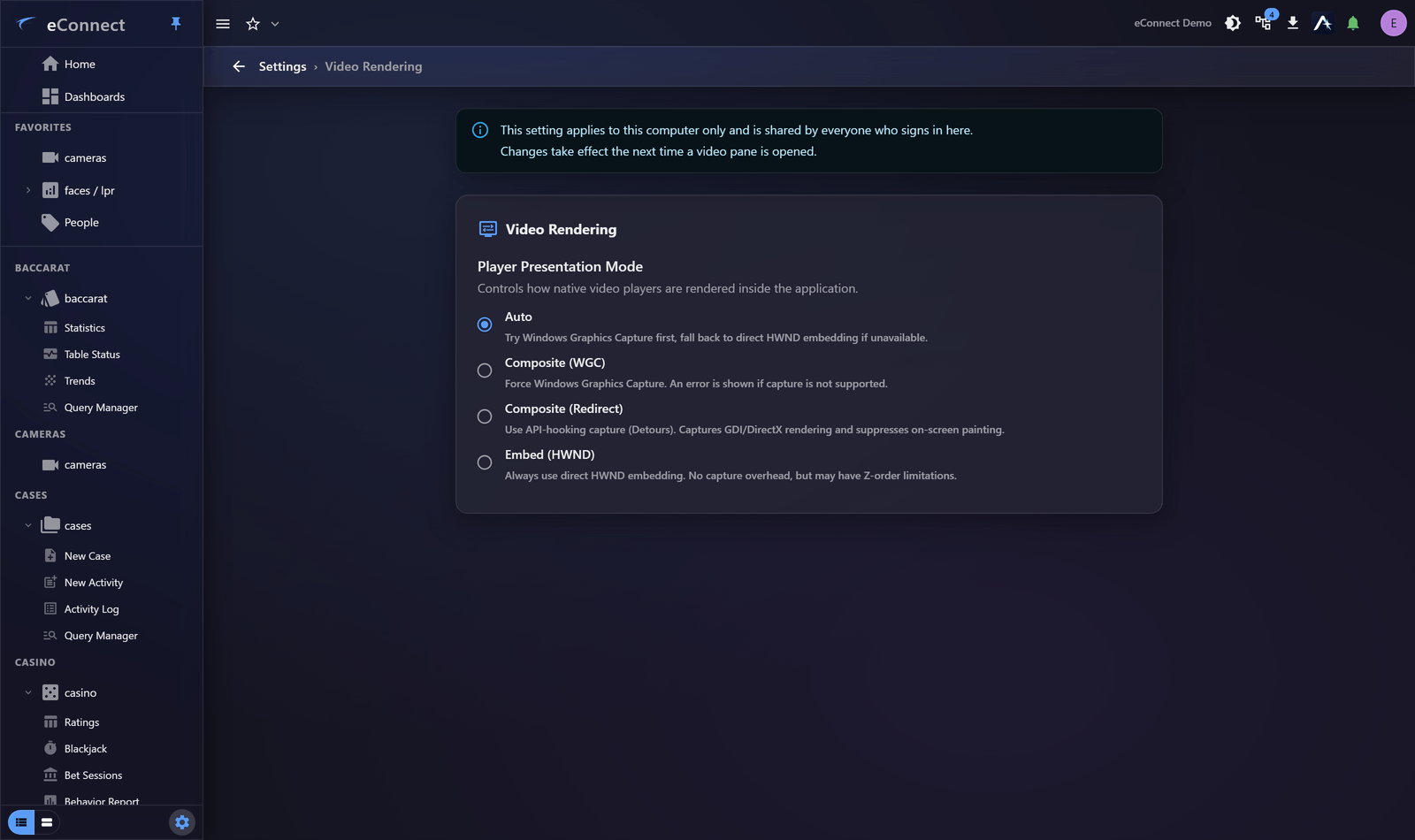
Leave it alone unless video is misbehaving. When video is misbehaving, it is usually the answer.
The modes
| Mode | What it does |
|---|---|
| Auto | Try Windows Graphics Capture first, fall back to direct embedding if unavailable |
| Composite (WGC) | Force Windows Graphics Capture; an error is shown if it is not supported |
| Composite (Redirect) | Capture by API hooking, covering rendering the other modes cannot see |
| Embed (HWND) | Always embed directly. No capture overhead, but may have layering limitations |
Which to use
Auto is correct for almost everyone and is the default. It picks the best available method and falls back when it must.
Change it only to solve a specific problem:
| Symptom | Try |
|---|---|
| Video appears over panels or menus that should be on top | Composite (WGC) |
| Blank or black video tiles | Embed (HWND) |
| Compositing fails on older hardware | Embed (HWND) |
| Rendering the other modes cannot capture | Composite (Redirect) |
The layering problem is the common one. Direct embedding puts video in its own window, which the rest of the interface cannot reliably draw over — so panels appear behind the video. Compositing solves that, at some cost in overhead.
Desktop client only
This affects native video players and has no effect in a browser, where cameras are refreshing stills. The page is hidden entirely for a user with no camera module, since it would have nothing to act on.
Per machine, not per user
The choice is stored on the computer it is set on, so somebody moving between workstations may need it set on each. That is deliberate — it is a property of the hardware, not of the person.
If nothing helps
Rendering settings cannot fix a camera that is not sending video, a recorder that is unreachable, or footage outside retention. Confirm the camera works elsewhere before spending time here — see Live Video and Troubleshooting.