Live Video
Opening a camera shows live video. This page covers the controls and what to expect from them.
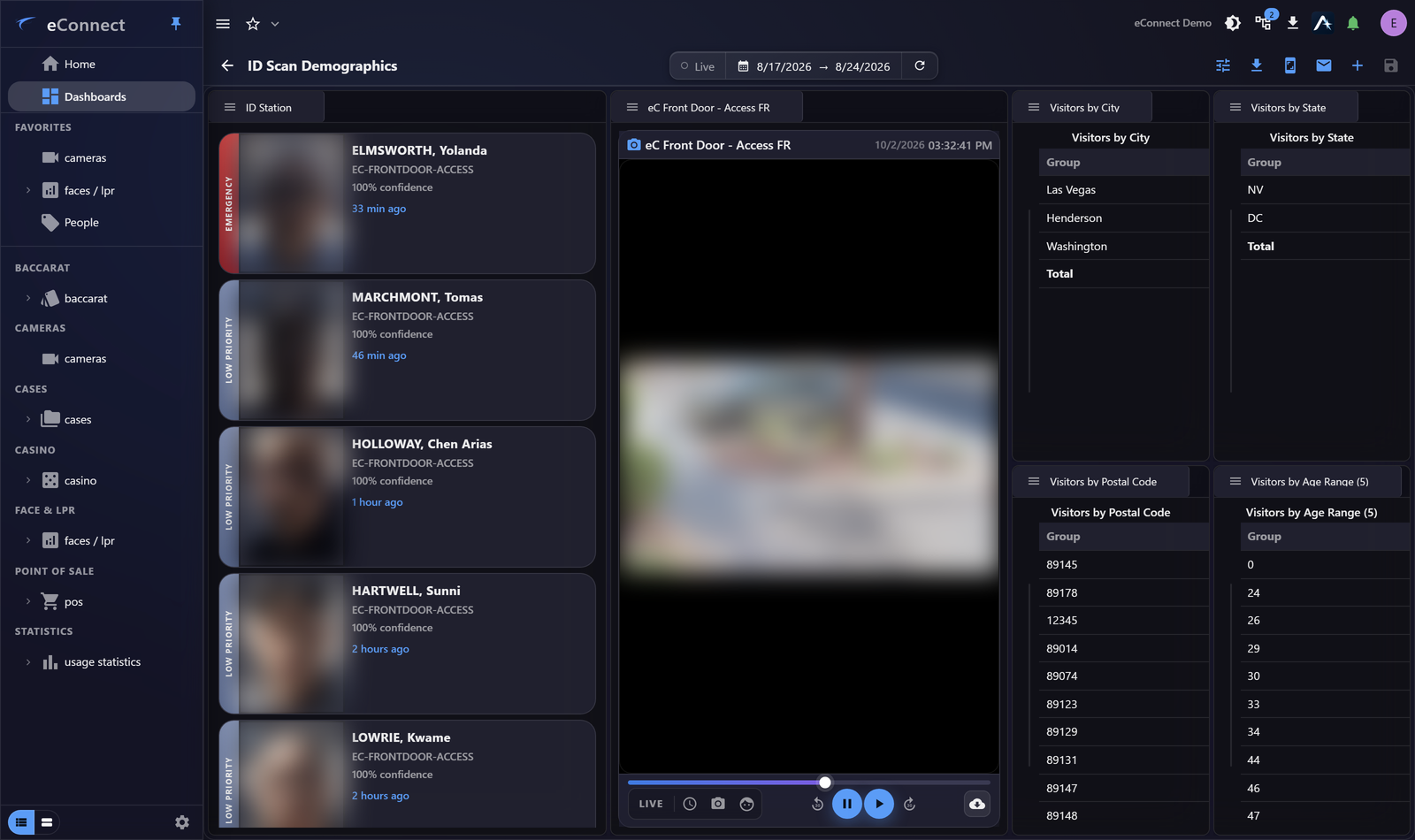
The player
The player shows the live stream with controls for the usual things — full screen, snapshot, and moving to playback.
Taking a snapshot captures the current frame, with the camera and time burned into the picture, and opens it in a window of its own. That window's header carries the three things you would want next:
| Control | What it does |
|---|---|
| Save | Writes the image to a file |
| Sends it to a printer | |
| Ask Ace | Attaches it to a chat so you can ask about what you are seeing |
It is the quickest way to get a still into a case, or in front of Ace.
A tile can be opened in its own window, which is how a camera gets onto a second monitor while the rest of your work stays where it is. Close that window and the tile carries on in the wall.
Close all cameras on the live-view toolbar clears the wall in one action, rather than closing tiles one at a time. It applies to the layout you are looking at — free-form and fixed layouts keep their own sets of cameras — and is available only while something is open. There is no confirmation, because nothing is lost: the cameras are still there to reopen.
A camera whose stream fails offers Retry on the tile. Use it before anything else: a stream that dropped on a momentary network problem comes straight back, and there is no need to close the tile and find the camera again.
Reconnecting
A stream that drops shows Reconnecting and re-establishes itself. Brief interruptions are normal on a busy network and do not need intervention.
A camera that stays disconnected is a recorder or network matter rather than an eConnect one. Check whether other cameras on the same recorder are affected — that distinguishes one failed camera from a failed recorder quickly.
In the browser
The browser client shows refreshing stills rather than live video, self-tuning to what each camera can sustain. Everything else on this page still applies; the picture simply updates in steps.
For live video, use the desktop client — see Using eConnect in a Browser.
Following a subject
Where alerts are configured, eConnect can bring up cameras and follow a subject as fresh detections arrive, without you choosing the next camera. See Auto-Follow.
What is recorded
Opening a camera live is audited, and closing it records how long it was watched.
The duration is the part that matters in a review: it separates opening a camera from actually watching it.
If video will not display
Blank tiles, tearing or overlapping windows are usually a rendering matter rather than a camera fault. See Video Rendering Settings.
Audit record
What eConnect writes to the audit trail for the actions on this page.
CAMERA '{camera name}' LIVE
CAMERA '{camera name}' REVIEWED FOR {elapsed}