Camera Widget
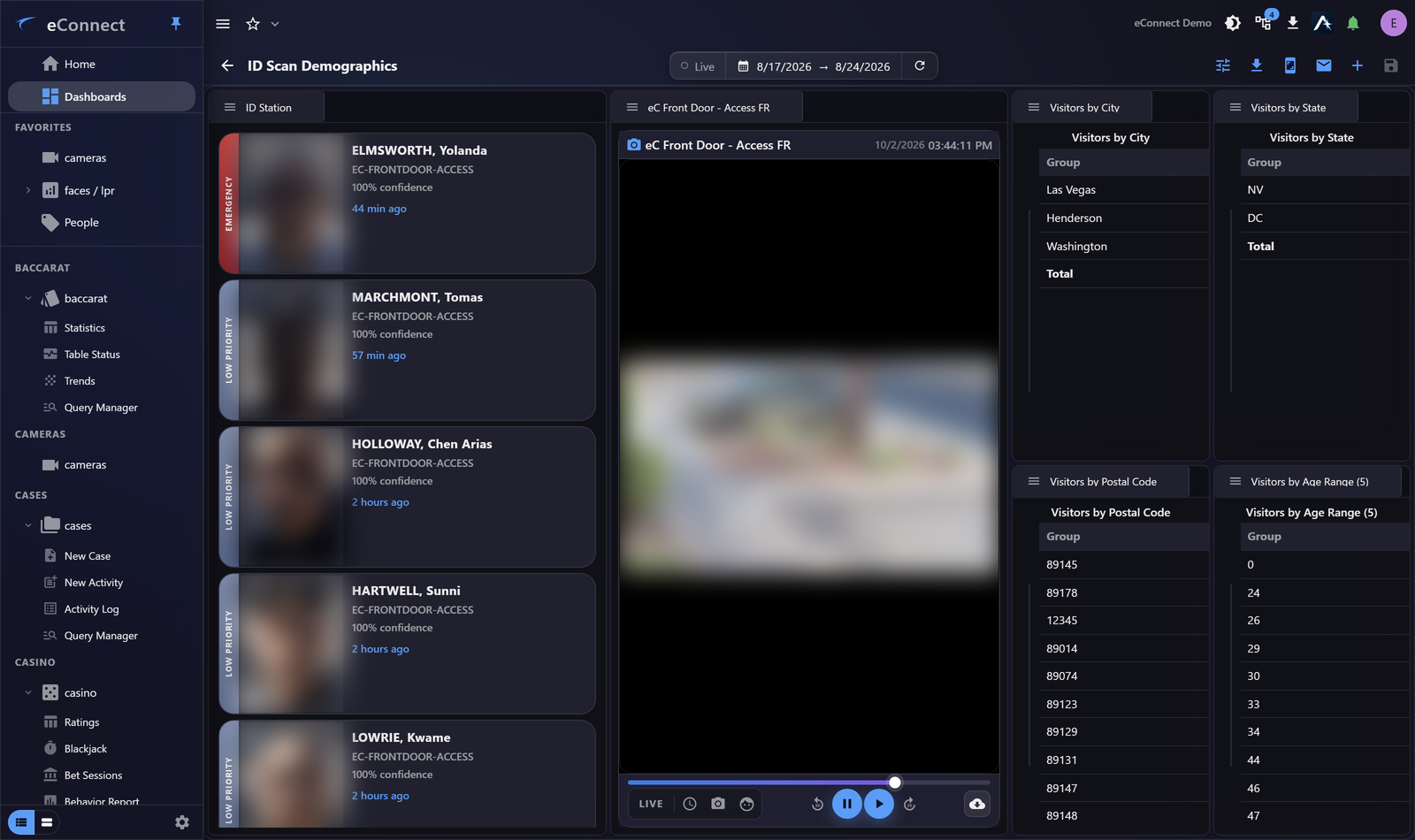
The Camera widget puts a camera on a dashboard, live or at a point in a recording. It is what turns a dashboard of figures into something a floor operator can work from.
Configuring it
Choose the camera. The widget then shows it in place, sized to whatever space you give it on the grid.
Name the widget after the location, not the device — "North entrance" is more use to whoever reads the dashboard than a camera identifier.
Live and playback
The widget shows live video by default and can show playback from a point in the recording, which is useful for a dashboard built around a particular incident.
This action is recorded in the audit trail.
How long the camera was watched is recorded when it closes, which is what lets a later review establish that footage was actually looked at.
This action is recorded in the audit trail.
Video needs the desktop client
In a browser, cameras appear as automatically refreshing still images rather than video. The widget still works and still shows the right camera — it is simply stills, at roughly one image a second for a responsive camera.
For a dashboard whose job is watching video, use the desktop client. See Using eConnect in a Browser.
How many to put on one dashboard
Each camera is a live stream, so several on one dashboard is real work for the machine and the network. A handful is usually the practical limit before the whole dashboard becomes sluggish.
If you need many cameras at once, the video grid is built for it and will perform better than a dashboard of camera widgets.
Sizing
Video needs room. A camera widget too small to make out faces or plates is decoration — better to show two cameras large than six small.
For a wall display, one or two cameras at a readable size alongside your key figures is usually the right balance.
Rendering problems
If video tears, flickers or shows blank tiles, that is a rendering matter rather than a dashboard one. See Video Rendering Settings.
Audit record
What eConnect writes to the audit trail for the actions on this page.
CAMERA '{camera name}' LIVECAMERA '{camera name}' PLAYBACK @ '{local start time}'
CAMERA '{camera name}' REVIEWED FOR {elapsed}
DASHBOARD CONFIGURE WIDGET '{name}' SAVED