Creating a Dashboard
Open Dashboards from the navigation drawer and create a new one. You are asked for a name and a description, whether it is Private, whether Others can edit it and whether its configuration is locked — and are then given an empty grid. None of those answers is final; they live on the dashboard's Properties and can be changed later, which is covered in Sharing, Locking and Importing.
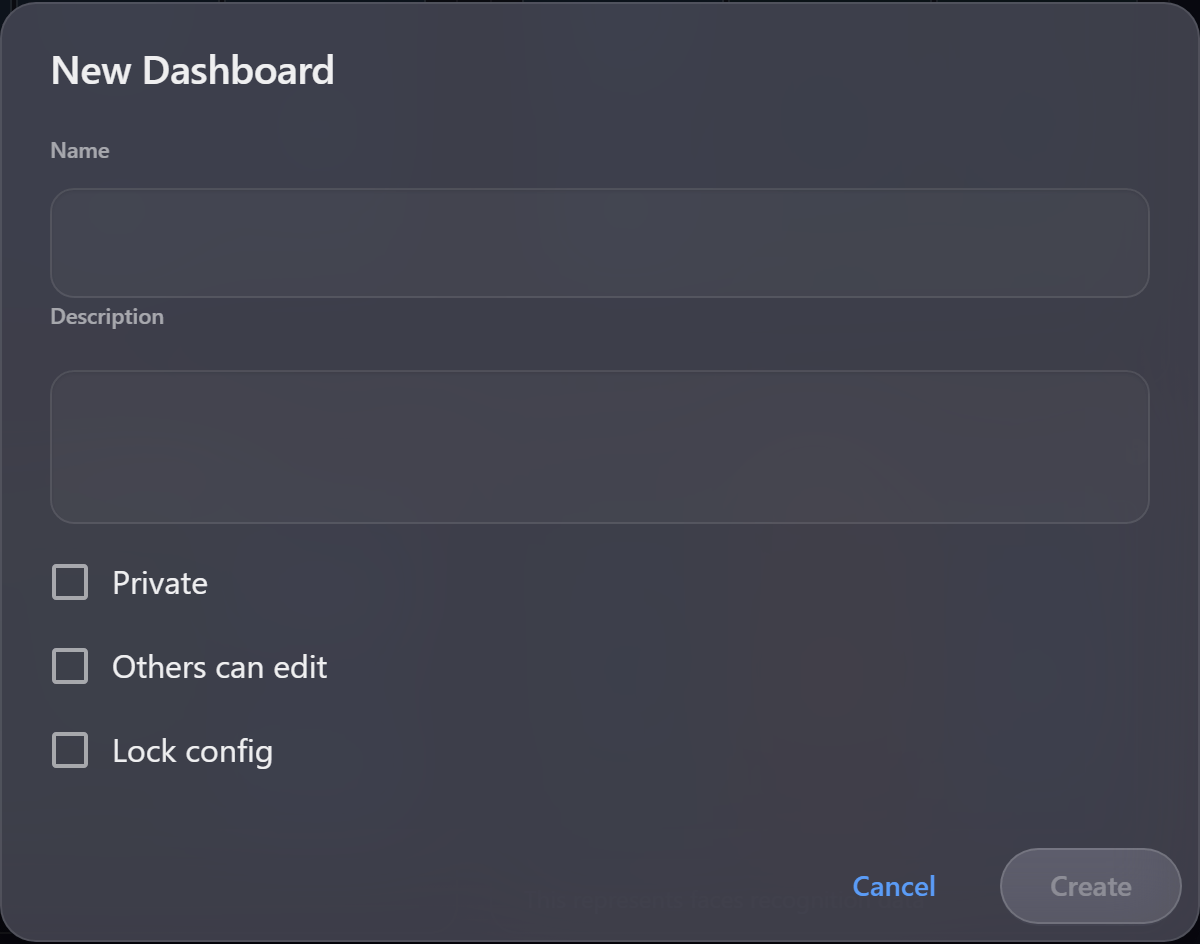
Naming it
The name is how everyone else finds it, so name it after the job it does, not its contents. "Night shift — front of house" tells a colleague when to open it; "Dashboard 2" does not.
The description is worth filling in. It appears in the dashboard list and is the only chance to say what the dashboard is for and who should be using it.
One dashboard, one job
The commonest mistake is one dashboard holding everything. It ends up too dense to read at a glance and too general to answer anything.
Better to have several, each with a purpose:
| Dashboard | Contents |
|---|---|
| Shift monitoring | Live detections, alerts, a camera or two |
| Daily review | Yesterday's totals, exceptions, trends |
| Wall display | Two or three large, readable widgets |
A dashboard someone can read in five seconds is worth more than one carrying everything.
Building it in the right order
- Save the queries first. Widgets draw on saved queries; build and check them before you start.
- Add the most important widget first, top left, and give it room. That is where eyes land.
- Fill in around it, with supporting detail smaller and lower.
- Look at it at the size it will be used. A wall display seen from three metres needs far bigger widgets than a desktop dashboard.
Finding dashboards later
The dashboard list has a filter box, and each entry shows its name, description and who created it. Once a site has accumulated a few dozen, the description is what makes them usable — another reason to write one.
Cloning
Copying an existing dashboard is often faster than starting empty, particularly for per-area
variations of the same layout. ⋮ ▸ Clone on any dashboard you can open — including a shared one
somebody else owns — makes a copy that belongs to you, named with a CLONE: prefix. Rename it,
then repoint the widgets at the right queries.
Capturing one as an image
A dashboard can be saved as a picture of its current state, widgets only and without the toolbar, at full size. The file is named for the dashboard and the period it was showing, so a capture taken for a shift report says on its own face which shift it covers.
This is the right way to put a dashboard into a document or an email: the image records what the figures were at that moment, where a link would show the reader whatever the figures are when they open it.
Next
Audit record
What eConnect writes to the audit trail for the actions on this page.
DASHBOARD '{name}' OPENED