Sharing, Locking and Importing
A dashboard can be yours alone or something a team relies on. This page covers moving between those, and protecting a layout once it is right.
Where the settings live
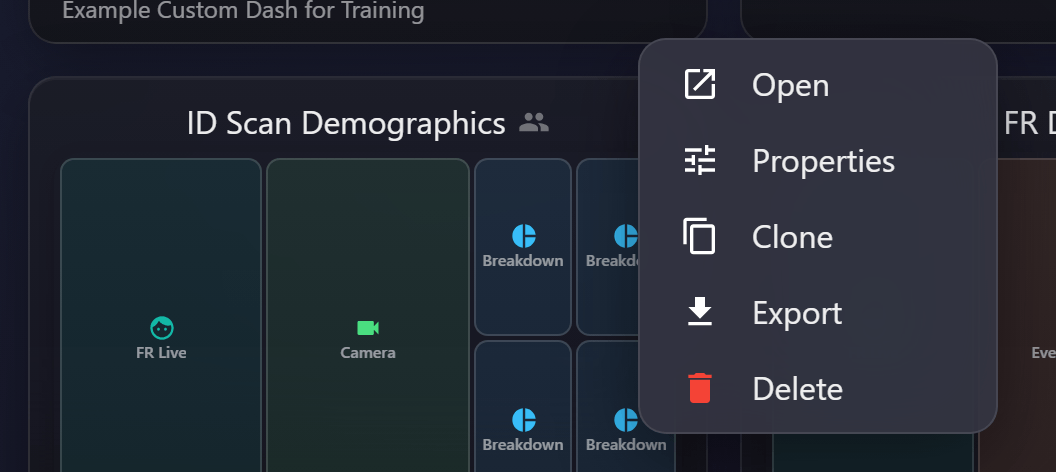
Every one of these settings is on the dashboard's Properties, reached from ⋮ ▸ Properties on its card in the dashboard list, and offered when you create a dashboard:
| Setting | What it does |
|---|---|
| Name | What the dashboard is called in the list |
| Description | A line explaining what it is for |
| Private | Yours alone, rather than shared with your user group |
| Others can edit | Whether colleagues may change a shared dashboard |
| Lock config | Freezes the layout — widgets cannot be moved, resized or reconfigured |
The menu on each card also carries Open, Clone, Export and Delete. Which entries appear depends on what you may do with that particular dashboard: Properties is offered on dashboards you may save, and Delete on ones you may remove.
Private and shared dashboards
Dashboards are saved either to you or to your user group. A group dashboard appears in colleagues' lists; a personal one does not.
Which you can create depends on your permissions — some users may save their own but not publish for everyone. See Permission Groups.
Sharing does not widen access
A shared dashboard is still bounded by each viewer's permissions. Someone without a module sees nothing in a widget drawing on it, and someone narrowed by a logical group sees only their own scope.
So a shared dashboard can legitimately look different to different people. That is the permission model working, not a fault — and it means publishing a dashboard never discloses anything.
Locking the layout
A dashboard's configuration can be locked, which prevents its widgets being moved, resized or reconfigured.
Lock any dashboard more than one person depends on. Without it, the first person to drag a widget while looking for something changes it for everybody, and nobody knows who or when.
A locked dashboard — and one you are not permitted to change — opens read-only: the padlock on it is a statement of what will happen, not decoration. Widgets draw and drill through as usual; what is withheld is rearranging them.
Locking is about protecting a shared layout, not about permissions — it does not restrict who can see the dashboard, only who can rearrange it.
Importing and exporting
Dashboards can be moved between systems, which is how a layout built on a test system reaches production, or how a working arrangement is shared between sites.
Export writes an .ecdash file holding the name, description, layout and widget configuration.
Import is offered beside New at the top of the dashboard list, and mints a fresh dashboard
owned by you — the privacy and lock settings are not carried in the file, so set them afterwards on
Properties.
The file is the same format the previous Windows client wrote, so a dashboard built there opens here, and one built here opens there.
An imported dashboard brings its widget configuration, but its widgets reference saved queries that must exist on the destination system. If they do not, widgets arrive with nothing to draw — so import the queries first, or expect to repoint each widget.
Cloning
Copying a dashboard is usually easier than importing when both live on the same system, and is the right way to produce per-area variants of one layout.
Clone works on any dashboard you can open, including a colleague's shared one. The copy is
yours — named with a CLONE: prefix so the two are told apart at a glance — which makes it the
safe way to experiment with somebody else's layout without touching theirs. Rename it on Properties
once it is what you want.
When a shared dashboard stops working
Almost always one of three things:
- A saved query was edited or deleted. Widgets draw on queries, and changing one changes every dashboard using it.
- A query has a fixed date range, so the dashboard is showing a historical period. Use a relative period — see Date and Time Ranges.
- The viewer lacks permission for the underlying data, so widgets are empty for them and fine for you.
Check them in that order.
Audit record
What eConnect writes to the audit trail for the actions on this page.
DASHBOARD '{name}' OPENED
DASHBOARD CONFIGURE WIDGET '{name}' SAVEDDASHBOARD CONFIGURE '{dashboard name}' REMOVED WIDGET '{name}'DASHBOARD EXPORT '{name}'DASHBOARD IMPORT '{name}'