Events
The events grid is every transaction event in a period — sales, voids, discounts, refunds, no-sales, opens and everything else your registers report.
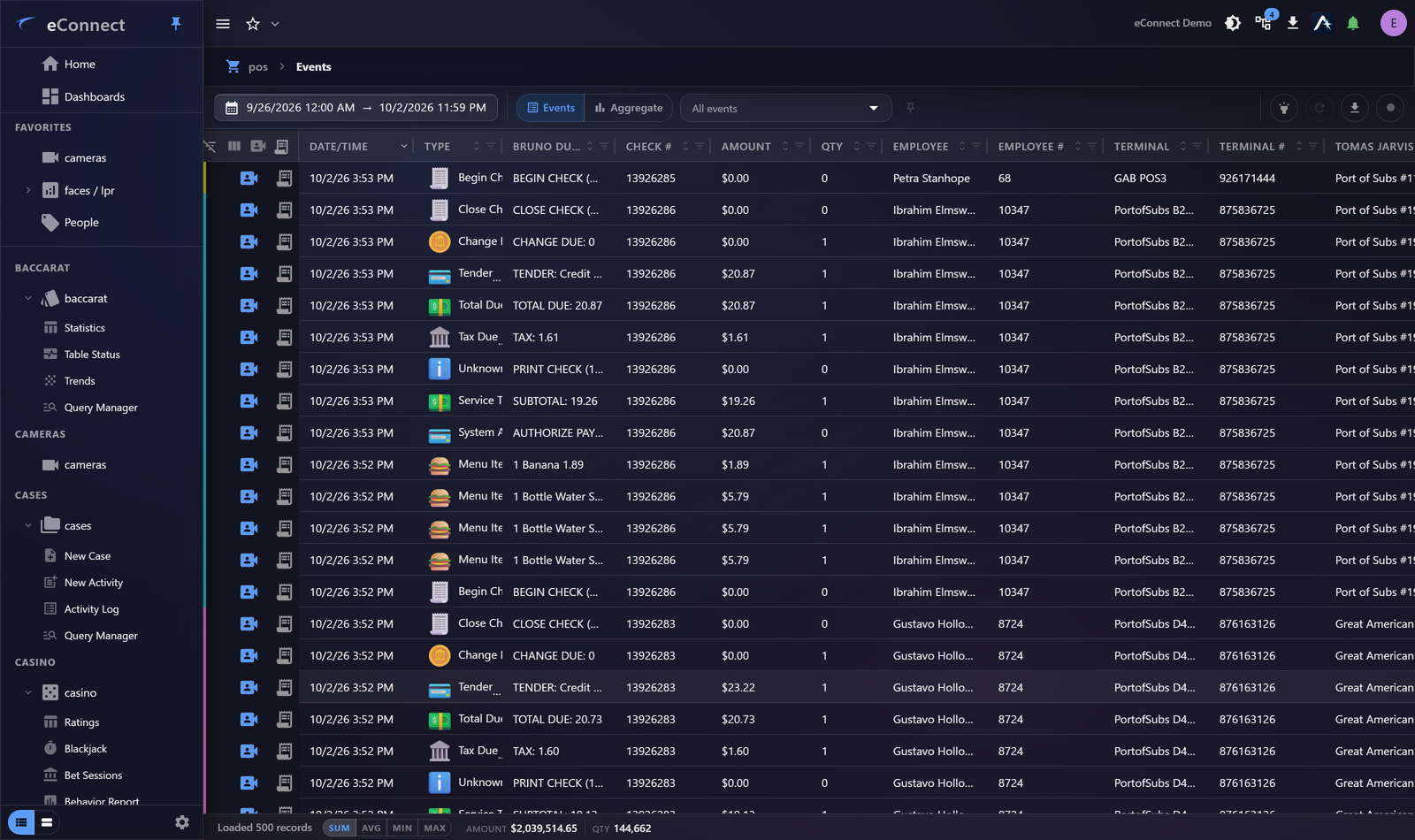
Getting a useful result
Set a date range, filter, and read the row count before anything else. Everything on Working With Data applies here — this is a standard grid over a standard query.
The filters that earn their place first are event type, employee and register. Between them they turn a day of trading into the handful of events worth looking at.
Event categories
Events are grouped into categories, so you can ask for all exceptions rather than naming each type.
The ones that matter operationally are the reversals and adjustments — voids, discounts, refunds, no-sales. A sale is only interesting relative to them.
Following an event
Selecting an event opens the receipt it belongs to, and check numbers and identifiers in the grid are links — so you can move from an event to its check to the employee to the video without going back to navigation.
Each of those steps is a drill, captured in your Workspace.
Reaching the video
View associated cameras on an event opens the cameras covering that register, at that moment. This depends on associations.
This action is recorded in the audit trail.
The range shown is the range you arrived with
When you reach Events by drilling — from a dashboard mark, an aggregate slice or a chat answer — the date control shows the window you drilled into, not the module's usual default. The figure you clicked and the rows you are now reading therefore cover the same period, which is the only way the drill can be checked.
Widen or narrow it as you like; it is an ordinary date range once you are there.
Do not read the grid page by page
If you are scrolling to find something, the query is doing too little. Either filter harder, or aggregate and drill into the group that stands out — which is faster and much less error-prone than reading.
Exporting
Export Data and Export all events produce CSV. The export reflects the columns and filters you have applied, so shape the grid first. See Exporting Data.
Audit record
What eConnect writes to the audit trail for the actions on this page.
CAMERA '{camera name}' PLAYBACK @ '{local start time}'
QUERY 'POS Events' FROM {start date} TO {end date}; VIEW: 'Events' PAGE {page};QUERY EXPORT '{name}' FROM {start date} to {end date}