Receipts and Tickets
A receipt is one check, line by line — what was ordered, what it cost, what was adjusted and who served it.
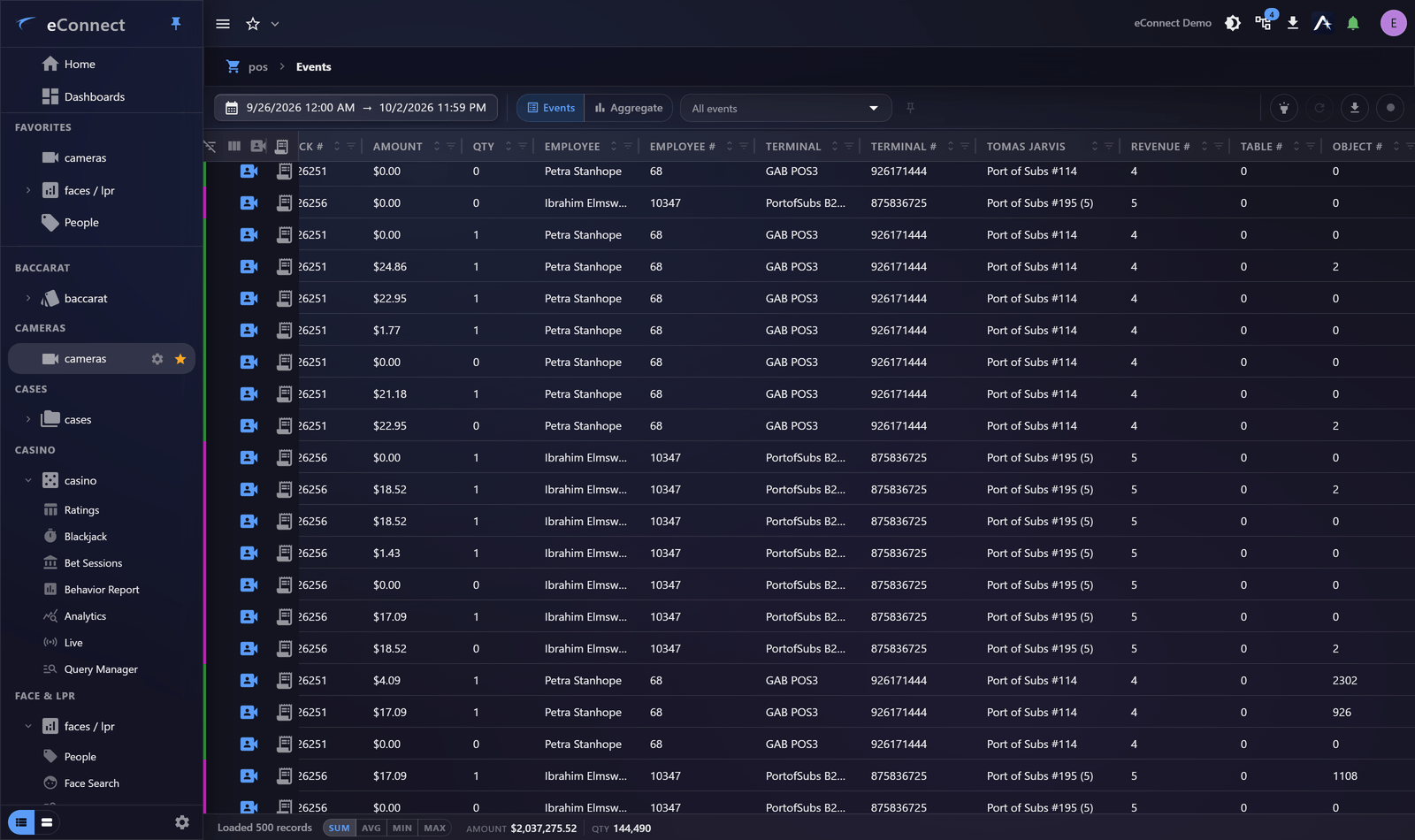
Getting to one
Usually by following an event, which is the right direction: you find something worth looking at, then open the check it belongs to.
Check numbers appear as links throughout the module, so a check referenced in a grid, a report or a statistic opens directly.
Reading a check
The receipt shows the transaction as it would have printed, with the items, their prices, and the adjustments applied.
What you are usually looking for is the relationship between lines: an item added and voided moments later, a discount applied after the total, a refund with nothing corresponding to it. A single line rarely tells you anything; the sequence does.
Receipt Only shows just the printed content, without the surrounding event detail — useful when comparing against a paper copy.
Items and checks
The Items and Checks views present the same data at different grain. Items are the individual lines; checks are the transactions they belong to.
Query at the grain your question has. "Which items are being voided most?" is an items question; "which checks were reopened?" is a checks question.
Split checks
Where a check has been split, the parts are linked, so you can move between them rather than searching. A check split several ways is a common pattern worth understanding before drawing conclusions from any one part.
From receipt to video
View associated cameras opens the footage for that register at the time of the transaction. This is the whole point of the module — the receipt tells you what was recorded, the video tells you what happened.
This action is recorded in the audit trail.
Video needs the desktop client; in a browser you get refreshing stills. See Using eConnect in a Browser.
Keeping it
Download PDF on a check summary produces the receipt as a document — the thing to attach to a case, or to send to somebody who does not use eConnect.
From a camera's associated POS tile, clicking a check number opens that check in a window of its own, so the receipt can sit beside the footage rather than replacing it.
A check that matters belongs in a case, along with the footage. The path you took to find it is already in your Workspace.
Following a person rather than a check
Where a transaction is associated with a recognised subject, you can move from the check to the person and see everything else about them. See A Subject Profile.
Audit record
What eConnect writes to the audit trail for the actions on this page.
CAMERA '{camera name}' PLAYBACK @ '{local start time}'