People
The People view browses and searches your enrolled subjects. Where Face Search starts from a photograph, this starts from what you know about somebody.
Nothing shows until you ask
The view opens empty, with Select a tag or enter search criteria to view people. That is deliberate: with thousands of subjects enrolled, loading all of them would be slow and useless.
Two ways to populate it:
- Select a tag in the left panel — the fastest route, and usually what you want
- Enter search criteria — a name, a subject ID, or one of the additional fields under More

Tags as the primary index
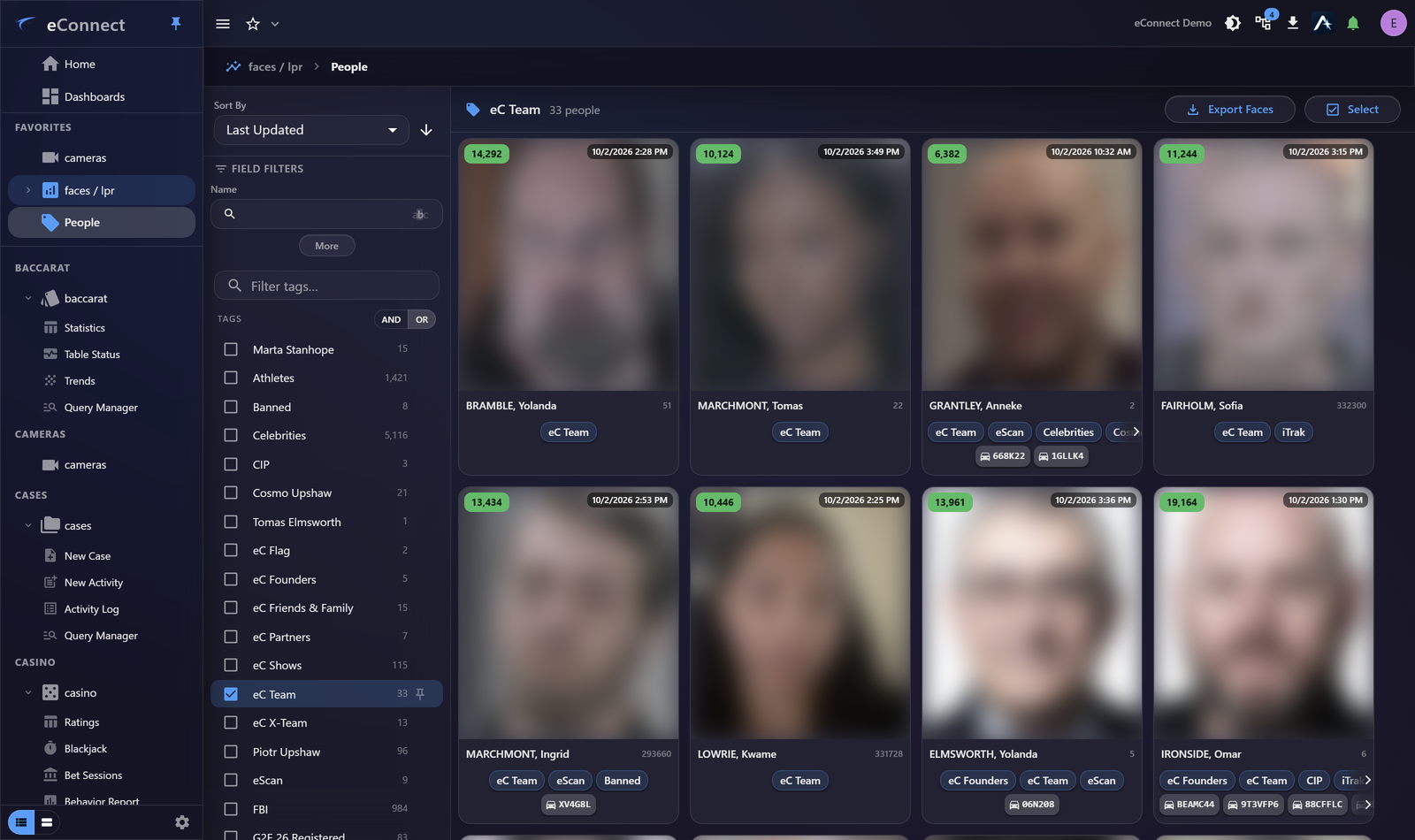
The tag list shows every tag with a count beside it, which makes it a map of your enrolled population. Selecting one shows its members immediately.
This is how most people use the view day to day: show me everyone tagged Banned is a single click, and the count tells you the size of the answer before you commit to it.
Tags can be combined with AND or OR — AND for people carrying several tags, OR for anyone carrying any of them.
Field filters
Name and Subject ID are always available, and More reveals the rest — employer, department, employee ID, age and others depending on your configuration.
Field filters combine with tag selection, so everyone tagged Banned whose name contains "Smith" is one query.
Keeping the fields you use above More
A field you search on constantly does not belong behind More. Pin above More on that field lifts it into the always-visible set, and the choice follows you between machines — so the panel comes up arranged for your work rather than for the default.
The same applies to the plate filters. Pin what you type into weekly; leave the rest behind More, which is what keeps the panel short enough to read.
Working on several people at once
Above the results, Select turns the grid multi-select: tick the people you mean, and the tools then act on all of them at once — adding a tag, removing the tag you are looking at, or exporting their faces with Export Faces.
Both need exactly one tag selected, and the page says so rather than guessing which tag you meant: "add a tag" to people drawn from three tags at once is ambiguous, and removing one is worse.
Each action confirms first, naming the tag and how many people it affects — The 24 selected people in eC Team will also be tagged Contractor. Their other tags stay as they are. Read that line. It is the difference between tagging two dozen people correctly and tagging two dozen people wrongly.
This is the fastest way to correct a tag applied too broadly, and the safest, because you are looking at the faces while you choose rather than working from a list of names.
Reading the results
Subjects appear as cards showing the photograph, name, subject ID, tags and any associated plates. Sort them with Sort By — last updated is the default and is usually what you want when reviewing recent activity.
Select a card to open the subject profile.
Finding somebody who is not enrolled
People only knows about enrolled subjects. For an unknown individual:
- Semantic Search finds them by appearance
- Face Search confirms whether a photograph matches anyone enrolled
Audit record
What eConnect writes to the audit trail for the actions on this page.
SEARCHED FOR FACE WITH IDENTIFICATION '{term}'