Company Logo
Settings ▸ System Administration ▸ Company Logo holds the image that appears on the PDF reports eConnect generates — subject profiles, plate profiles, the Security and Access report, and the documents Ace produces.
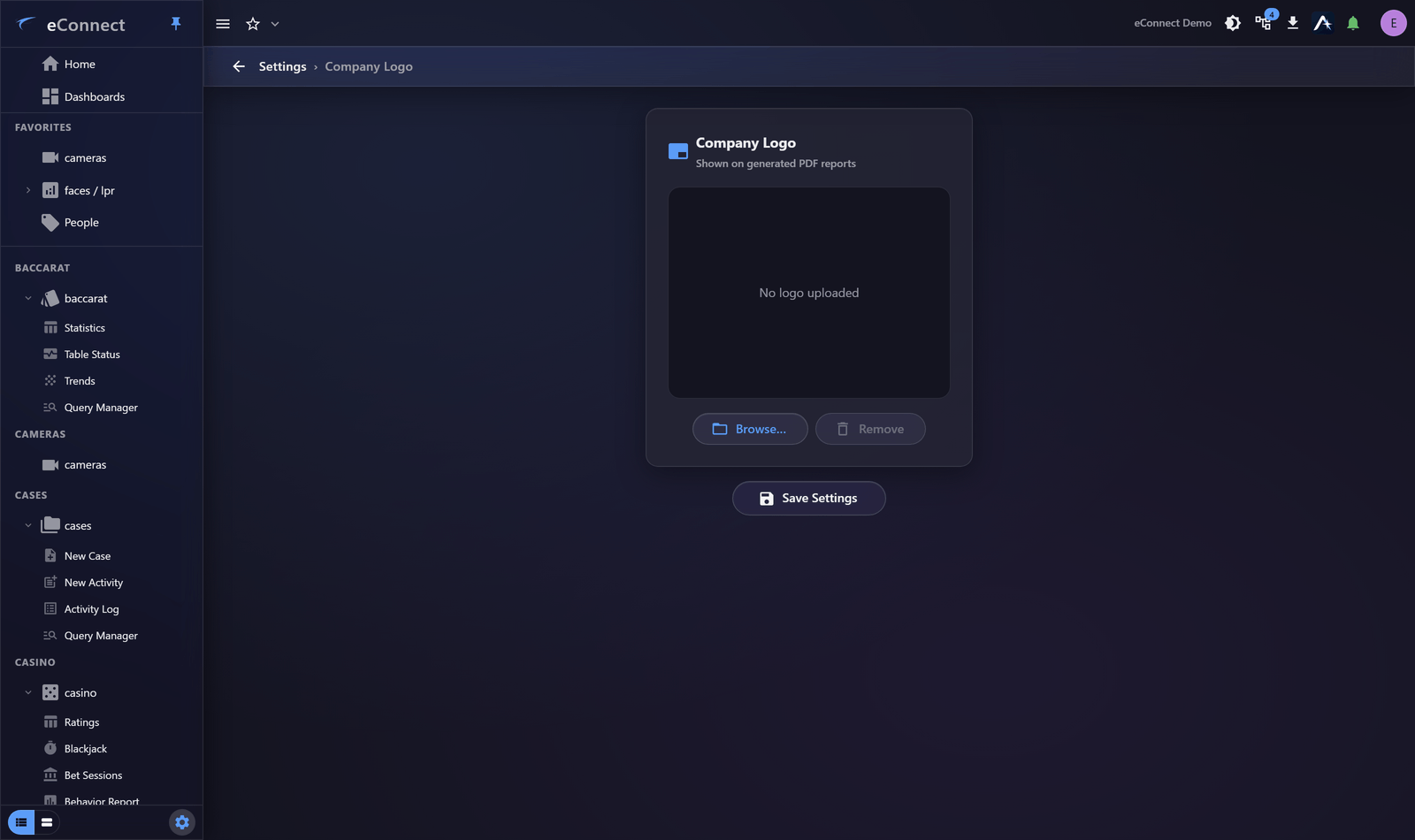
It is worth setting once, early. A report that leaves the building with your own letterhead on it reads as a document from your organisation; the same report without one reads as a screenshot.
Setting it
Browse… picks an image and shows it in the preview immediately. Nothing is stored until you Save, so a logo you picked by mistake costs nothing — pick another, or Remove to go back to none.
The preview is the logo as it will be stored, not as the file was: eConnect scales every logo to a fixed width and keeps its proportions, so a small image is scaled up and a large one down. What you see in the preview is what a report will carry.
Choosing an image
| Recommendation | |
|---|---|
| Format | PNG, or JPEG. BMP and TIFF files are accepted, but a TIFF may fail to load |
| Shape | Wide rather than tall — the logo sits in a report header |
| Background | Transparent or white; a coloured background will show as a block |
| Size | At least 704 pixels wide, so scaling never has to invent detail |
The last is the one that most often disappoints. Every logo is stored at the same fixed width, so an image narrower than that is enlarged — and a small logo enlarged looks soft on the printed page. Take the largest version your marketing team has rather than the one already on a web page.
Where an image cannot be read, the page says so and keeps the logo you had. That is nearly always a TIFF, or a file that is not really the format its name claims.
Removing it
Remove clears the logo, and Save applies that. Reports then print without one rather than with a placeholder.
Scope
The logo belongs to the user group it is set on, so a system serving several tenants can give each its own — and a reseller configuration can leave it unset and let each customer supply their own. See Tenants and Resellers.
Related
- PDF Reports — what the logo appears on
- Reports and Email — documents produced from a chat
- Security and Access Report — the compliance document