Using the Chat
Open the assistant from the title bar. It appears as a panel on the right-hand edge, or in its own window if you have detached it.

Asking
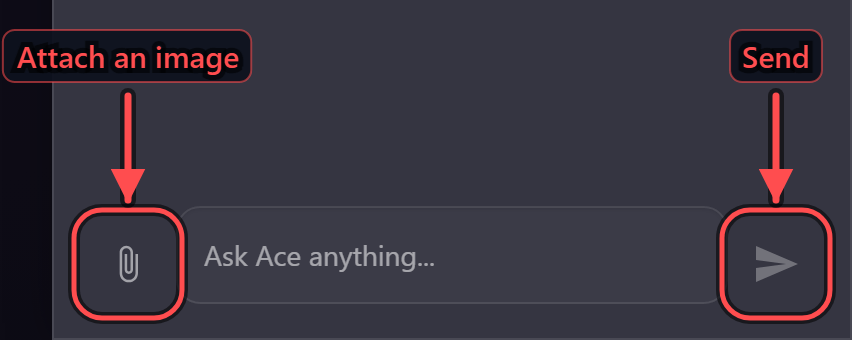
Type into Ask Ace anything… and send. The answer streams in as it is produced, so you see progress rather than a spinner — and you can read the beginning while the rest is still arriving.
Stop halts an answer part-way. Use it when you can already see the response is going the wrong way; there is no penalty, and stopping and re-asking a sharper question is faster than reading to the end of a wrong one.
Following up
The assistant keeps the thread. Once it has given you last night's voids, "now break that down by employee" works without repeating the context.
This is the main thing that distinguishes it from search. Ask a broad question, then narrow with follow-ups — each one is cheaper to type and the assistant already knows what you are talking about.
Beneath an answer, Ace reports what that exchange used and how full the conversation's context is. The percentage is of the window the model actually has, and it is the number to watch on a long thread: as it climbs towards full, earlier turns start being compacted away.
Earlier turns are re-sent as context on every question, so a long thread consumes more than a short one. Ace reuses what it can between turns — where the provider supports caching, the repeated part of a conversation is charged at a fraction of fresh text, and the figures say how much was served that way — and compacts a conversation that has grown long. That takes the edge off both the cost and the wait, but it cannot make a long thread as cheap as a short one. When you move to a genuinely different subject, start a New chat rather than continuing: it is cheaper, and the answers are sharper for not carrying irrelevant history.
Steering an answer
The assistant responds to instructions about form as readily as about content:
- "as a chart" / "as a table"
- "just the top ten"
- "group by revenue centre instead"
- "show me the actual rows"
If it has misunderstood, say so plainly — "no, I meant the north entrance, not north car park". It corrects within the thread rather than needing the question rebuilt.
Watching it work
While an answer is being produced, Ace shows what it is doing as a row of chips — one per step it takes to get your data, named for what that step is: composing a PDF, fetching point-of-sale events, searching subjects.
They are worth glancing at. A question that returns something surprising is often explained by the step that fetched the data rather than by the answer written on top of it.
A chip that turns red has failed. Open it to see the reason, which can be copied — that text is what a support case needs, and it is usually specific enough to resolve the problem yourself: a permission you do not hold, a module that is not licensed, or a source that was unreachable at the time. A failed step does not necessarily ruin the answer; Ace will retry a step that looks transient, and will say what it could not reach rather than quietly leaving it out.
Where you are matters
The assistant knows which module and view you are in, so "what am I looking at?" and "filter this to today" are reasonable things to say. It can also navigate — asking it to take you to a view will move you there.
Sessions
| Control | What it does |
|---|---|
| New chat | Start a fresh conversation with no history |
| Chat history | Return to an earlier conversation |
| Open in a separate window | Detach the assistant into its own window |
| Settings | Provider and model options, where you have them |
Detaching is worth doing on a multi-monitor setup: an attached chat shares the right-hand edge with the Workspace and only one can be open at once, while a detached one does not compete. See Sessions and History.
When the assistant is unavailable
If no provider is configured or reachable, the assistant says so rather than failing silently. Administrators will find the cause under AI Configuration — usually a provider showing unhealthy — and can confirm capacity from AI Usage and Analytics.
If you are being told an allowance has been reached, that is a deliberate limit rather than a fault; your administrator sets those.
What is recorded
Conversations with the assistant are audited: sessions being created, renamed and deleted, messages sent, emails sent on your behalf, and feedback you give. Questions and answers form part of the record of what you did, in the same way a query does. See What eConnect Audits.