AI Configuration
Everything that decides whether Ace is available, which models answer questions, where those models run, and how much they may be used, is configured under Settings ▸ System Administration ▸ Ace.
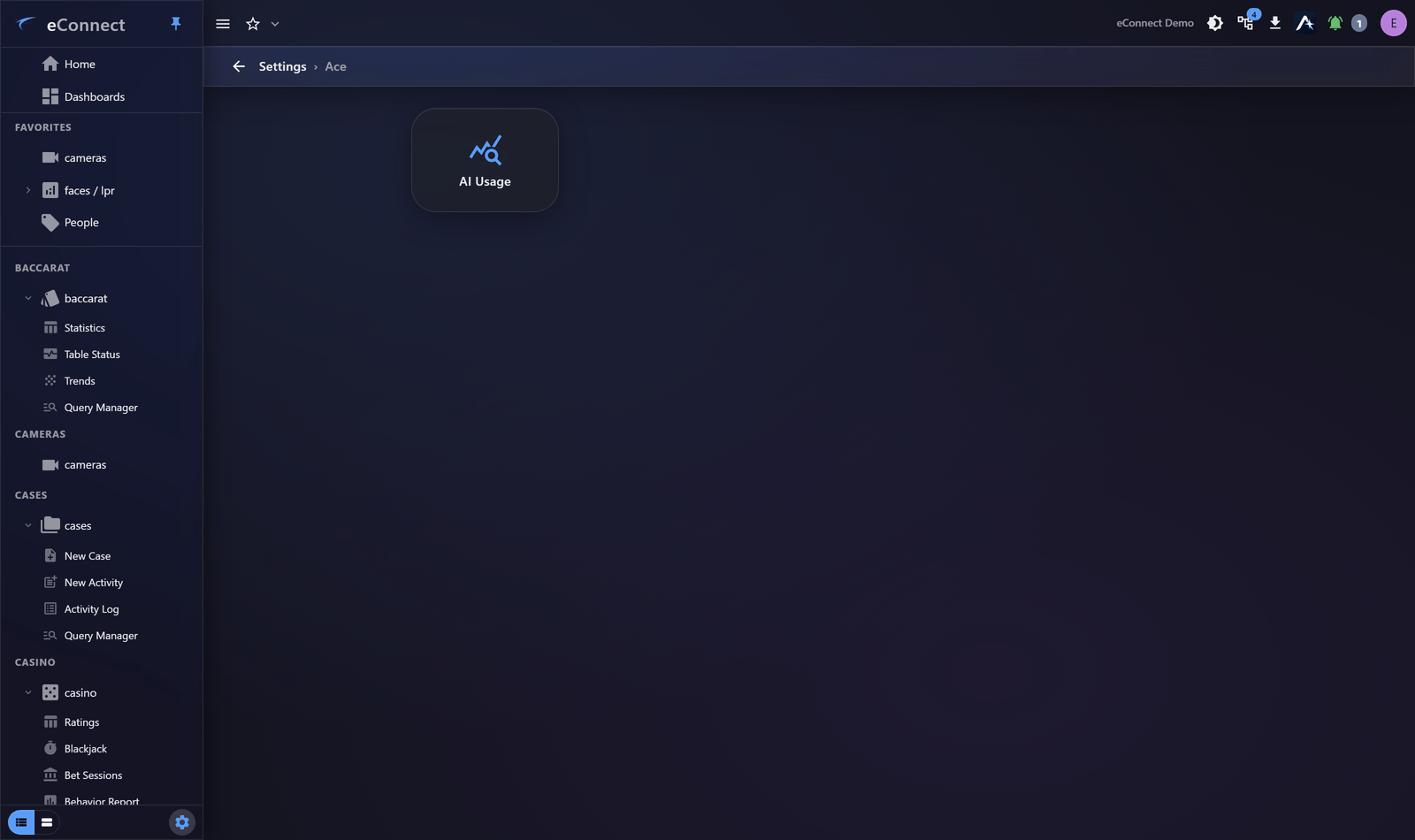
This page needs the AI Providers → Manage permission. Holders of the view-only usage right see AI Usage and Analytics but not this page — the Ace tile opens straight to Usage for them, with no provider settings shown at all.
Providers — where the models run
A provider is one endpoint eConnect can send a request to. That might be a server on your own network running local models, or a hosted service. Each provider is defined by:
| Field | What it is |
|---|---|
| Name | A label for your own use, shown wherever the provider appears |
| Type | Which kind of service this is, which decides how eConnect talks to it |
| Endpoint | The address requests are sent to |
| API Key | The credential, where the provider needs one |
| Pool | The group this provider belongs to, for sharing load |
Providers are an ordered list, and the order is the priority. Use Move up and Move down to change which provider is tried first. Put your fastest or cheapest provider at the top and let the others act as fallbacks.
A provider pointing at a server on your own network means questions and the data used to answer them never leave your premises. Where an external service is configured instead, server-side guardrails still prevent camera credentials and personal data from being included in what is sent.
Pools
A pool groups providers that can serve the same work, so load spreads across them and one being busy does not stall the assistant. Pools never span scope tiers — a pool belongs to one scope, which keeps a tenant's traffic from being served by another tenant's hardware.
Models
Each provider declares which models it offers and how it should use them:
| Setting | Purpose |
|---|---|
| Text model | Answers ordinary questions |
| Vision model | Handles attached images — see Images and Attachments |
| Hardware profile | The class of machine the provider runs on |
| Memory (GB) | How much memory is available for loaded models |
| Keep models loaded | Hold models in memory between requests |
| Max concurrent streams | How many answers this provider may produce at once |
| Max tokens | Ceiling on the length of a single answer |
Keep models loaded trades memory for speed. With it on, the first question after a quiet period answers as quickly as the tenth; with it off, memory is released between requests and the first question pays a loading delay. On a dedicated machine, leave it on.
Max concurrent streams is the setting to reach for if answers start queuing — see the queue figures in AI Usage and Analytics before changing it, so you are treating a measured problem rather than a suspected one.
Scope policy
Settings can be defined once at a higher level and inherited downwards, so a reseller or head-office configuration applies to everything beneath it without being retyped.
A field showing Inherit is taking its value from the tier above. Type a value to override it for this scope, and use Reset to inherit to hand control back. This is the mechanism to use when most sites should share one configuration and a few need their own.
Token allowances and limits
This is where cost is controlled. Two different things are set here, and it is worth being clear which is which.
Allowances cap total consumption for the scope:
| Setting | Effect |
|---|---|
| Daily allowance | Total tokens the scope may use in a day |
| Weekly allowance | Total for the week |
| Monthly allowance | Total for the month |
| Warn at (%) | The point at which the allowance is flagged as running low |
| Monthly allowance resets / Day of month | When the monthly count returns to zero |
| Week starts on | Which day begins the weekly count |
Allowances are the collective ceiling: everybody in the scope draws on the same figure, so a group of two hundred cannot quietly consume two hundred times what you intended.
Per-user limits cap what any one person may consume, so a single heavy user cannot exhaust the allowance everybody shares:
- Daily token limit per user
- Weekly token limit per user
- Monthly token limit per user
Set Warn at (%) somewhere you would actually act on — 80% gives useful notice, 99% does not. Reset days should match how you account for cost internally, so the figures on this page line up with the figures you report.
A token is roughly a short word. Both the question and the answer consume them, which is why the usage page reports them together as in + out. Longer conversations cost more than short ones because the earlier turns are re-sent as context each time.
What counts against an allowance
Not every request costs money. Each provider carries a metered switch:
| Setting | Effect |
|---|---|
| Metered on | Usage counts against usage allowances |
| Metered off | Free on-site hardware — usage is still recorded, but never counted |
| Cost multiplier | How heavily this provider's tokens weigh against an allowance, with a per-model override where one model is far dearer than another |
Turn metering off for models running on your own machines: the tokens are real and worth measuring, but nobody is billed for them, and counting them against an allowance would push people off hardware you already own.
The multiplier is what lets one allowance cover providers of very different cost. A frontier model set to a higher multiplier consumes the shared figure faster than a cheap one, which is the intended effect — the allowance then bounds spend rather than merely bounding tokens.
These are commercial settings, and they are gated separately from the rest of this page: they need AI Commercial Manage, which no group holds by default. See Permission Keys in v11.
Availability
| Setting | Effect |
|---|---|
| Assistant availability | Whether the assistant is offered at all in this scope |
| Advertise when unconfigured | Whether to show the assistant before any provider works |
Advertise when unconfigured is useful while you are still setting the feature up and want users to know it is coming; turn it off in production, where an assistant that cannot answer is worse than one that is not shown.
Server health
The providers list shows each server's Health and whether it is Busy, with a control to refresh the status. Check this first when the assistant is slow or unavailable — an unhealthy provider here explains far more symptoms than any user-facing setting does.
What users can reach
None of these settings grant access to data. The assistant only ever reads what the person asking is permitted to read, which is described in What Ace Can and Cannot See.