Alert Preferences
How alerts behave is set per user, so an operator watching a live floor and an analyst working through history can share a system without either being badly served by it.
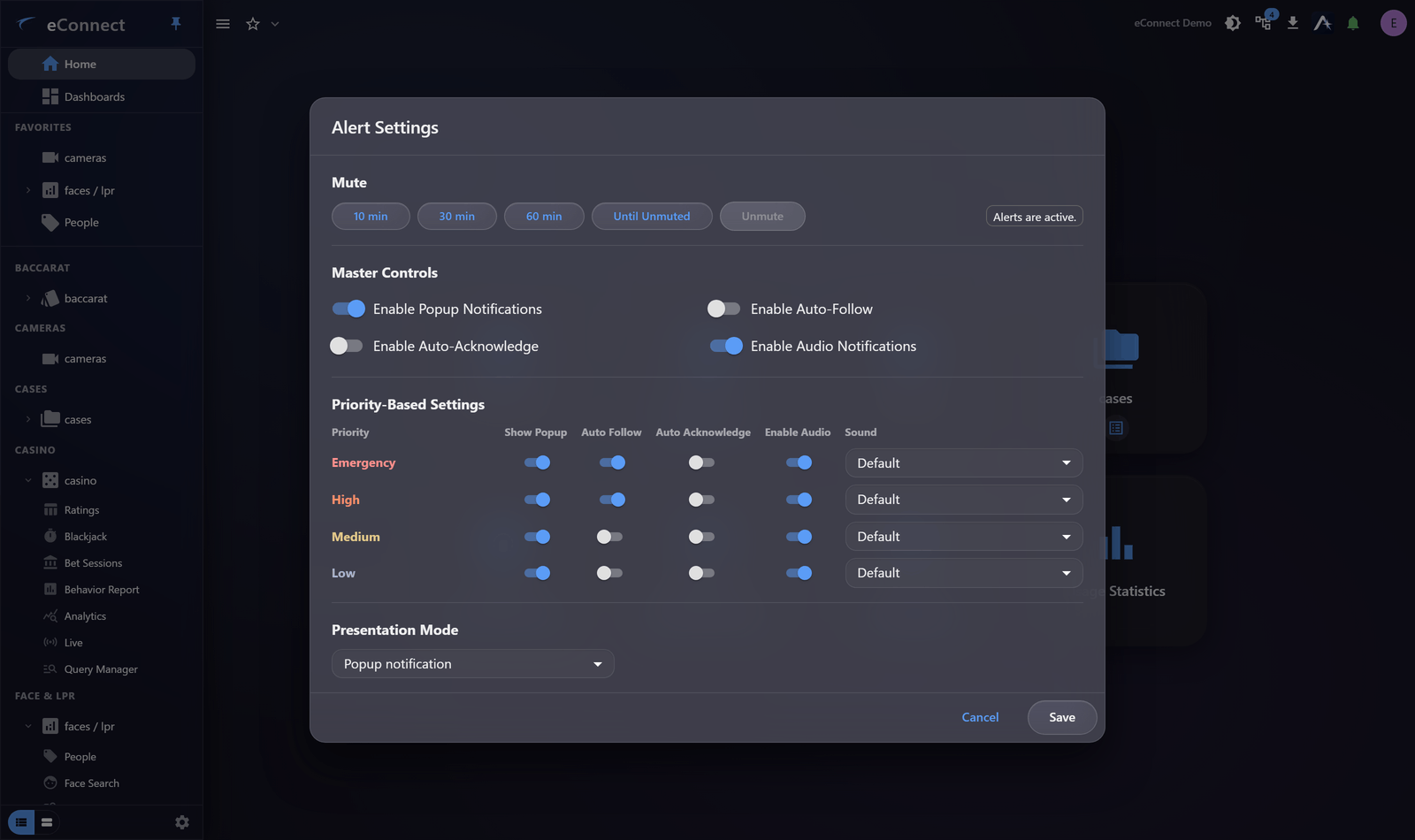
Open alert settings from the alert controls in the title bar.
What you can set
| Preference | Effect |
|---|---|
| Presentation mode | How an alert announces itself — see below |
| Sound | Whether an alert is announced audibly |
| Auto-acknowledge | Close alerts automatically as they arrive |
| Auto-Follow | Bring up cameras and track the subject — see Auto-Follow |
Presentation mode
| Option | What happens |
|---|---|
| Popup notification (default) | A card appears in the bottom-right corner and fades on its own. On the desktop it floats above your other programs, like a Windows notification |
| Alerts panel | A list opens beside your work and stays until you clear it, pushing the page over to make room |
| Top bar dropdown | Drops down from the alert bell and stays until you close it |
The three are offered identically in the browser and on the desktop, so a preference you set in one means the same thing in the other. On the desktop, choosing Popup notification also lets you say which monitor the popups appear on — worth setting deliberately on a multi-screen desk, where the default is rarely the screen you are watching.
Choosing settings that fit your job
Live operator, watching the floor. Popups on, sound on, Auto-Follow on. You want to be interrupted, because being interrupted is the job.
Investigator or analyst. Popups off, sound off, Auto-Follow off. Alerts collect in the tray and you deal with them when you choose. Views that rearrange themselves mid-analysis are a real cost.
Supervisor. Popups on for severity that warrants it, sound off. You want awareness without the floor's full volume.
Unattended or wall display. Popups off, Auto-Follow off. Nothing should wait for a click nobody is there to give. See Working Across Monitors.
A word on auto-acknowledge
Auto-acknowledge closes alerts without you seeing them, and they are recorded as acknowledged by you. A later review cannot distinguish an alert you assessed from one closed automatically on your behalf.
That makes it appropriate for classes of alert your organisation has decided need recording rather than attention — and inappropriate as a way of managing a queue you find too noisy. If alerts are too noisy, the fix is the tags generating them, or muting, not silently accepting them.
Email and SMS
Alerts leaving eConnect are set on your profile, not here. Both need a correct address on the profile or they deliver nothing.
Delivery is independent of the preferences on this page: muting the interface does not stop email, and turning popups off does not stop SMS.
System-wide behaviour
Some behaviour is set for everyone by an administrator, and you cannot override it:
- Whether acknowledgement is required
- How long an acknowledged alert stays before closing
- Overall alert timeout
See Alert Settings. If alerts behave differently from what this page describes, one of those is usually why.
Getting the balance right
The failure mode to avoid is alert fatigue: so many alerts that people dismiss them reflexively. If you find yourself doing that, the answer is not more aggressive preferences — it is fewer, better-targeted alerts. Raise it with whoever manages your face tags and plate tags.