Relay Ingest
Each Identities system normally sees only its own cameras. Relay Ingest lets this system accept face detections that other sites push to it through their Events Bridge. One Identities can then see what the others see. Examples include a corporate office watching several properties, or a demo system fed from a live site.
Every detection this system accepts becomes a native detection. It is stored with its original capture time, shown on the Live Monitor, added to the person's detection history and published to subscribers and webhooks, exactly like a detection from a local camera. The person's names, tags, custom fields and notes are merged in by rules you set for each sending site.
Menu path: Setup → Integration → Relay Ingest (requires Relay Ingest Viewer or Relay Ingest Administrator under the Relay Ingest category).
Everything on this page is configured on the Identities server that receives detections. The sending site changes nothing in its own Identities. It only adds a WebHook to its Events Bridge.
Permissions
| Permission | Category | What it allows |
|---|---|---|
| Relay Ingest Viewer | Relay Ingest | Open the page and see the settings, sources and Live Activity. Read-only. |
| Relay Ingest Administrator | Relay Ingest | Everything the viewer can do, plus change settings, add, edit and delete sources, create and rotate keys, and map custom fields. |
Super User includes both. The Live Activity preview shows the faces and names of relayed people, so grant even the viewer permission only to staff who may see that data. Assign permissions to roles under Users & Roles.
Before You Start
- Detection recording must be on. Relay Ingest relies on this server storing its detections (the server setting
FaceRecognitionEvents:Record, on by default). When it is off, the page shows a warning and Relay Ingest enabled cannot be switched on. Contact eConnect support to change it. - The sending site must be able to reach this server over HTTPS, with a certificate the sender trusts.
- Use one source per sending site. Each site gets its own credentials, so you can see, configure and revoke each site separately.
Quick Start
- Turn the module on. In Settings, switch on Relay Ingest enabled and click Save Settings.
- Add a source. Under Sources, type a name for the sending site (for example
Tahoe) and click Add source. - Save the credentials. A dialog shows the Postback address, the Key ID and the secret. Copy all three, then click I have saved the secret. The secret is never shown again.
- Set the source's rules. Click Edit on the source and review the merge rules, tags and camera prefix (see Source Settings). Switch on Enabled and click Save.
- Add the WebHook at the sending site. In the sending site's Events Bridge, add a WebHook with the values in Configure the Sending Site.
- Confirm traffic. Watch Live Activity. Received and Recorded climb as the site's cameras see people, and the source's Last received time updates.
Turn on both the module (step 1) and the source (step 4) before the sending site switches its WebHook on. While either is off, this system refuses that site's detections, and Events Bridge discards refused detections instead of queuing them.
Settings
The Settings card controls the module as a whole. Changes take effect when you click Save Settings.

| Setting | Default | What it does |
|---|---|---|
| Relay Ingest enabled | Off | The master switch. While it is off, every relayed detection is refused, even from enabled sources. |
| Duplicate window (seconds) | 1 | 0 to 5. How close two capture times must be for a relayed detection to count as one this system already has. See Duplicates and Loops. |
| Face match threshold | Blank | 0 to 1. How similar a relayed face must be to a face this system knows before it counts as the same person. Blank uses the Face Recognition system's own threshold. |
| Preview size | 50 | 1 to 500. How many recent relayed detections the Live Activity list keeps. |
Face match threshold. When a sending site's face has not been linked to a person here yet, this system searches its own faces to find out who the person is. A higher value is stricter. It makes fewer wrong matches, but a person this system already has is more likely to be missed. A lower value matches more readily, but risks attaching a relayed detection to the wrong person. Leave it blank unless eConnect support advises otherwise.
Publish age. Below the settings, the card shows a line such as "Detections older than 24 hours are stored but not
published on the bus". This is the server setting FaceRecognitionEvents:PublishMaxAgeHours (default 24; 0 publishes
everything). It matters after an outage. When a sending site comes back online and pushes its backlog, detections older
than the limit are still recorded and kept in history, but they are not passed on to subscribers, webhooks or
automations. To pass a long backlog through, ask eConnect support to raise the limit on this server. Depending on how the
sending site's Events Bridge connects to its Identities, the sending site may need the same change.
Sources
A source is one sending site. Its credentials identify it: this system trusts the credentials, never what the site writes inside the detection.
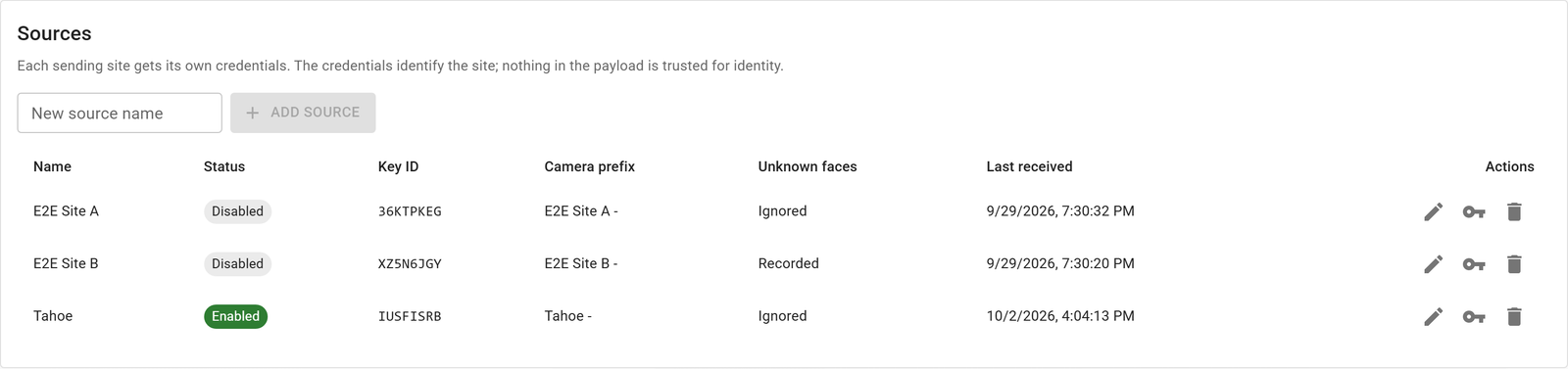
The Sources table lists each one:
| Column | Meaning |
|---|---|
| Name | The name you gave the site. |
| Status | Enabled or Disabled. A disabled source's detections are refused. |
| Key ID | The public half of the source's credentials (the Basic Auth username). |
| Camera prefix | The text added in front of the site's camera names. |
| Unknown faces | Recorded or Ignored. See Record Unknown Faces. |
| Last received | When the source last sent a detection, or Never. |
| Actions | Edit, Rotate key and Delete. |
Adding a Source
Type the site's name in New source name and click Add source. The new source starts with these settings:
- Disabled, so nothing is accepted until you are ready.
- Camera prefix set to the name followed by
-(for exampleTahoe -). - Unknown faces ignored.
- Merge rules Names: FillMissing, Custom fields: FillMissing, Notes: None and Tags: None.
- No tags applied.
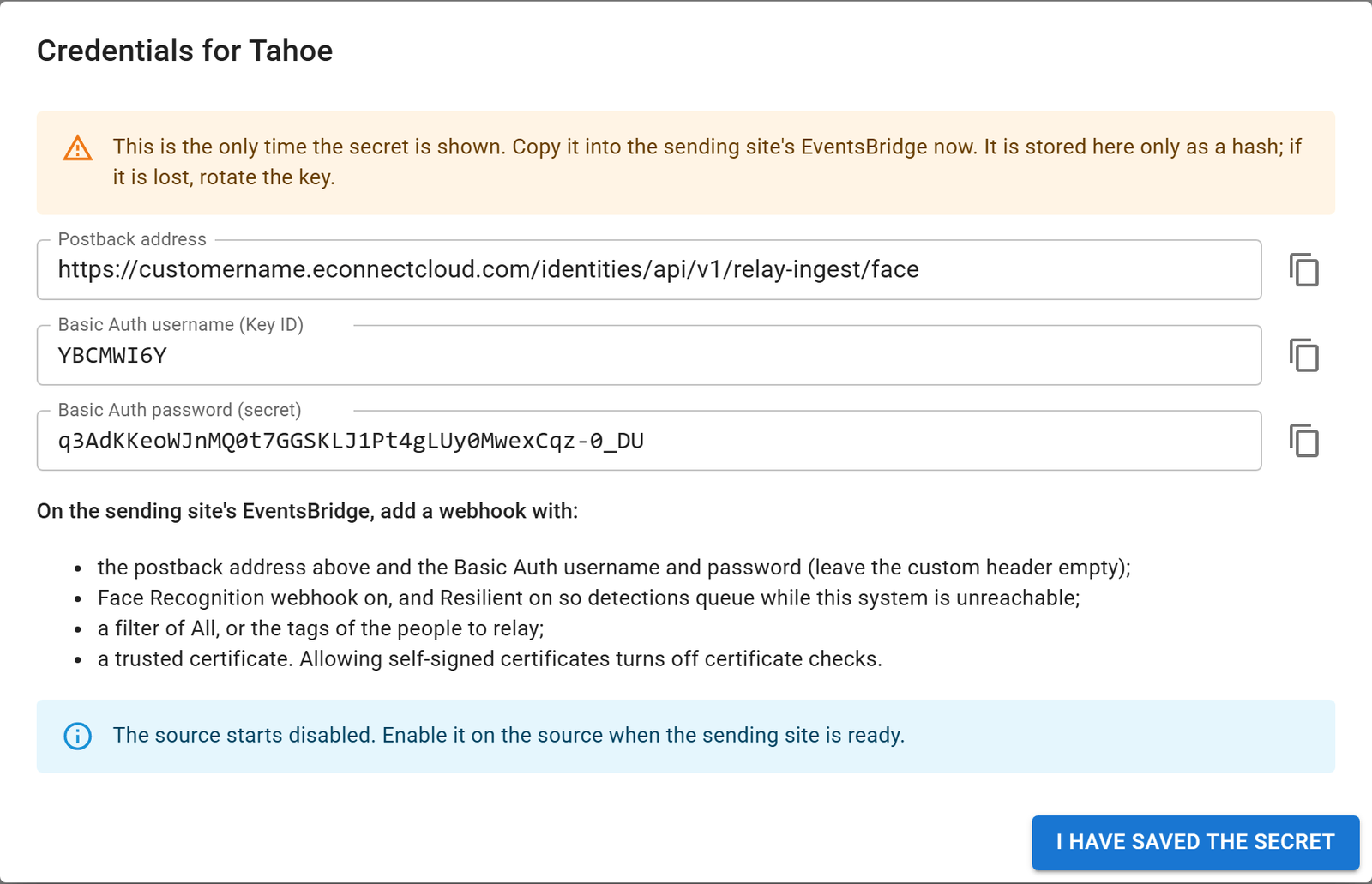
The Credentials dialog then opens. It shows three values, each with a copy button:
| Value | Where it goes at the sending site |
|---|---|
| Postback address | The WebHook address in Events Bridge. |
| Basic Auth username (Key ID) | The WebHook's Basic username. |
| Basic Auth password (secret) | The WebHook's Basic password. |
This system stores the secret only as a one-way hash, so nobody can display it again, including eConnect support. Copy it into the sending site's Events Bridge, or into a password manager, before you click I have saved the secret. If it is lost, rotate the key.
Source Settings
Click Edit on a source to open its settings. Viewers can open this dialog but cannot change anything.
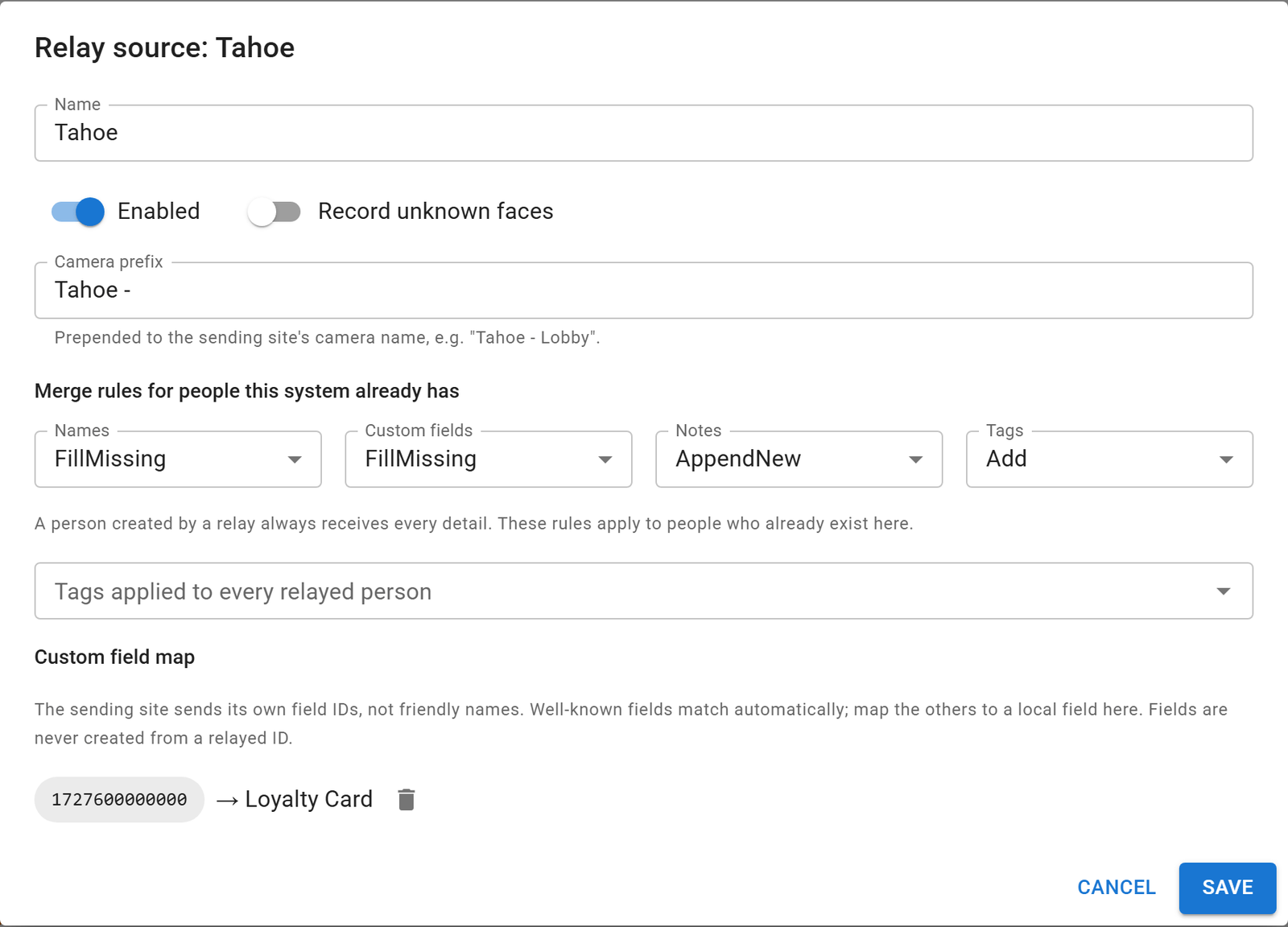
Name
Shown in the counters and the Live Activity list. Changes this source makes to people are recorded in the
Audit Log as Relay: Tahoe (using the source's name). Notes
it adds carry the same author.
Enabled
When this is off, the source's detections are refused and the sending Events Bridge discards them. Use it to pause one site without affecting the others.
Record Unknown Faces
An unknown detection carries no person details at all: no name, tag, custom field or note. The sending site saw a face but does not know who it is.
- Off (default): unknown detections are acknowledged and discarded. Nothing is stored. They are counted as Ignored unknown in Live Activity.
- On: unknown detections are recorded. Face Recognition matches the face to someone this system already has, or keeps it as an Unknown on the Live Monitor. No profile is created, but you can promote the Unknown to a person just like a local one. If the same face later arrives with details, a profile is created then and linked to that face.
A site that relays every face can send a lot of unknown detections. Turn this on only when you want to see them.
Camera Prefix
The prefix is added in front of the sending site's camera name to form the camera name here. Prefix Tahoe - and camera
Lobby are recorded as Tahoe - Lobby. That name is what operators see on the Live Monitor and in detection history,
and what Live Monitor filters work on. Give every source a distinct prefix so you can always tell where a detection came
from. A change applies to new detections only.
Merge Rules
Merge rules decide what a relayed detection may change on a person this system already has. A person that a relay creates always receives every detail the site sent (names, mapped custom fields, notes and tags), whatever the rules say.
| Rule | Options | Default |
|---|---|---|
| Names | Never · FillMissing · Overwrite | FillMissing |
| Custom fields | None · FillMissing · Overwrite | FillMissing |
| Notes | None · AppendNew | None |
| Tags | None · Add | None |
Names apply to the person's default alias (first, middle and last name):
- Never: never change an existing person's names.
- FillMissing: fill in only the name parts that are blank here. A first name already set here is kept, even if the site sends a different one.
- Overwrite: replace each name part with the site's value. A blank value from the site never erases a name here.
Custom fields:
- None: never write custom fields on existing people.
- FillMissing: write a field only when it is empty here.
- Overwrite: write a field whenever the site's value differs.
Blank values from the site are always skipped, so a relay never erases a field. Only fields that match a field on this system are written. See Custom Field Map.
Notes:
- None: never add notes to existing people.
- AppendNew: add each of the site's notes unless the person already has a note with the same title and text. Existing notes are never changed or removed.
Notes titled eConnect Sync Notes or eConnect Shared Sync Notes are never relayed, so another site's sync notes cannot
replace this system's.
Tags:
- None: ignore the site's tags for existing people.
- Add: add the site's tags by name. A tag that does not exist here is created. The tag's expiry date is copied when the site sends one. Tags are never removed.
- This system is the authority (your own staff maintain the people here): Names Never or FillMissing, Custom fields FillMissing, Notes None, Tags None. Relays then only fill gaps.
- The sending site is the authority (this system mirrors it): Names Overwrite, Custom fields Overwrite, Notes AppendNew, Tags Add.
Tags Applied to Every Relayed Person
Pick one or more of this system's tags, for example Relay or Relay: Tahoe. They are added to every person this source
relays, new or existing, every time, whatever the Tags rule says. Use them to find relayed people in Search and to
filter or theme the Live Monitor. Create the tags first under
Manage Tags.
Custom Field Map
A sending site identifies its custom fields by an internal ID, not by the name you see on screen. A relayed field is matched to a field here in this order:
- The source's field map, if the incoming ID is mapped.
- A field here with the same ID. Built-in fields such as Mobile #, Phone #, Email and Employee Id match this way automatically.
- A field here whose name equals the incoming ID, ignoring case.
A field that matches nothing is skipped. Relay Ingest never creates a field. Unmatched fields are listed in the source's
dialog with their incoming ID and a sample value (for example 1727600000000 with e.g. "Gold"). Choose a field in
Map to local field next to each one and click Save. Detections received after you save use the mapping. Remove a
mapping with its delete icon.
The unmatched list is collected while the Identities service runs. It is empty until the source sends a detection with an unmatched field, and it resets when the service restarts. Only administrators see it, because the sample values can be personal data.
Rotating a Key
Rotate key (the key icon) issues a new Key ID and secret and shows them once, in the same dialog as a new source. The old credentials stop working immediately. Update both the Basic username and the password in the sending site's Events Bridge straight away: detections sent with the old credentials are refused and discarded.
Rotate a key when a secret is lost, when it may have been exposed, or when someone who knew it leaves.
Deleting a Source
Delete removes the source and its credentials stop working immediately. People and detections it already relayed are kept. Remove the WebHook at the sending site as well, or its Events Bridge keeps sending detections that are refused.
Configure the Sending Site
At the sending site, open Events Bridge, go to WebHook Settings and add a WebHook. See Manually Setting Up a WebHook for the screen itself.
| Events Bridge setting | Value |
|---|---|
| Web Hook Name | Something that identifies this system, for example Corporate Identities. |
| Web Hook Address | The Postback address from the credentials dialog. |
| Basic Username / Password | The Key ID and the secret. |
| Header Key / Header Value | Leave empty. |
| Allow Self Signed Certificates | Off. Turning it on switches off certificate checks, which exposes the credentials to anyone who can intercept the connection. |
| Postback Event Filter | All to relay every detection, or Any Tagged / Specific Tags to relay only chosen people. Do not use Expected: it sends only people a partner enrolled through Events Bridge's own API. |
Face recognition WebHook (webHookFaceRec) | On. |
Resilient delivery (resilient) | On, with a retry count (maxRetryAttempts) above 0, so detections queue while this system is unreachable. A retry count of 0 disables retries even when resilient delivery is on. |
Events Bridge stores the password encrypted and never shows it again either. To change it later, enter the new secret.
What Happens When a Detection Is Accepted
This system takes every detection a source sends through the following steps, in order. It stops at the first step that decides the outcome.
- Check the credentials. Unknown, wrong or revoked credentials, a disabled source, or the module switched off: the detection is refused and the sender discards it.
- Check the detection. It must have a capture time and a snapshot image. Otherwise it is Rejected.
- Apply the unknown-face rule. If the detection has no person details and Record unknown faces is off, it is acknowledged and discarded (Ignored unknown).
- Work out who it is. If this source's face was linked to a person here before, that person. Otherwise this system searches its own faces using the site's reference photo, then the snapshot, at the Face match threshold.
- Check for duplicates. If this system already has this detection, processing stops here (Duplicate). See Duplicates and Loops.
- Update or create the person (detections with person details only):
- A person found in step 4 is updated by the source's merge rules.
- Otherwise a new profile is created with every detail the site sent. If the face matches an Unknown here, that Unknown is promoted rather than adding a second face. If the photo belongs to someone already here, that person is used and no new profile is kept.
- The source's tags applied to every relayed person are added.
- The site's face is linked to the person, so the next detection of this person skips the search.
- Record the detection. The snapshot goes to this system's Face Recognition exactly as if a local camera had captured it at the original time, under the camera name prefix + site camera. It is stored, shown on the Live Monitor, added to detection history and published to subscribers and webhooks (Recorded).
Step 6 runs before step 7, so even the first detection of a new person arrives on the Live Monitor with a name and tags, not as an Unknown.
Relay Ingest never:
- creates a second profile for a person this system already knows;
- deletes a person, removes a tag, erases a field or changes an existing note;
- sends anything back to the sending site;
- merges two existing profiles. If Face Recognition files a detection under a different face than expected, the detection stays where Face Recognition put it and is flagged as FR matched elsewhere. Staff resolve it with the normal merge tools.
Once recorded, a relayed detection is a local detection. Face Recognition retention, deletes and face merges apply to it like any other.
Duplicates and Loops
The same sighting can reach this system more than once. Events Bridge may retry a delivery after a network error, two routes may deliver the same detection, a site may relay to itself, or sites may relay to each other in a loop (A → B → A). This system's own Events Bridge WebHooks pass relayed detections on like any others, which is how loops form.
Every hop keeps the original capture time and only adds a prefix to the camera name. A relayed detection is therefore a Duplicate when either of these is true:
- its detection ID was already received in the last hour, or
- the person already has a detection whose capture time is within the Duplicate window and whose camera name
matches, meaning one name ends with the other. A local
Lobbyand a relayedTahoe - Lobbymatch. So doTahoe - LobbyandCorporate - Tahoe - Lobby.
The trade-off is that a genuine second sighting of the same person, on two cameras whose names end the same way, within the window, is also treated as a duplicate. With the default window of 1 second this is rare.
Live Activity
The Live Activity card updates live. Its counters and list are held in memory. They count from when the Identities service last started and reset on a restart.
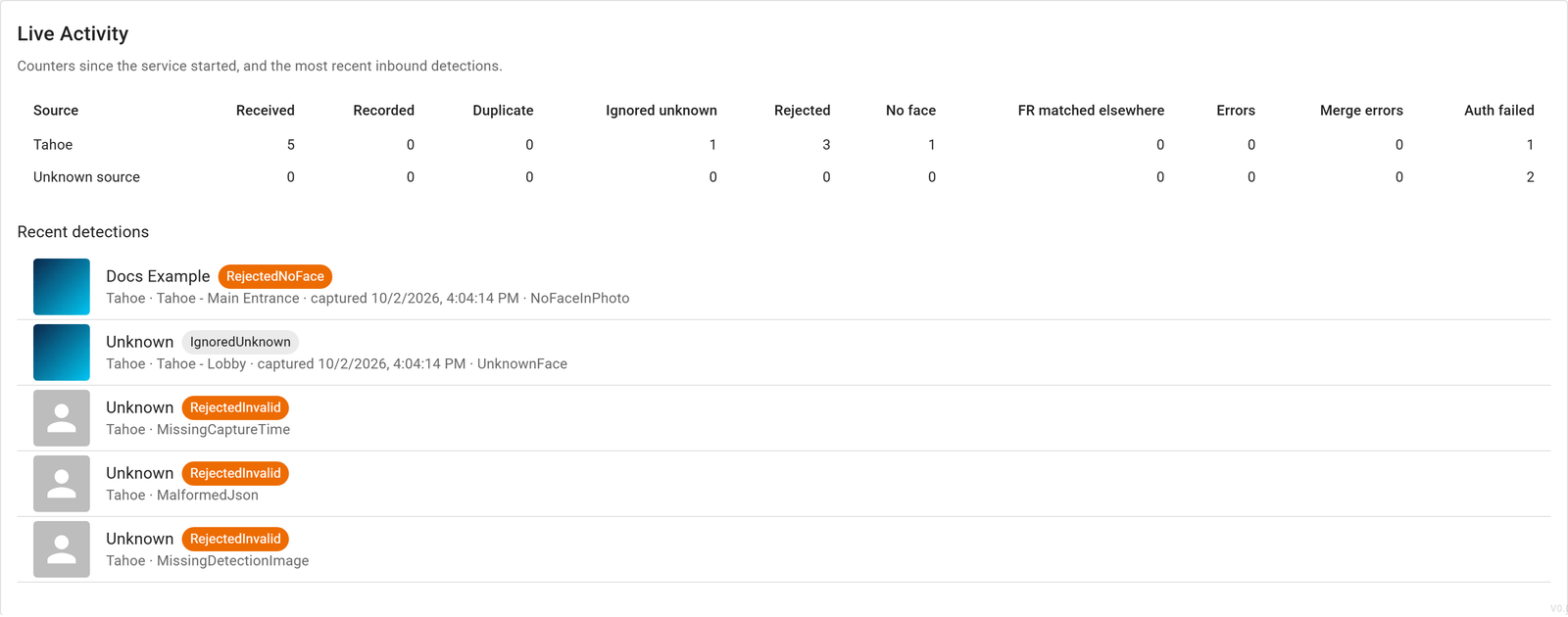
Counters
There is one row per source, plus an Unknown source row for credentials that named no source on this system.
| Counter | Meaning |
|---|---|
| Received | Detections processed for the source, after the credential check. |
| Recorded | Recorded as native detections. |
| Duplicate | Already recorded, so dropped. |
| Ignored unknown | No person details, and the source ignores unknown faces. |
| Rejected | Missing capture time or image, or not valid JSON. |
| No face | No face could be found in the image. |
| FR matched elsewhere | Recorded, but Face Recognition filed it under a different face than the person this system expected. Review those people and merge them if they are the same person. |
| Errors | Processing failed, for example because Face Recognition or the database was unavailable. The sender retries these. |
| Merge errors | A name, field, note or tag could not be applied. The detection was still recorded. |
| Auth failed | Requests refused for their credentials. On a named source: a wrong secret, or the source is disabled. On Unknown source: a Key ID this system does not have, usually old credentials after a rotation, or a deleted source. |
Recent Detections
The newest relayed detections are listed first, up to Preview size. Each row shows a thumbnail of the snapshot, the person's name as the site sent it (or Unknown), an outcome chip, and then the source, camera, capture time, reason and any unmatched custom fields.
| Outcome chip | Meaning |
|---|---|
| Recorded (green) | Recorded normally. |
| Recorded (FR matched another face) (amber) | Recorded, under a different face than the expected person's. |
| Duplicate, IgnoredUnknown (grey) | Dropped, as described above. |
| RejectedInvalid, RejectedNoFace (amber) | Rejected. The reason says why. |
| Error (red) | Processing failed. The sender retries. |
| Reason | Meaning |
|---|---|
AlreadyRecorded | A duplicate. |
UnknownFace | Ignored because it had no person details. |
MissingPayload, MissingCaptureTime, MissingDetectionImage, MalformedJson | The site sent an incomplete or malformed detection. |
NoFaceInPhoto, NoFaceInDetectionImage | No face was found in the reference photo or the snapshot. |
MatchedAnotherFace | Recorded under a different face than expected. |
MergeErrors:2 | That many details could not be applied to the person. |
Timeout, or an error name | Processing failed. The sender retries. |
Troubleshooting
| Symptom | Likely cause and fix |
|---|---|
| Last received stays Never and no counter moves | The sending WebHook is off or has the wrong address, or the site cannot reach this server (firewall, DNS or certificate). Check the WebHook at the sending site. |
| Auth failed climbs on Unknown source | The site is using a Key ID this system does not have, usually old credentials after a rotation, or a deleted source. Enter the current Key ID and secret at the sending site. |
| Auth failed climbs on a named source | The secret is wrong or the source is disabled. Enable the source, or rotate the key and enter both new values at the sending site. |
| Many Ignored unknown | The site relays every face (filter All) and this source ignores unknown faces. Turn on Record unknown faces, or change the site's filter to Any Tagged or Specific Tags. |
| Custom fields do not arrive | They are unmatched: map them in the source's Custom Field Map. Also check that the Custom fields rule is not None. |
| Existing people's names do not change | The Names rule is Never, or FillMissing, which keeps names that are already set. |
| FR matched elsewhere climbs | Face Recognition is filing some relayed detections under other faces. Review the people involved and merge duplicates. |
| No face climbs | The snapshots contain no detectable face, or Face Recognition is in maintenance mode. These detections are not retried. |
| A backlog is recorded but does not reach subscribers | The detections are older than the publish age limit. See Publish age under Settings. |
| Relay Ingest enabled cannot be switched on | Detection recording is off on this server. Contact eConnect support. |
Limitations
- Only face detections can be relayed. License plate detections cannot.
- Relayed detections carry this system's time zone, not the sending site's. The capture time itself is exact.
- Face Recognition labels relayed detections as live-stream detections. Use the camera prefix to tell them apart.
- Nothing is sent back to the sending site.
Events Bridge is not the only possible sender. Any system that can make an HTTPS request can push detections with a source's credentials. See the developer guide: Relay Ingest.