eConnect Face Verify
A browser-based face verification kiosk that runs on any device — tablet, phone, or PC. Customers walk up, look at the camera, and receive a clear colored overlay — typically green, yellow, or red, but customizable to any color your operation prefers — telling them whether to proceed or speak with a security officer.
What Face Verify Does
Face Verify is a simple, approachable kiosk experience for high-traffic checkpoints — casino entries, loyalty desks, member lounges, age-gated areas, or anywhere staff need to quickly confirm who is walking in.
A customer steps in front of the device, the camera detects their face, and a colored overlay tells them — and any nearby staff — exactly what to do next:
The customer is recognized and in good standing. A friendly welcome message appears and they proceed through.
A soft prompt asking the customer to stop by the security podium before proceeding — typically used for first-time visitors, routine check-ins, or anyone the system would like to confirm.
The same friendly instruction — please check in at the security podium — with a firmer visual signal for staff awareness. The customer is never shown a reason; only the operator sees the underlying detail.
A plain web page — no installer. Tablet, phone, kiosk PC, or wall-mounted display. Just open the URL.
Face Verify is customer-facing, so on-screen text stays neutral and helpful — "Welcome" or "Please check in with security" — never anything that could feel accusatory. The underlying classification (watch list, denied, VIP, new visitor, etc.) is shown to staff on the Identities Live Monitor, and never to the customer at the kiosk.
See It In Action
Two quick demos of the kiosk in action — a welcome experience on the left and a "please check in" experience on the right.
How It Works
The device shows a live camera view. The customer simply looks at the screen — no buttons, no badges to scan.
Face Verify captures the best-quality frame and sends it to your Identities server for matching.
A custom workflow — designed around your organization's policies — evaluates each match and picks which colored overlay the customer sees.
A full-screen colored overlay with a message (and optional spoken voice prompt) tells the customer what to do next.
🟢 Green Light — Welcome
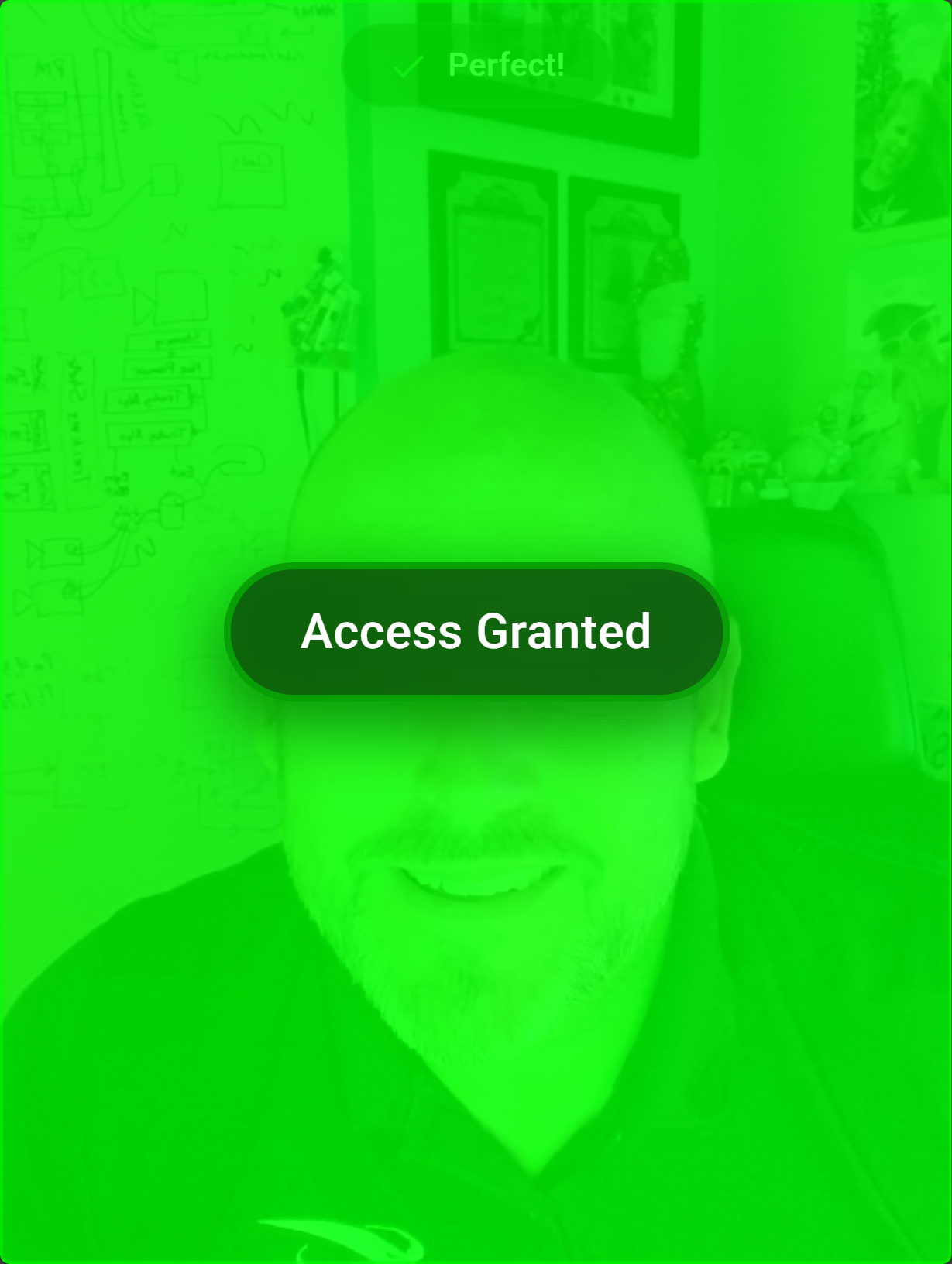
🟡 Yellow Light — Please Check In
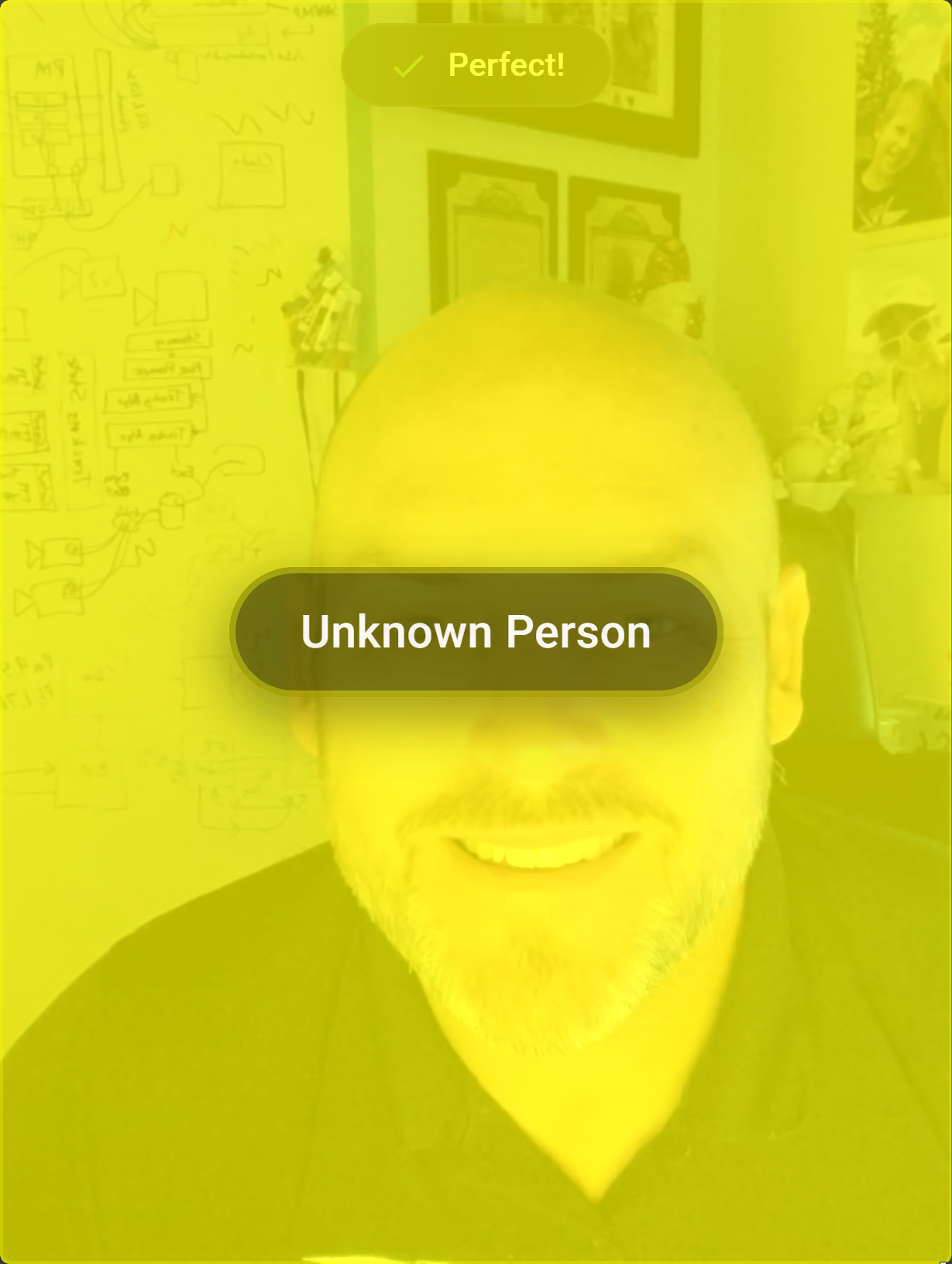
Runs On Any Device
Face Verify is a web application — there is nothing to install. If a device has a camera and a modern browser, it can run Face Verify.
Put it in a customer's hand at check-in or use an old device as a pop-up verification point.
The most common deployment — wall-mount an iPad or Android tablet at an entry point for a clean kiosk experience.
Large-screen kiosks, self-serve podiums, or dedicated verification stations running a browser in kiosk mode.
Optional integration with Fully Kiosk Browser for locked-down, always-on Android deployments.
Key Features
Tunable thresholds for face quality, size, and frontality mean only high-confidence frames are sent for matching.
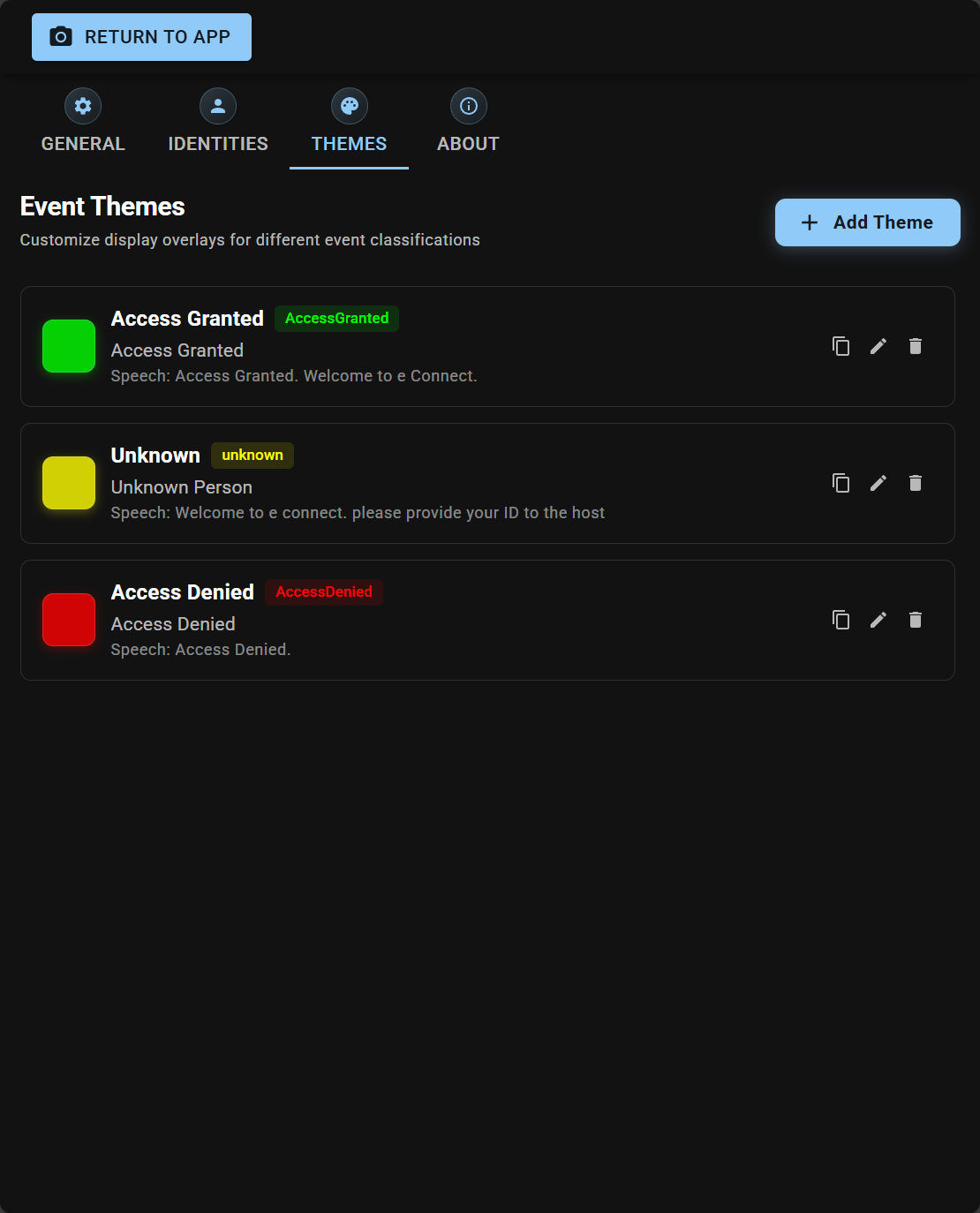
Define your own overlays — colors, messages, even spoken announcements — per event classification.
Connects directly to your eConnect Identities server for enrollment, matching, and sync across locations.
Red / yellow / green logic is driven by a custom workflow tailored to your organization's policies — no code required.
The settings menu is locked behind a PIN so customers and staff can't change device configuration at the kiosk.
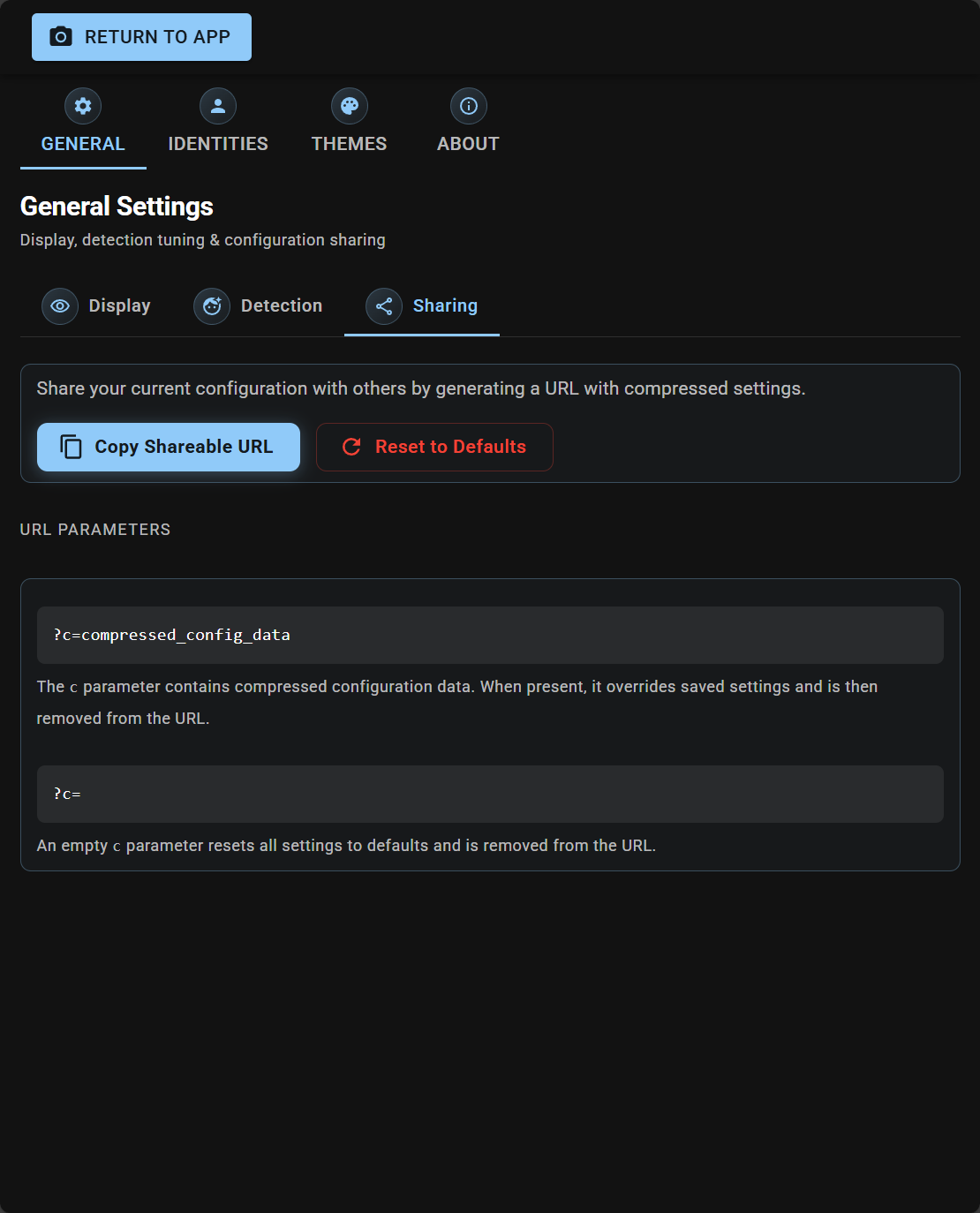
Generate an encrypted URL with all your settings and paste it on another device to deploy identical configs in seconds.
⚙️ Configuration
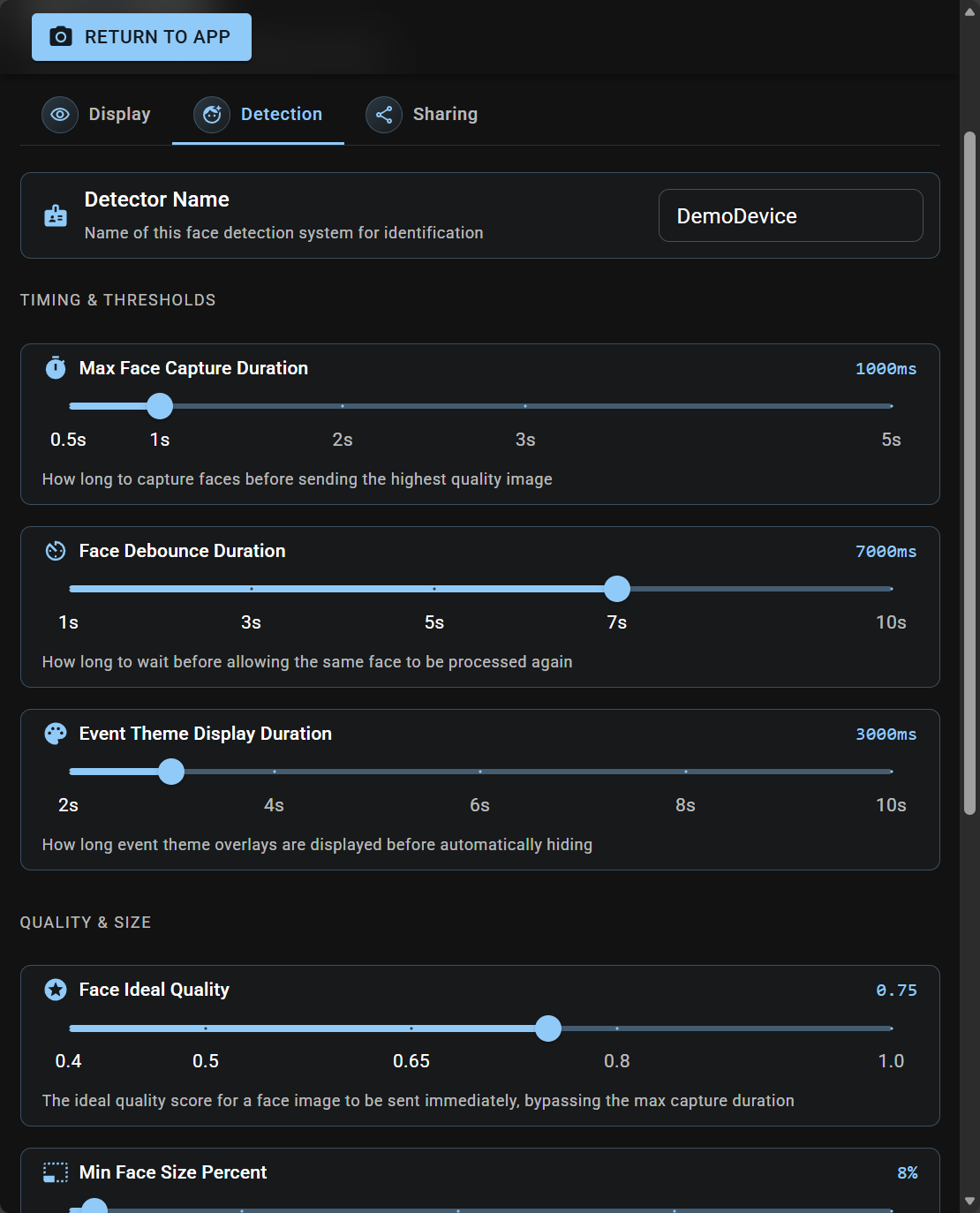
🎛️ Operations
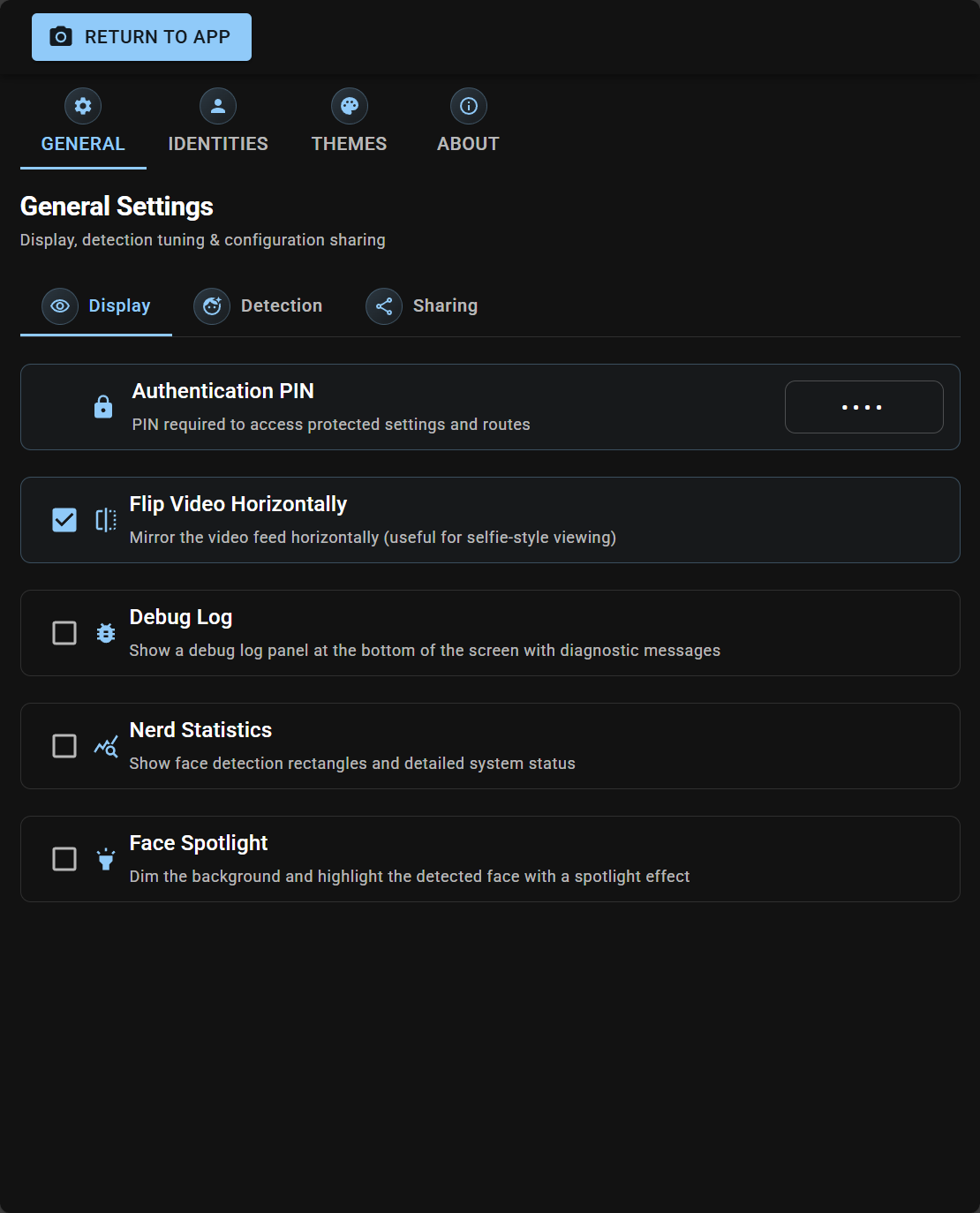
🎨 Classifications
🔗 Reusable URLs
Next Steps
Set up your device — PIN, detection tuning, identity server, themes, and cloning to other kiosks.
Customize the red / yellow / green logic that drives the overlay a customer sees.
Manage the face identity database that Face Verify uses for matching and enrollment.