Searching Identities
The Search page is how you find people already in your Identities database. It supports text matching, tag / collection / custom-field filters, and face-image search.
Menu path: Identities → Search (requires Identities → Read All Identity, or any of the related Identities read permissions such as Read Addresses, Read Aliases, Read Tags, Read Entity Fields, or Read Notes).
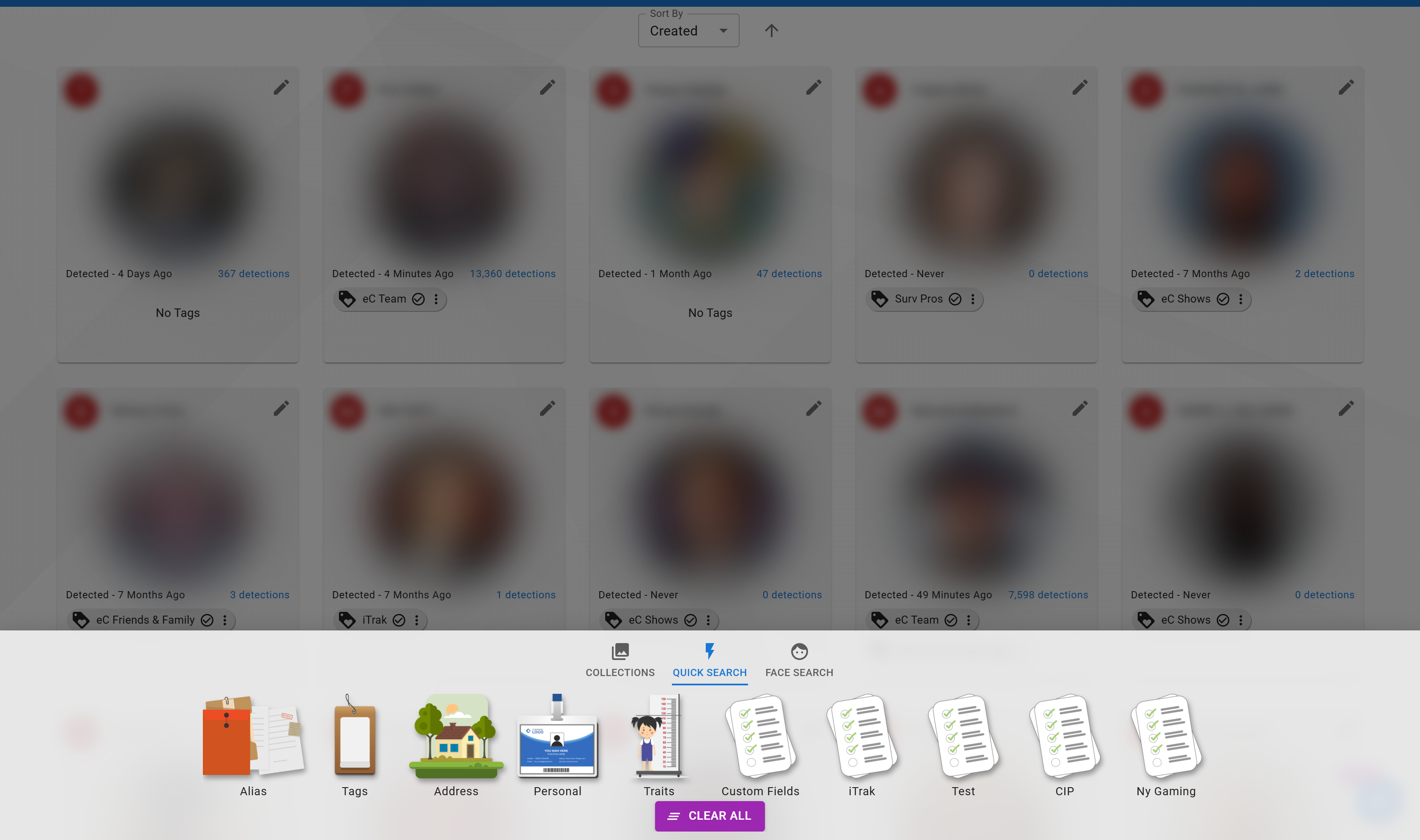
Names and photos are blurred here for privacy.
Quick Search
The Quick Search bar at the top of the page matches across common identity fields — first name, last name, aliases, and the primary identifier. Start typing and matching people appear immediately.
Use Quick Search for everyday operator lookups when you already have part of a name or ID.
Advanced Filters
Beyond Quick Search, the page supports filtering by:
| Filter | What it does |
|---|---|
| Collection | Restrict results to identities in a specific named collection (e.g. VIP Guests, Employees). |
| Tags | Show only identities carrying one or more selected tags. Combine tags with AND / OR logic. |
| Custom Fields | Filter by any configured custom field (e.g. membership level, department). |
| Date Ranges | Restrict by creation date, last update, or enrollment date. |
Filters stack — apply as many as you need to narrow the result set.
Face Search
If you have a face photo (from a detection event, an ID scan, or an uploaded file), you can search for visually similar identities.
- Select Face Search from the search mode toggle.
- Upload or paste a face image.
- The app returns the closest matches in your database, ranked by similarity.
This is the fastest way to check whether a person is already enrolled before adding a duplicate.
Results Grid
Results appear in a sortable grid showing a thumbnail photo, name, tags, and any custom fields you've chosen to display. Click a row to open the full person editor.
If your organization uses many custom fields, you can show or hide specific columns from the grid header to keep the view readable.