Adding an Identity
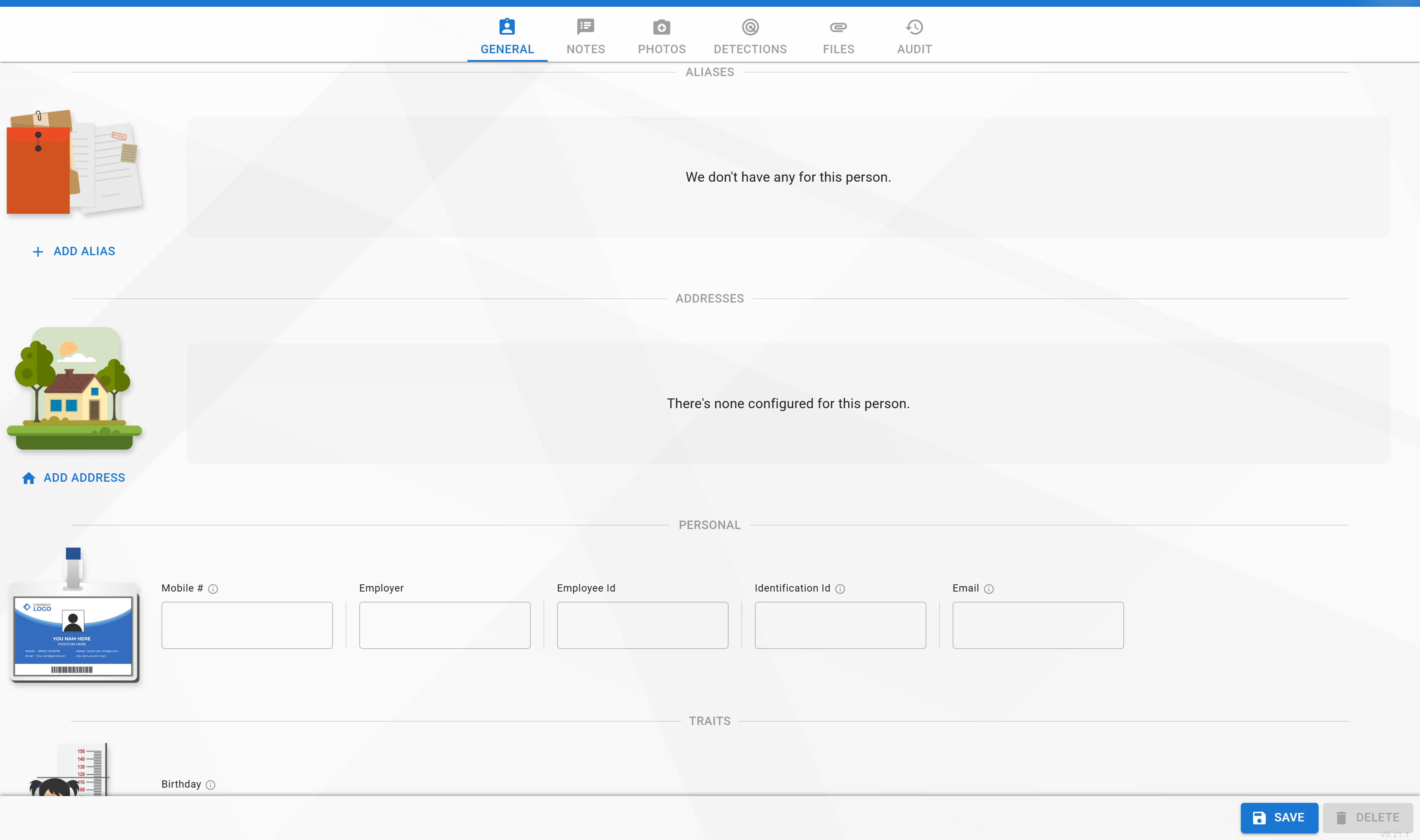
The Add Identity page creates a new person record. Once created, the identity is immediately available to Live Monitor, Face Verify kiosks, and any subscribed sites.
Menu path: Identities → Add Identity (requires Identities → Add Identity).
Before You Add
Do a face search first. Adding a duplicate identity creates two separate records that the recognition engine can then misroute between — very hard to clean up after the fact.
Required Fields
At a minimum, every identity needs:
| Field | Description |
|---|---|
| Name | First and last name. Used everywhere the person is displayed. |
| Face Photo | At least one clear, front-facing photo. Additional photos and angles can be added later. |
| Identity Collection | The named collection this person belongs to (e.g. Employees, VIPs, Watch List). |
The rest is optional.
Optional Fields
| Field Group | Description |
|---|---|
| Aliases | Alternate names the person is known by — helps Search match when only a nickname is typed. |
| Addresses | Mailing or residential addresses. |
| Tags | Predefined labels used everywhere for filtering, routing, and Pub/Sub. |
| Custom Fields | Any additional attributes your administrator has configured (e.g. member number, rank, department). |
| Notes | Free-form text notes. |
| Documents | File attachments such as scanned IDs, signed forms, or photos. |
Enrolling a Face
The photo you upload is the enrollment source. For best recognition quality:
- Use a clear, front-facing photo with the face centered.
- Avoid sunglasses, heavy shadows, or motion blur.
- Prefer photos at least 200 px on the face.
- Add multiple photos after creation (different angles, lighting, and over time) — the more high-quality examples, the better the match rate.
Adding a person to a specific collection is what makes them visible to downstream systems — only identities in collections that a Face Verify kiosk (or Live Monitor filter) is watching will trigger matches there.
Saving
Once required fields are filled, the Save button becomes active. The record is persisted immediately and you land on its full editor where additional details can be added.