Operator Controls
Beyond filters and themes, Live Monitor exposes a set of operator-facing controls that change how the grid behaves moment to moment — including whether the operator can pause the feed, edit people inline, and what details appear on each card.
Pause / Play
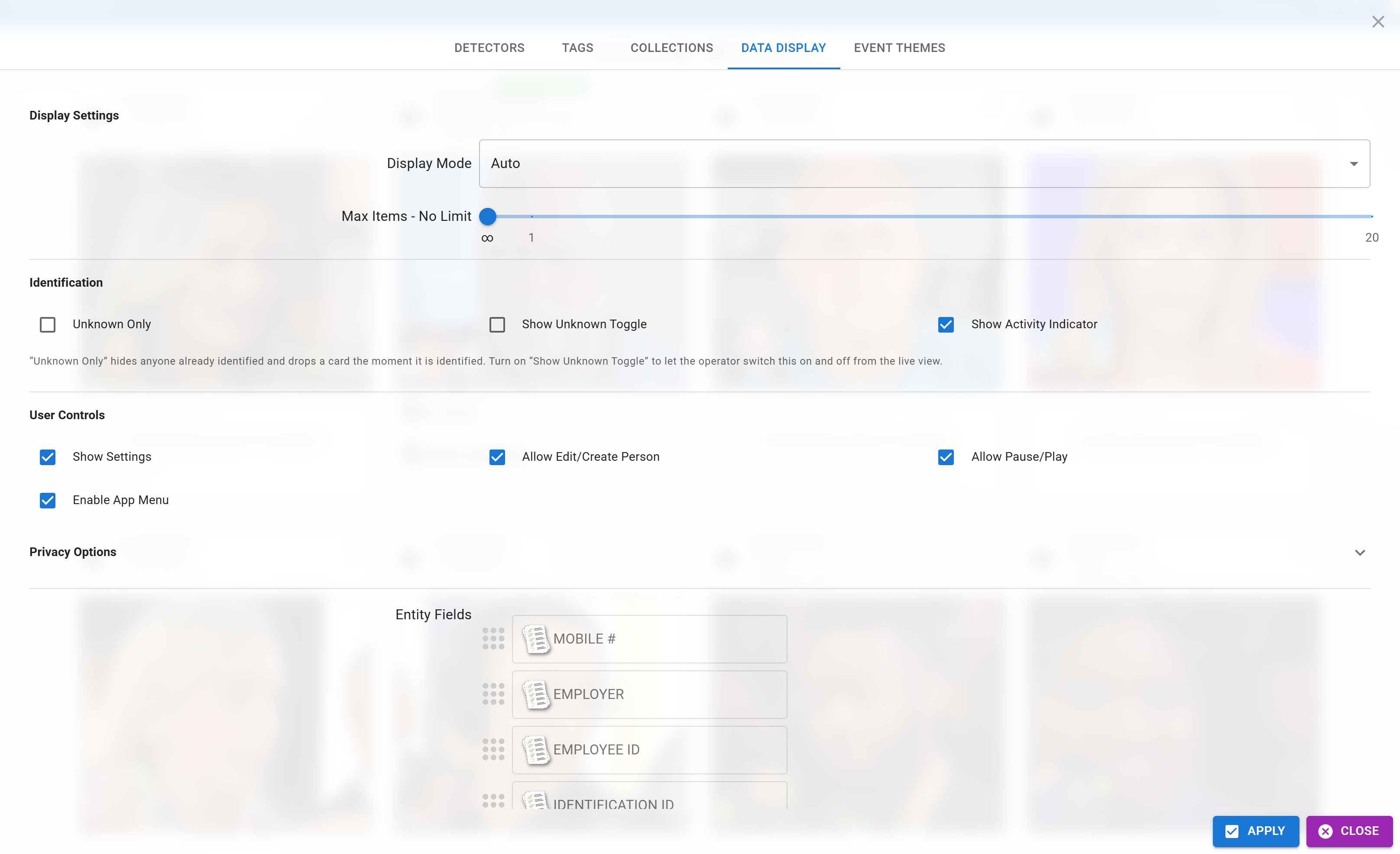
When enabled, a pause / play chip appears in the header. Pausing freezes the grid so the operator can study a specific detection without new ones bumping it off-screen. A badge on the chip shows how many detections have arrived and queued while paused. Press play and those queued cards animate in.
| Setting | Behavior |
|---|---|
| Allow Pause/Play | Enables / disables the pause chip for the operator. Turn off if you want the feed to always flow. |
Max Detection Items
Sets a cap on how many cards are visible in the grid at once. Older cards are dropped as new ones arrive.
| Value | Effect |
|---|---|
| Unset (default) | No cap — the grid holds as many as the browser can render. |
| 10–50 | Typical kiosk dashboards — keeps the grid readable. |
| 100+ | Wall displays or investigation review. |
Inline Editing
Live Monitor can open the Person Editor as a modal dialog directly from a detection card — handy for the operator to correct a tag or leave a note the moment something happens.
| Setting | Behavior |
|---|---|
| Allow Create / Edit | Enables the "edit person" affordance on detection cards. Turn off for view-only dashboards. |
Card Information Density
Several toggles control how much identity information appears on each card. Trim these down for high-visibility dashboards or privacy-sensitive displays.
| Toggle | Default | Effect |
|---|---|---|
| Show Address | Off | Show address line under the person name. |
| Hide Person Name | Off | Suppress the name entirely. Useful in public-facing operator screens where bystanders should not see customer names. |
| Hide Detector Name | Off | Suppress the camera name. |
Settings Visibility
The gear icon that opens the filter dialog is itself a setting:
| Setting | Behavior |
|---|---|
| Show Settings | When off, the gear icon is hidden and operators cannot open filters or themes. Paired with Kiosk Mode this fully locks down a deployed dashboard. |
Quick Actions
A small set of pre-configured quick action buttons can appear on detection cards to let operators apply one-click changes. The default quick action is a tag toggle: tap the button on a detection card and the configured tag is applied or removed on the person.
Tags can optionally carry an expiration — apply a Visitor tag for 8 hours, for instance.
Configure which tags appear as quick actions from the Live Monitor settings.
Settings Persistence
Every Live Monitor setting — filters, themes, operator controls, visibility toggles — is saved locally inside the browser on that device. The next time you load the page on the same browser, your settings come back exactly as you left them.
- Settings survive reloads and reboots.
- Settings are specific to the browser on the device. Open the app in a different browser or on a different machine and it starts with defaults.
- Clearing browser data or using private / incognito mode resets everything to defaults.
- Settings also get embedded in the URL as a compressed
?clz=parameter — see Kiosk Mode for how to use that for deployment and backup.