Filtering Detections
Live Monitor has a single Filter dialog — accessed from the settings (gear) icon — that controls what detections appear in the grid and what information is shown on each card.
The dialog has five tabs: Detectors, Tags, Collections, Data Display, and Event Themes (covered separately in Event Themes).
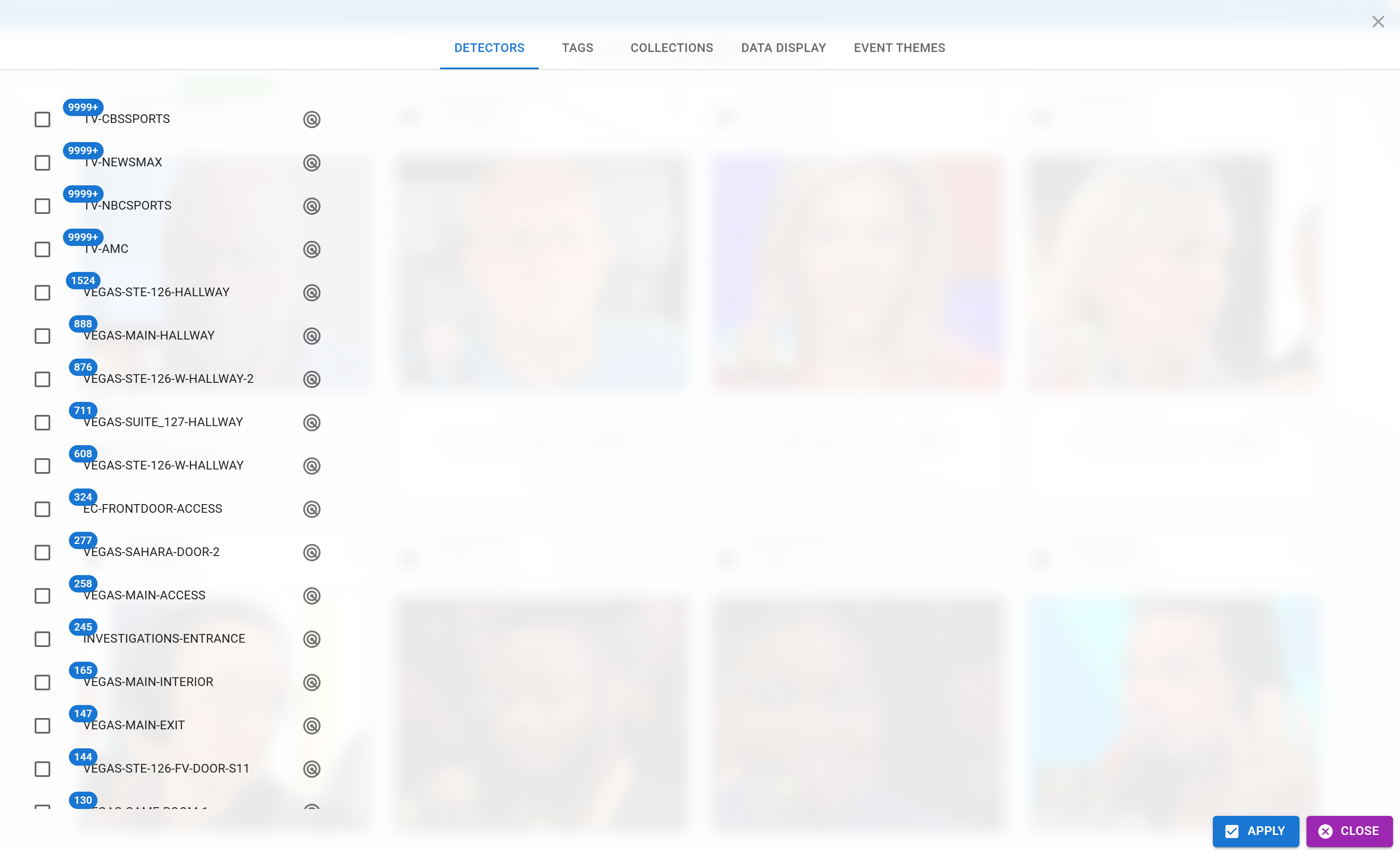
Detectors Tab
Select which cameras (detectors) feed detections into this Live Monitor view. Leaving all detectors selected means you see everything. Narrowing the list restricts the grid to those cameras only.
Typical uses:
- A front-door operator only watches lobby cameras.
- A floor supervisor only watches entries on their zone.
- A kiosk display only shows a single camera for a single door.
Tags Tab
Restrict the feed to identities carrying a chosen tag, or the inverse. Two useful controls:
| Control | Behavior |
|---|---|
| Tag selection | Choose one or more tags. Only identities tagged with these will appear. |
| Logical operator (AND / OR) | AND = the identity must carry all selected tags. OR = any one of them matches. |
Example: Select tags VIP and Gold Status, operator AND → only people tagged with both appear. Operator OR → anyone with either tag appears.
Collections Tab
Filter by a specific Identity Collection — a named grouping of identities (e.g. Employees, Watch List, Regular Customers). Only one collection can be active at a time, acting as a top-level scope for the entire view.
If your organization maintains separate collections per location or business unit, a collection filter is usually the fastest way to give each operator their relevant view.
Data Display Tab
Controls which custom fields appear on each detection card. If you have many configured fields, showing them all makes cards dense and hard to read at a glance. Pick the handful that matter for the operator's role.
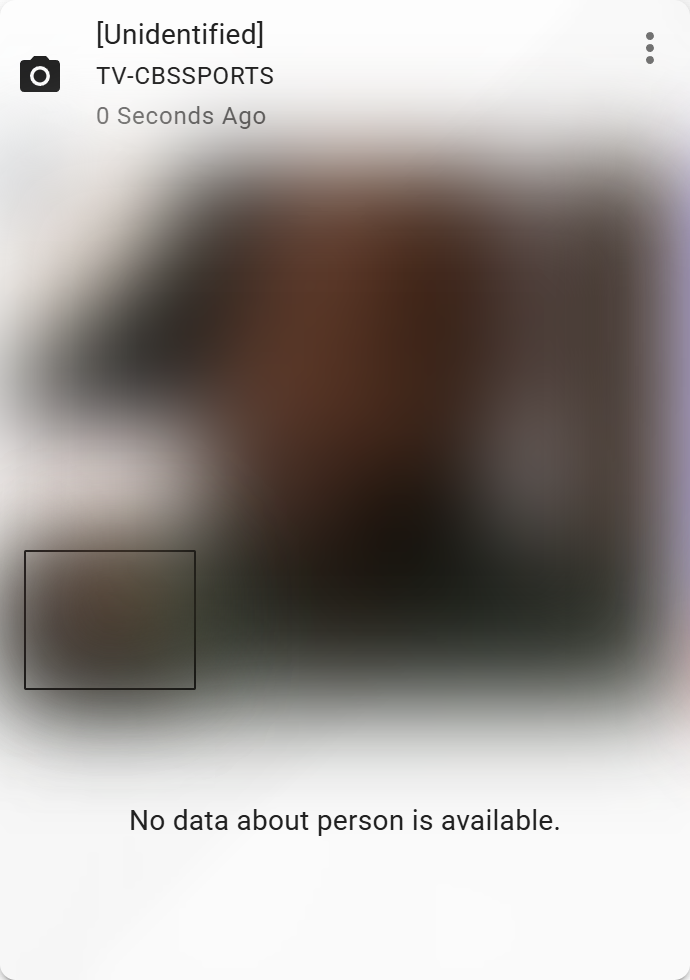
An unidentified detection card (face blurred). When the person is known and custom fields are selected on the Data Display tab, their name and those fields appear on the card.
Applying Filters
Use the Apply button at the bottom of the dialog to commit your changes. Close discards pending changes and leaves the previous filters in place.
Applied filters are saved automatically — see Operator Controls → Settings Persistence for how and where they're stored.