Adding and Starring Items
Most of what ends up in your workspace gets there without you asking. This page covers the few decisions you do make: what to keep, what to let go, and how to label a step so it still makes sense next week.
Items add themselves
Drilling into a grid, opening a record from a list, or following an aggregate slice to the rows behind it all create a node. Moving between top-level pages does not, so the tree stays a record of the enquiry rather than a browsing history.
Going back to somewhere you have already been reactivates the existing node instead of adding a second one. That matters when you are comparing two records and moving between them repeatedly — you end up with two nodes, not twenty.
Keeping what matters: the star
Ordinary nodes are housekeeping. eConnect holds the 40 most recent and drops the least-recently-visited beyond that, so a long shift does not bury the important steps under exploratory ones.
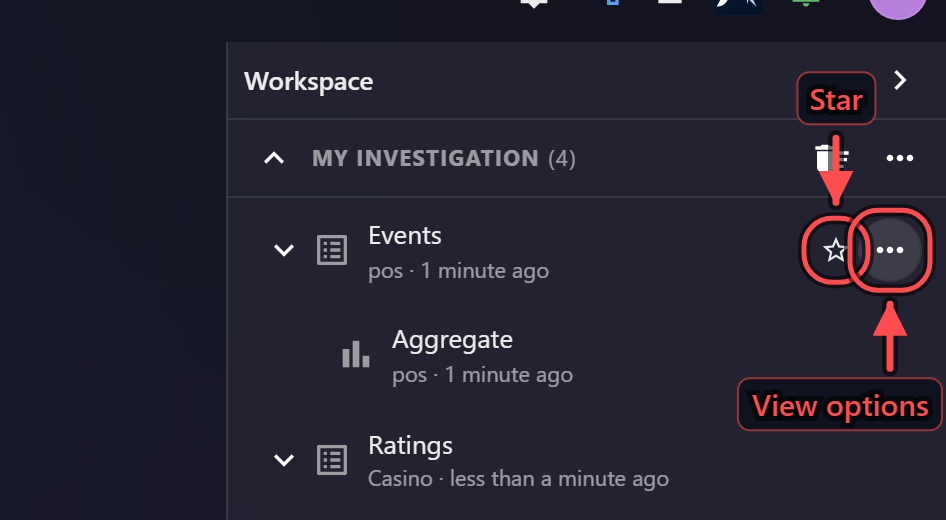
Starring a row takes it out of that count and off this machine. A starred step becomes one of your Favorites: saved to your account, listed in the drawer, and waiting for you on any machine you sign in on. The star on a Workspace row, the star in the page header and the star in the drawer are all the same control.
Star the steps you would be annoyed to lose: the query that framed the investigation, the subject at the centre of it, the dashboard you start every shift on.
The eviction rule counts un-starred nodes, so the thing at risk is always the step you visited longest ago — which, in a long investigation, is usually the one that started it. Starring as you go costs nothing and is more reliable than tidying up afterwards.
The tree itself belongs to the session: it survives a reload, and on the web client it belongs to that browser tab. If you are going home on a live enquiry, star the steps you will want in the morning.
Show favorites only, in the tree's options menu, hides everything else while you work through what you kept.
Naming and annotating
Each node gets a title automatically from what it represents. When that is not enough, the row menu offers:
| Action | What it does |
|---|---|
| Rename… | Replace the automatic title with your own. The node keeps your title from then on. |
| Edit note… | Attach a note to the node — why you looked, what you concluded. |
| Fork | Branch from this node, keeping the original intact. |
| Open in new window | Open this step in a window of its own, leaving the tree where it is. |
| Share with team… | Hand the step, and everything under it, to colleagues. |
| Others can edit | Let colleagues change the shared copy, rather than only read it. |
| Update shared copy | Push what has changed since you shared it. |
| Unshare | Withdraw the shared copy. |
| Remove from workspace | Take the step out of the tree. |
The star sits beside that menu rather than inside it, and the menu opens whether or not the view is a favorite — renaming a step, noting why you looked, or opening it in a window does not require starring it first.
Open in new window is how two steps get looked at side by side — the subject in one window, the transactions in another, both live. It applies to module views; a node that is not one offers the entry greyed out and says why.
A note is worth writing at the moment you decide something. "Ruled out — different vehicle" takes five seconds and saves the ten minutes you would otherwise spend re-deriving it. Notes travel with a shared workspace, so they also serve as the explanation a colleague needs.
Forking
Fork creates a branch from an existing node so you can try a second line of enquiry without disturbing the first. The fork records where it came from, so the relationship stays visible in the tree rather than becoming two unrelated threads.
This is the natural move when a single record suggests two different questions — fork once per question and follow each without losing the other.
Starring a dashboard
Starring while a dashboard is open captures that dashboard, not the dashboard list. The node is named for it, it carries the filters you had set, and it appears in your drawer Favorites — which is what makes a dashboard a usable start to a shift rather than something you navigate to.
What a node remembers
Alongside its address, a node stores a short summary of the view, a thumbnail where the view supports one, and enough presentation state to rebuild what you were looking at — the sort, the column filters, the query and the period.
Where that period came from a preset, the node remembers the preset rather than the dates: reopening Last 7 Days gives you the last seven days from today. Keep dates fixed, on the row's options menu, pins the window the node was captured on instead, and the row then carries a pin to say so.
Previews work in the browser as well as on the desktop, so a workspace built at a desk looks the same when you pick it up on a machine with nothing installed.
Some views hold more state than is practical to store. Where that state is too large it is dropped and the node falls back to restoring from its address alone: you get the right page with its default arrangement rather than the exact one you left. This is uncommon, and never loses the node itself — see Restoring a Workspace.
Clearing
Clear removes the exploratory steps and leaves your favorites and anything shared with the team in place — the usual way to finish one investigation and start the next without losing the anchors.