Sharing a Workspace
Sharing hands a colleague the enquiry rather than a description of it. They get the queries, the filters, the drill-downs and any notes you wrote — the whole thread, in the order you built it.
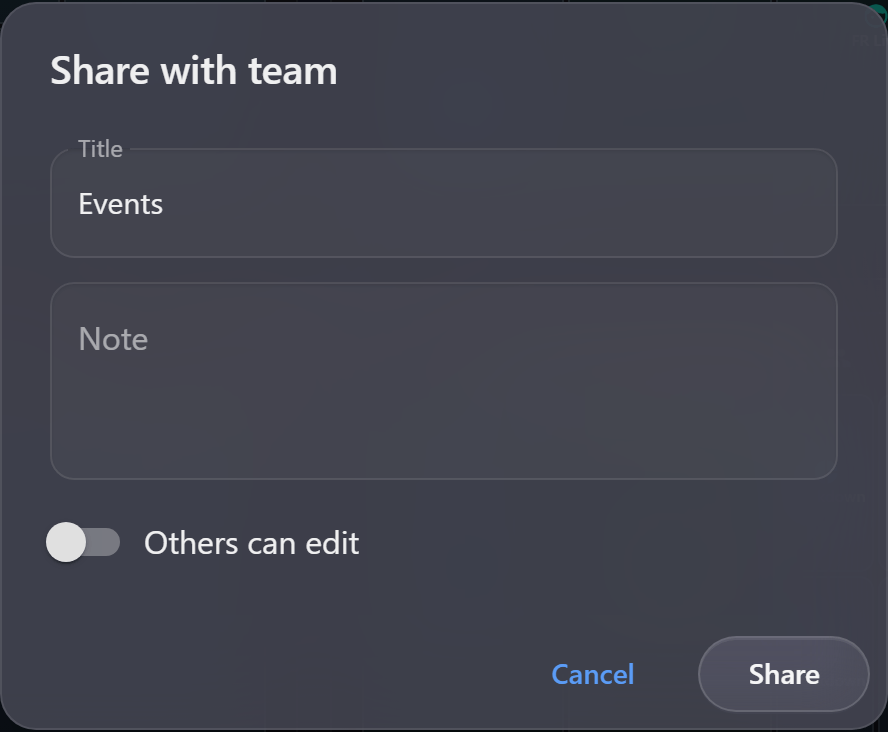
Sharing an item
Use Share with team… from a view's options menu. The dialog asks for a few things:
| Field | What it is for |
|---|---|
| Title | What recipients see in their Shared workspace list. Defaults to the node's title. |
| Notes | Why you are sharing it, and what you want the reader to notice. |
| Others can edit | Whether recipients may change the shared item, or only read it. |
| Dates | Whether the period moves with the preset, or stays on the window you shared |
The Dates toggle is the one to think about. Shared on Yesterday, the item opens on the recipient's yesterday — which is right for a standing handover and wrong for an incident. Pin the dates when the point is a particular night; leave them moving when the point is a routine.
Give the title enough context to stand alone. "Events" tells a colleague nothing; "POS voids around the 21:40 alert — register 4" tells them what they are opening and why, which is the difference between a share that gets acted on and one that gets ignored.
The Notes field is where the reasoning goes. A shared workspace shows what you looked at but not what you concluded, and the note is the only place that judgement is recorded.
Read-only or editable
Others can edit decides whether recipients can modify the shared item itself.
- Leave it off to share a finding. Recipients can open it and fork it into their own workspace, but the item they received stays as you sent it.
- Turn it on when the investigation is genuinely joint and you expect colleagues to extend it.
Off is the safer default. A recipient who wants to take the enquiry further can always fork it, which gives them a copy to work in without altering yours.
Editing and re-sharing
A shared item's own menu offers Edit… for changing its title and notes after the fact. If you carry on working after sharing, the item you shared reflects the state at the moment you shared it until you share again — so a share is a snapshot of your thinking, not a live feed of it.
What recipients can see
Sharing does not grant access to anything. A shared workspace restores against the recipient's permissions, so a colleague who cannot see a module will not see its data because you sent them a node pointing at it.
This is worth saying out loud when you share across teams: if a recipient reports that an item will not open, the likely cause is their permissions rather than a fault in the share. See Permission Groups.
Unlike your own tree, which stays on the computer you built it on, a shared item is stored centrally so recipients can reach it. Share deliberately, and give the item a title you would be comfortable with a colleague seeing in a list.
Receiving
The other side of this is covered in Workspaces Shared With You.