Advanced Query
One sentence is a blunt instrument. A description such as a person wearing a red shirt says what you want, but it has no way of saying what you do not want, and no way of saying that one part of it matters more than the rest. Advanced Query gives you both: several things to match, several to steer away from, and a weight on each.
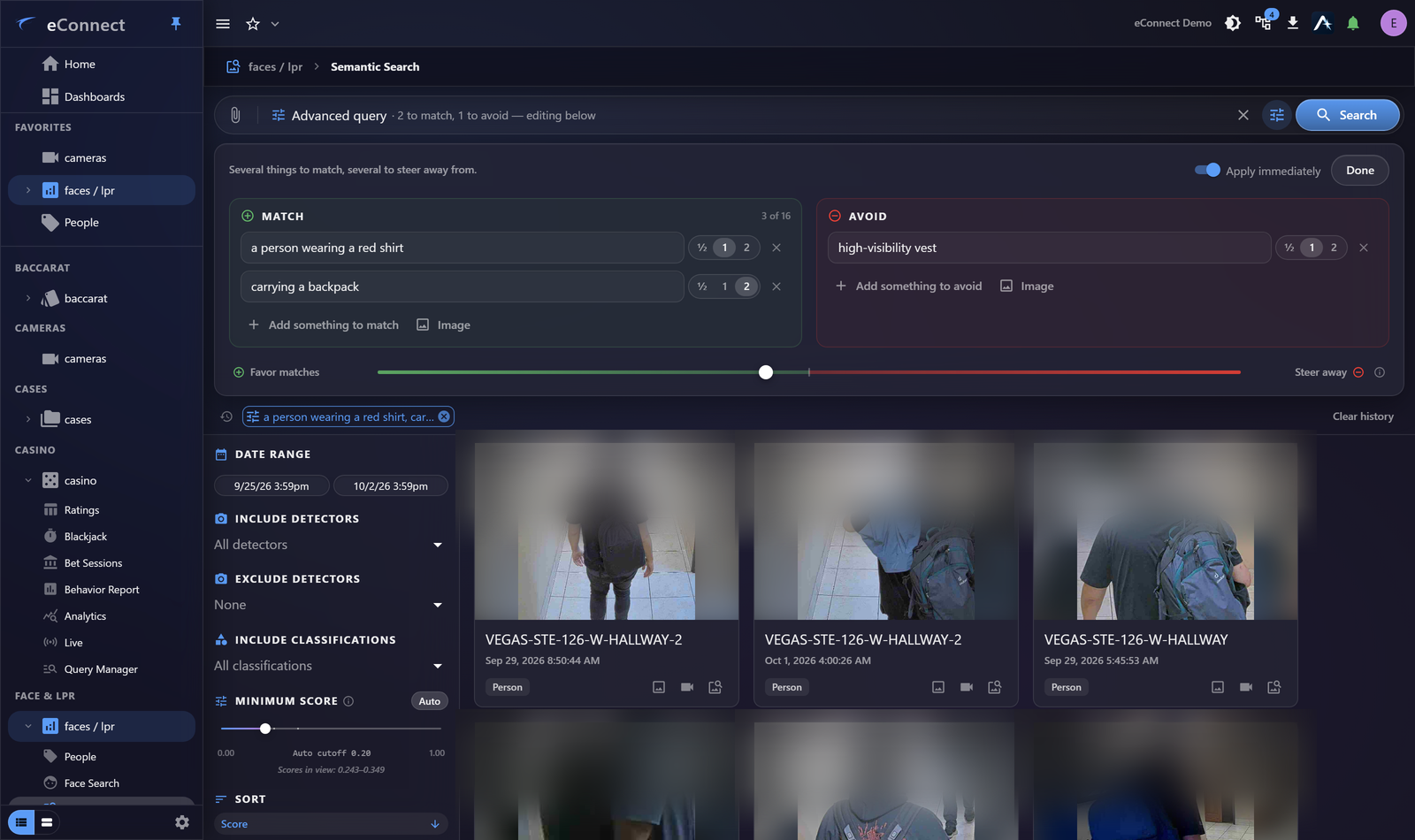
Open it from Advanced query beside the search box. The bar keeps a running summary — 2 to match, 1 to avoid — so you can collapse the panel and still see what is about to run.
The two lanes
Match is what you are looking for. Avoid is what keeps turning up and is not what you want. Each lane takes its own prompts, added with Add something to match or Add something to avoid, and each prompt is an ordinary description — the guidance in Writing a Good Description applies to every row here.
The Avoid lane is the part that has no equivalent in a single-sentence search. Asking for a person not seen from behind does not work: the model has no notion of negation inside a sentence, so that description lands almost on top of a person seen from behind. Putting the back of a head in the Avoid lane does work, because it is handled as a direction to move away from rather than as a word in a sentence.
Weights
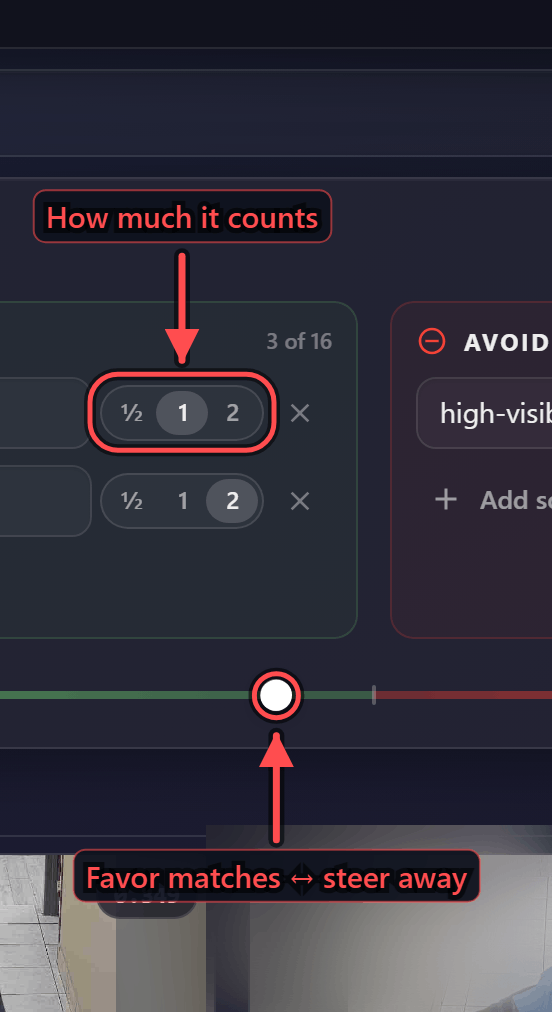
Every prompt carries a weight of ½, 1 or 2, set on the pill at the end of its row. The weight is relative within the search: a prompt at 2 counts twice as much as one at 1, and one at ½ counts half as much.
Use this when the parts of a description are not equally important. Looking for a person in a red shirt carrying a backpack, where the backpack is the detail the witness was sure about, weight the backpack to 2 and leave the shirt at 1. The shirt still shapes the result; it just no longer outranks the thing you actually know.
Weights apply in the Avoid lane too — something that keeps flooding the results can be pushed away harder than something that merely appears occasionally.
The balance slider
Beneath the lanes, a slider runs from Favor matches on the left to Steer away on the right. It decides how hard the search leans away from the Avoid lane, and it starts near the middle.
Drag it right when the results still contain what you are avoiding. Drag it left when steering has started removing things you wanted — pushing too hard moves the search away from the Avoid lane so firmly that genuine matches on the other side of it go with them.
The whole ensemble is blended in the client, so the slider and the weights re-rank the results you already have, instantly. Nothing is re-embedded and nothing goes back to the server, which is why tuning is a matter of dragging rather than re-running.
Searching by picture as well as words
Both lanes take an Image as a prompt. Supply a photograph as something to match, or as something to avoid, and it is blended with the text prompts in the same way and weighted on the same pill.
Image prompts are kept for the session only. They are not carried in a shareable link, they do not appear in recent searches, and they are not restored with a workspace — the picture stays on the machine you supplied it on. Text prompts persist in all three.
Limits
| Limit | |
|---|---|
| Text prompts, both lanes together | 16 |
| Image prompts, both lanes together | 8 |
| Length of a single prompt | 1,000 characters |
The counter on the Match lane — 3 of 16 — counts every row in the search, not just that lane, and the Add buttons stop offering rows once the total is reached.
In practice you will run out of usefulness long before you run out of rows. Three or four Match prompts and one or two Avoid prompts is the range where the results stay sharp; beyond that the prompts start averaging each other out.
Recent searches and sharing
An ensemble is named by its leading Match prompts and its counts — a person wearing a red shirt, carrying a backpack · 2 match · 1 avoid — and that name is what you see on the chips below the search bar. Hover one to see every prompt, its lane and its weight before you re-run it.
The same ensemble travels in a shareable link, so a colleague opens the search you built rather than a description of it. Image prompts are the exception noted above.
When to reach for it
A plain description is the right starting point, and most searches never need more. Advanced Query earns its place in three situations:
- Something unwanted dominates the results. Staff uniforms, high-visibility vests and the backs of heads are the usual offenders. One Avoid prompt clears them.
- The description has parts of unequal confidence. Weight what the witness was sure about above what they guessed.
- You have a picture and a description. Neither on its own is the whole of what you know.
Start plain, and reach for the panel when the plain search tells you what is wrong with it.
Related
- Writing a Good Description — what makes any single prompt work
- Filtering and Refining Results — narrowing by camera, time and score
- From a Result to the Evidence — opening the detection behind a match