Mobile Alerts Users
This document will give you step by step instruction on how to grant access for users to use the eC Alerts mobile application.
Prerequisites
-
User has been created in eConnect desktop application. Please see Adding Users.
-
User has been created in eConnect Cloud and granted permission to alert-bridge. Please see Managing Cloud User Access.
Admin Instruction
- Navigate to Setup → Users → User List → Select User and check the Mobile Alerts Enabled option.
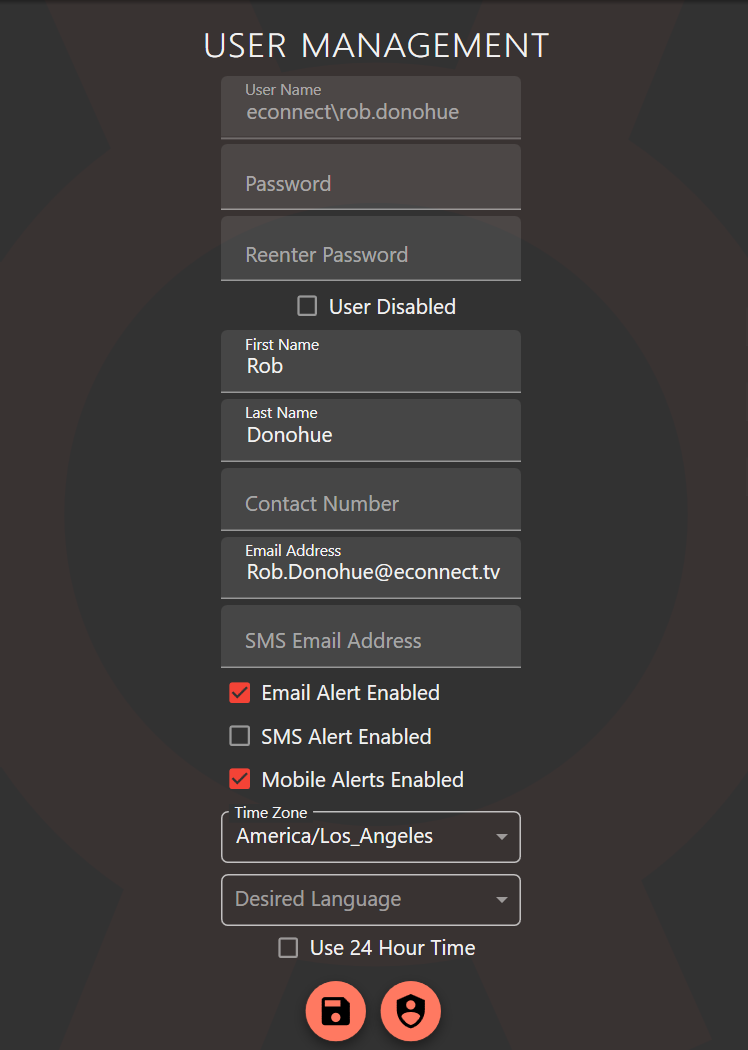
- Click Save.
- Navigate to Setup → Users → Logical Groups and select the Mobile Alerts logical group.
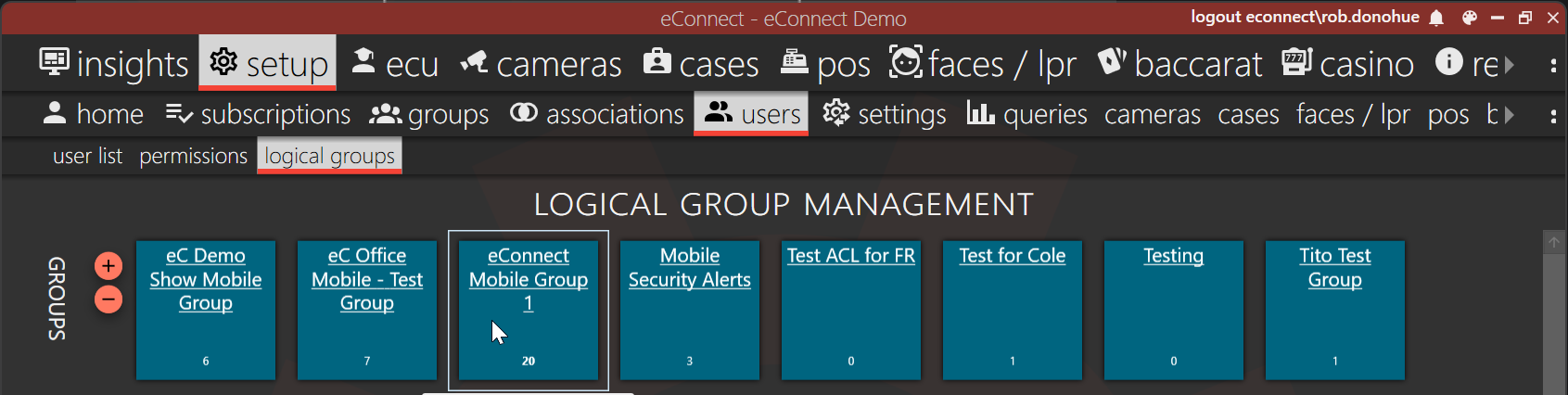
- Click the + to add user to logical group.
- In the popup window, select the user to be added to the logical group.
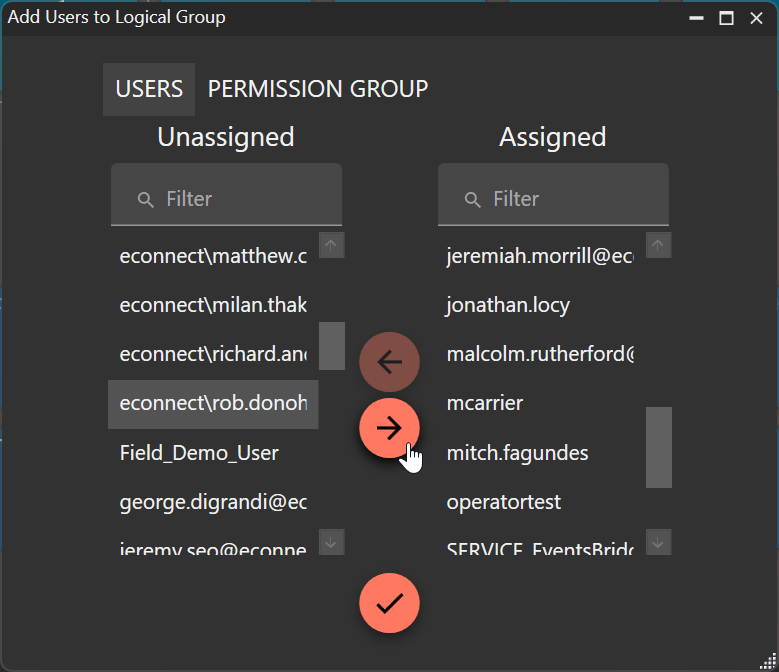
- Click the arrow to move user from Unassigned to Assigned.
- Click the checkmark to save.
User Instruction
- Sign into the eConnect desktop application.
- Navigate to Setup → Home
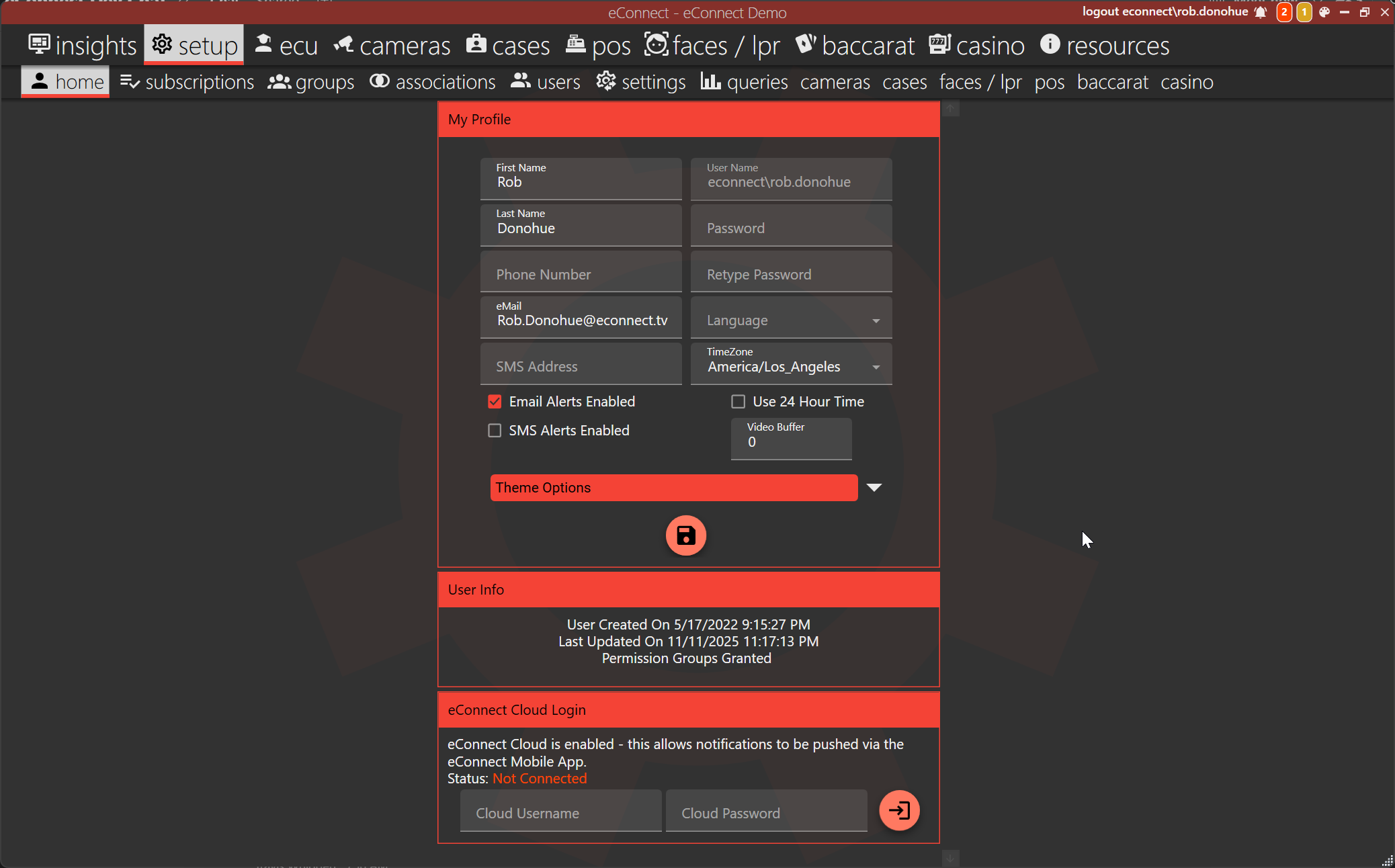
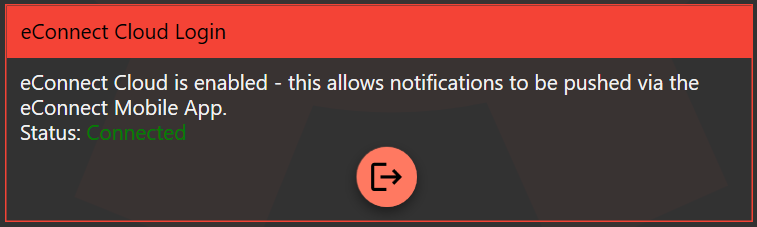
- Enter eConnect Cloud user credentials. If successful, the status will change to Connected
- Sign into eC Alerts App using eConnect Cloud credentials. Links for iOS and Android Apps below.
Download on iOS or Android