Adding Users
Adding users to eConnect is done through the eConnect desktop application.
Prerequisites
- You have Admin permissions for the eConnect Core application.
- You know which Permission Group the user will be assigned to.
Add a User
- Navigate to Setup → Users → User List

- Click the + underneath the user list to add a new user.
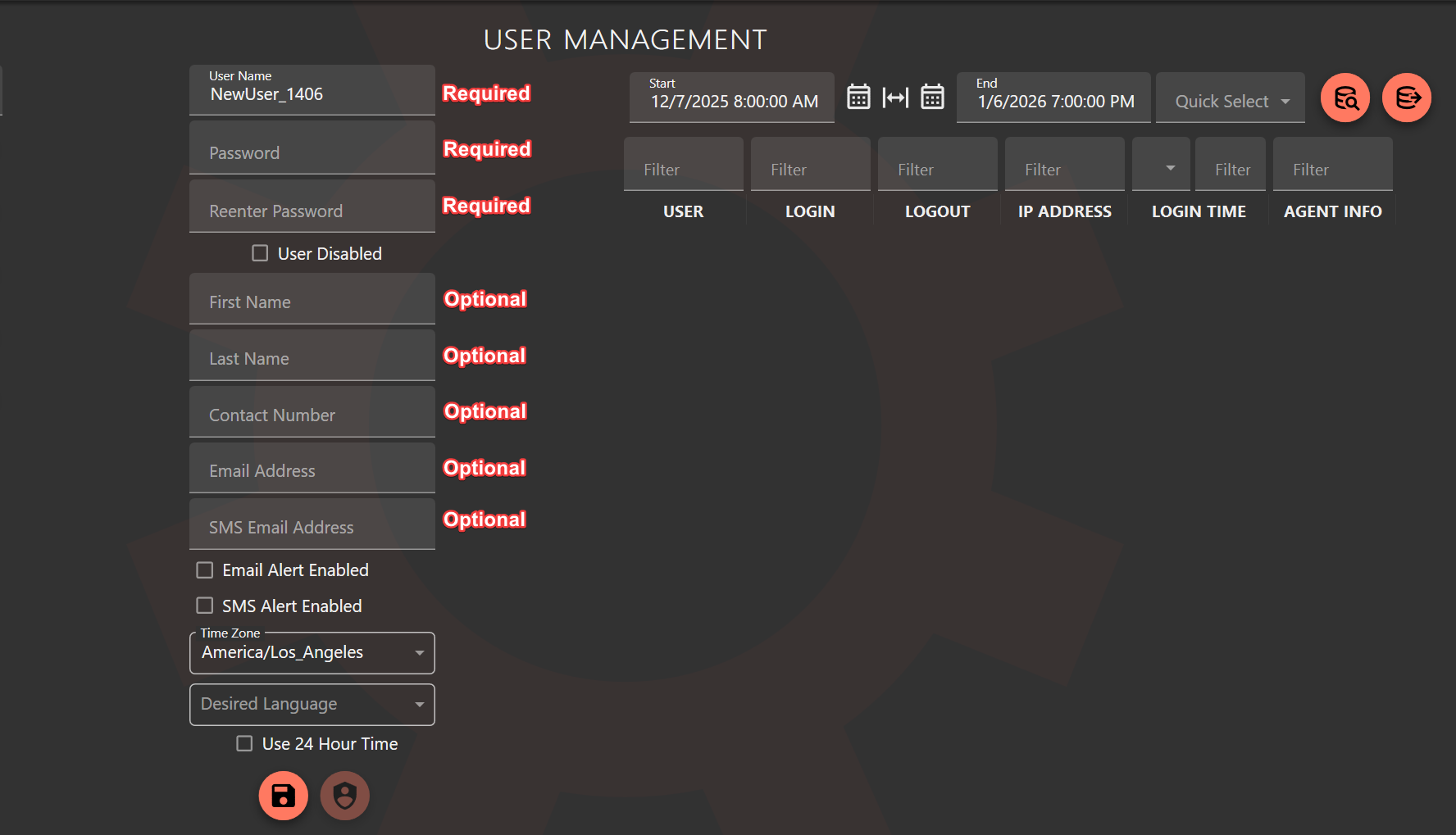
- Enter a Username and Password (both must be at least 5 characters).
- Any additional contact information you have for the user is optional.
- Click Save User
Assign User Permissions
- After clicking Save, click the Edit Permissions button.

- Select a Permission Group to assign to the user.
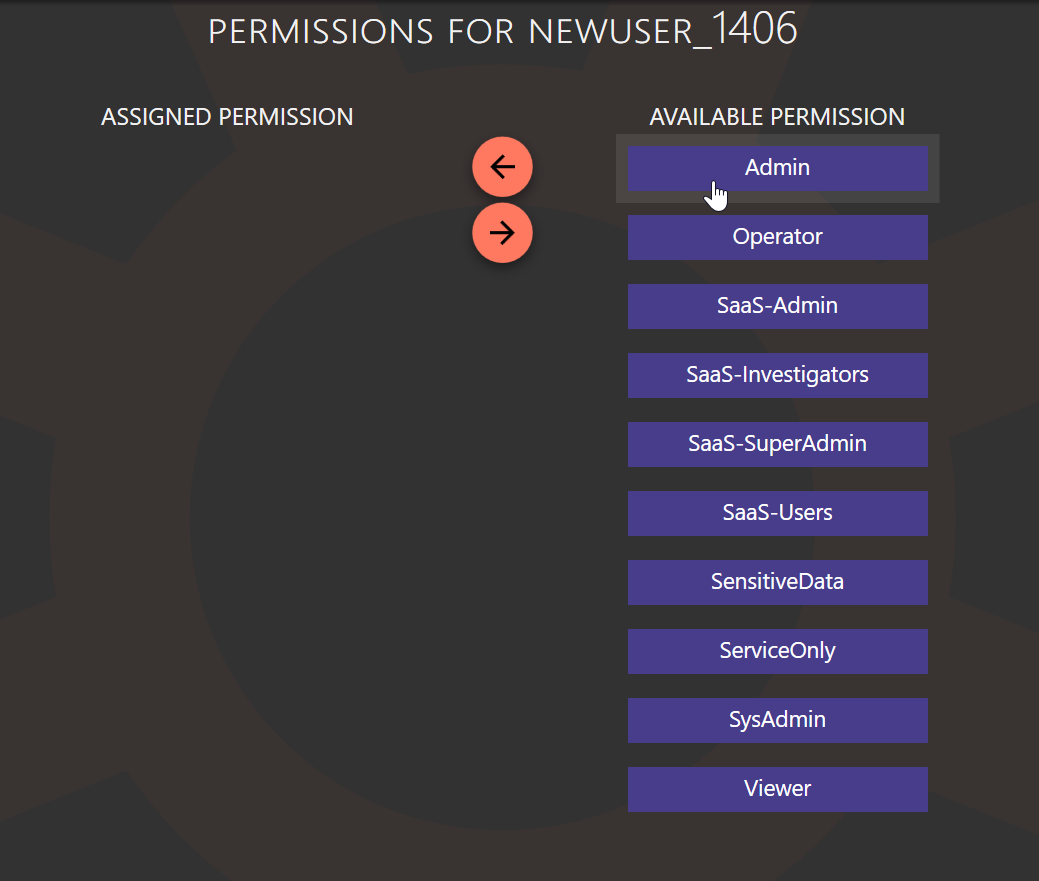
- After selecting a Permission Group, click the arrow to move it to Assigned Permission.
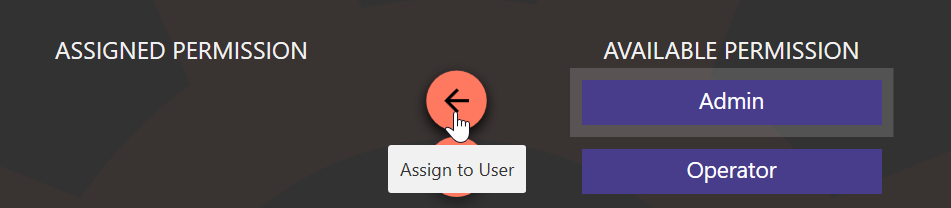
- To remove or switch Permission Group, do the reverse of step 3.
- Navigate back to User List and click Save User.