Getting an Auth Token
Before your AI assistant can query eConnect data, it needs to authenticate against your eConnect server. Authentication is handled through an encrypted auth token — a secure, time-limited credential that grants the MCP server access to your eConnect account.
The MCP server logs in as you and can only see data that your eConnect account is permitted to access. Tokens are encrypted with AES-256-GCM, expire after 7 days by default (configurable up to 30 days), and are reusable for any number of sessions until they expire.
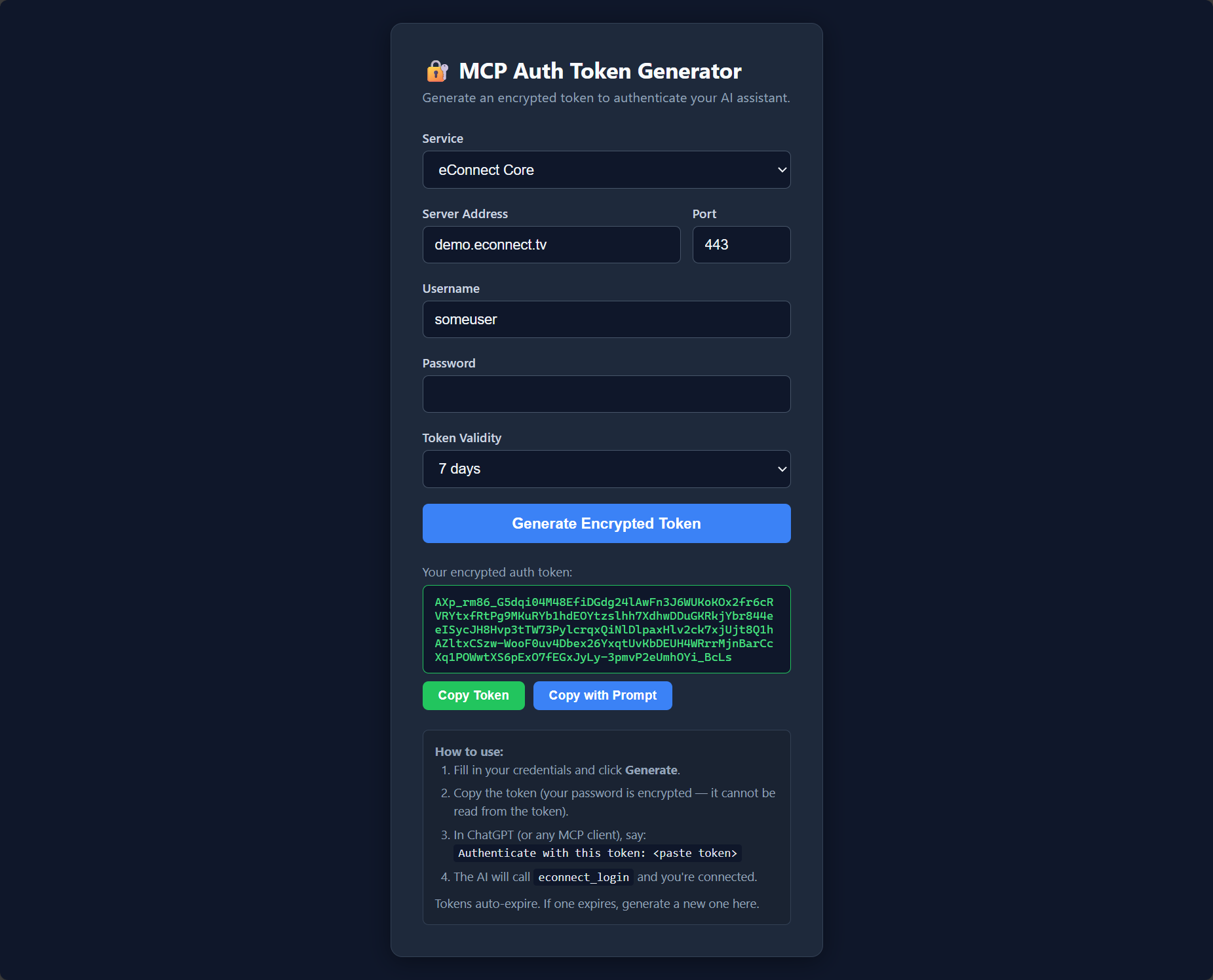
Option A: Generate a Token from the Auth Token Page
This is the easiest way to get started.
The link below points to the eConnect cloud-hosted token generator at https://mcp.econnect.ai/auth/. If your MCP server is hosted locally on your network, use your own server's address instead — for example https://myserver.example.com/auth/. The page works the same way; only the address is different.
-
Open your browser and go to your token generator page:
- Cloud: https://mcp.econnect.ai/auth/
- Self-hosted:
https://[your-mcp-server-address]/auth/
-
Fill in your eConnect server details:
- Server address — the hostname or IP of your eConnect Core server (e.g.
myserver.example.com) - Username — your eConnect login username
- Password — your eConnect login password
- Port — leave at
443unless your server uses a non-standard HTTPS port
- Server address — the hostname or IP of your eConnect Core server (e.g.
-
Click Generate Token
-
Copy your token using one of two options:
- Copy Token — copies just the raw encrypted token string
- Copy with Prompt — copies a ready-to-paste message you can drop directly into your AI chat
The token generator does not contact your eConnect server or verify your credentials when the token is created. The token is simply your credentials encrypted into a portable string. Validation only happens later — when your AI assistant decrypts the token and attempts to log in to your eConnect server on your behalf. If your credentials are incorrect or your server is unreachable, the login step in the AI chat will fail, not this page.
Option B: Ask Your AI Assistant to Generate a Token
If you've already added the eConnect MCP server to your AI client, you can ask your AI assistant to create the token for you directly in the chat:
"Get me an auth token for server myserver.example.com, username admin, password admin"
The AI will call the econnect_get_auth_token tool and return an encrypted token string.
Use this method only if you are comfortable sharing your credentials in the chat session. Option A (the browser-based page) does not transmit your credentials over chat.
Using Your Token
Once you have a token, paste it into your AI chat session to log in. You can use the full "Copy with Prompt" text, or just tell your AI:
"Log in to eConnect using this token: [paste your token here]"
The AI will call econnect_login → receive a session key → and be ready to query your eConnect data.
Discovering Available Plugins
After logging in, ask your AI what eConnect modules are available on your server:
"Log in to eConnect using that token, then show me the installed plugins"
This helps you understand which modules (Face Recognition, LPR, POS, Casino, etc.) are active on your specific installation.
Token Lifespan and Renewal
| Property | Value |
|---|---|
| Encryption | AES-256-GCM |
| Default validity | 7 days |
| Maximum validity | 30 days (server configurable) |
| Reusable | Yes — valid for multiple sessions until expiry |
| Scope | Matches your eConnect account permissions |
Tokens are reusable — you don't need to generate a new one for every chat session. Once a token expires, generate a fresh one from the Auth Token page and paste it into your next session.
Some AI clients (like Claude Desktop via its Projects feature, or VS Code via Copilot Instructions) allow you to save persistent context. Because tokens are reusable until they expire, you can paste your token there once and it will work for every new chat session until the expiry date. See the individual client setup guides for details.