A New User Manual for eConnect Core v11 — and How We Built It

eConnect Core v11 is the biggest release we have ever shipped — a brand-new client on the desktop and in the browser, Ace, Semantic Search, the Workspace and a lot more. A release like that needs a manual to match, so we wrote one from scratch.
Executive summary
- A new user manual for v11: 155 pages across 11 chapters, from your first sign-in through every module to administration. It replaces the WPF-era guides.
- Pictures on almost every page: 95 screenshots, cropped to the thing being described, with red arrows and numbered steps where your eye needs to land.
- Every screenshot comes from a live system, automatically. When the interface changes, we re-run a script instead of re-taking a hundred pictures by hand — so the manual keeps up with the product.
- Privacy is built in. Names, faces and plates are masked before the picture is taken, and a screenshot that fails a check is never published.
- Rebuilt release notes: the v11.0 release notes are now written for the person deciding whether to upgrade.
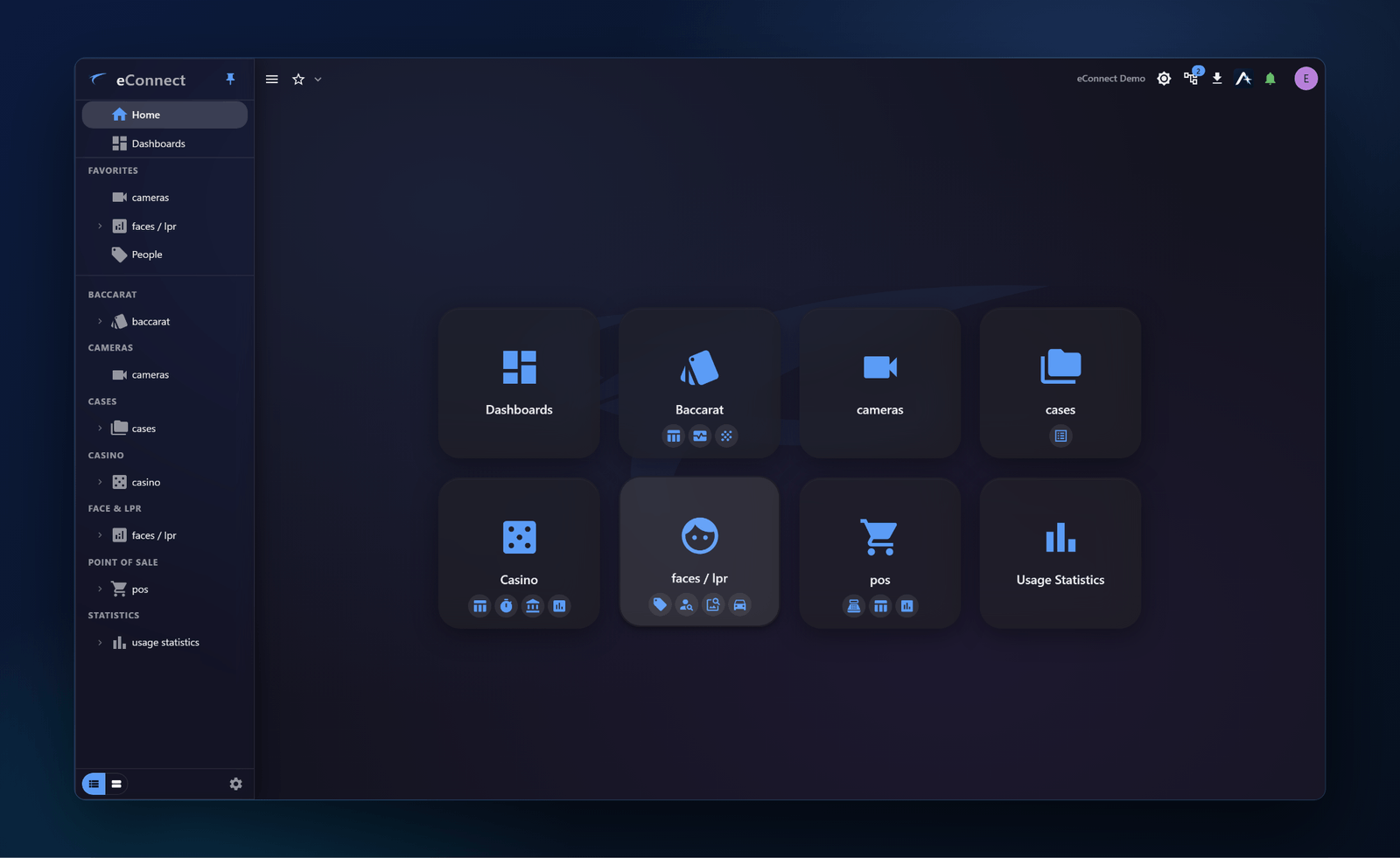
Why a new manual
Version 11 replaces the WPF desktop client. Almost every screen changed, and whole areas — Ace, Semantic Search, the Workspace, Favorites — did not exist before. Patching the old guides would have left a manual full of screenshots nobody would recognise, so we started over and organised it around how people actually use eConnect.
| Chapter | What it covers |
|---|---|
| Getting Started | Installing the desktop client, signing in, using eConnect in a browser, and your first ten minutes |
| The Window | Home and tiles, the navigation drawer, favorites, pop-out windows, themes and your profile |
| Workspace | Building and sharing an investigation workspace |
| Dashboards | Creating dashboards and every widget type |
| Working with Data | Grids, filters, saved queries, aggregation and export |
| Semantic Search | Finding people and vehicles from a description |
| Ace | Using the chat, starter prompts, charts and reports, and what Ace can and cannot see |
| Alerts | The alert tray, your preferences, acknowledging and muting |
| Modules | Point of sale, casino, baccarat, faces and plates, cases, cameras and usage statistics |
| Administration | Users, permissions, logical groups, system settings, Ace configuration and the audit trail |
| Reference | Keyboard shortcuts, a glossary, permission keys, the audit catalog and troubleshooting |
The manual is here.
How we built it
Written against the product
Every page was checked against the v11 source code and the work that actually shipped, not against what we remembered the screen looking like. A small check compares the button and field names in the manual with the real labels in the application, so "Save and close" in the text is "Save and close" on the screen.
Screenshots from a live system
Each of the 95 screenshots is one entry in a list: which screen to open, what to click to get it into the right state, what to crop, and where to draw an arrow. A script signs in to a live eConnect system, works through the list and writes each picture beside the page that uses it. When v11.1 changes a screen, we re-run the script.
Privacy first
The demo system has people, faces and plates in it, so every screenshot is masked before the picture is taken: names are swapped for stand-ins, faces are blurred and plates are replaced. Then every shot is checked — for anything the masking missed, for a live alert sitting on top of the screen, for an empty page. If a check fails, the picture is not written. We would rather publish nothing than publish something we shouldn't.
Masking can be too eager, too. It once turned "Supported: JPEG, PNG" into a person's name. Now every substitution is logged, so we can read exactly what was changed after each run.
Fast to load
Screenshots are taken at double resolution so text is sharp, then resized and compressed. Screens with photos or video in them are kept lossless so faces and video frames do not band. The whole set went from 113 MB to about 22 MB, and nothing looks any different on the page.
Versioned with the product
The manual lives in its own section of the docs, set up to be versioned alongside eConnect Core — so when the next release changes things, the v11.0 manual can stay exactly as it is for the people still running it.
Tell us what is missing
A manual is never finished. If a page doesn't answer your question, or a screen looks different on your system, let us know and we'll fix it.
Open the eConnect Core v11 user manual →
Questions or feedback? Reach us at support@econnect.tv or call 702-523-8786.